 Add an Alert Data Service
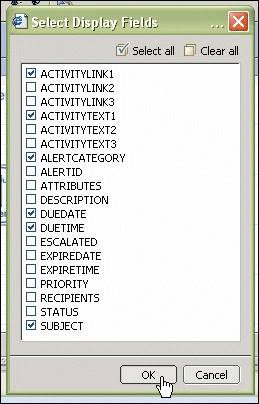
You can build an alert data service into your model to display SAP alerts in an analytical application. An alert data service displays all SAP alerts available in the Universal Worklist on the portal. You display the alerts in a table, using the Select Display Fields dialog box to select which alert attributes are displayed.
Prerequisites
You must have an SAP ERP or SAP BI system configured on the portal as an AlertConnector.
For more information, see Universal Worklist Configuration in the Technology Consultant's Guide
Your portal user must be configured with the additional Standard User Role required by the alerting framework. This adds the Universal Worklist to the portal in the
 Home
Home  Work
Work  tab.
tab.You must have conditions that lead to the broadcast of alerts in your system, and the alerts must be active and displaying in the Universal Worklist on the portal, for them to show up in the Visual Composer alert data service. To see if you have active alerts, log in to the portal and choose
Home Work , then select the Alerts tab.For more information, see Triggering Alerts in the SAP NetWeaver Developer's Guide.
For more information and references on configuring an alert data service for Visual Composer, see Configuring Universal Worklist Connectivity in the SAP NetWeaver Visual Composer Installation & Configuration Guide.
Procedure
Navigate into an iView, and choose
Tools Alert Data Service .Click Generate to place an alert data service on your storyboard.
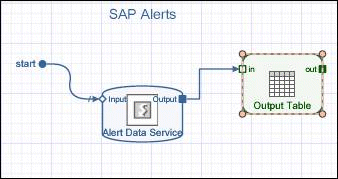
On the storyboard, connect a start point to the data service's Input port and a table view to its Output port, which evokes the Select Display Fields dialog box.
Using the Select Display Fields dialog box, select the alert attributes you wish to display in the table, and click OK:
 (Alert
Attributes)
(Alert
Attributes)In your workspace, your model is now complete and ready to be deployed to the portal. It looks something like this:
 (Complete Model)
Before you deploy, make sure your runtime is set to Adobe Flash format:
From the main menu, select
Tools Options .Select the Compiler tab, and from the Runtime dropdown box, select Flash.
Go to the Deploy task panel, and choose Deploy.
Result
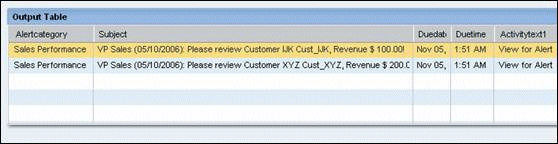
As displayed in the portal in runtime, your iView might look something like this:
 (Runtime)
The table lists all active alerts in your Universal Worklist on the portal, including all attributes you configured for display.
 Recommendation
Tip: You can model your applications to display ACTIVITYLINK fields in HTML views. Drag an HTML view to the workspace, connect it to the alert table's out port, double-click the connecting select line and map the url input field to the desired ACTIVITYLINK value.
See also:
Alert Data Service in the SAP NetWeaver Visual Composer Reference Guide.