 Property Editor
The Property Editor enables portal administrators to view and edit the properties and attributes of portal objects.
Portal objects are comprised of properties. Properties are object parameters that enable objects to be configured and personalized-the property values of an object characterize its behavior and make it unique from other objects.
When the properties of an object are displayed in the Property Editor, the Property Editor first queries the semantic layers for the properties of the object, and then displays them. Properties can be object-specific, while others are generic to all object types.
Portal administrators with appropriate permissions can edit portal content by customizing the property values in portal objects; for example, to modify the default height of an iView.
 Note
Note
The Property Editor serves all objects types; however some objects, such as roles and pages also utilize specialized editors, which enable you to define the content and layout of these objects. See Object Editors. You edit objects that do not require a specialized editor in the Property Editor.
Structure
The Property Editor opens on the right of the editing area when you open a portal object for editing.
If an object does not utilize a specialized editor, such as certain iViews, the Property Editor spans the entire width of the editing area to the right of the Portal Catalog, and minimizes the Object Editor area.
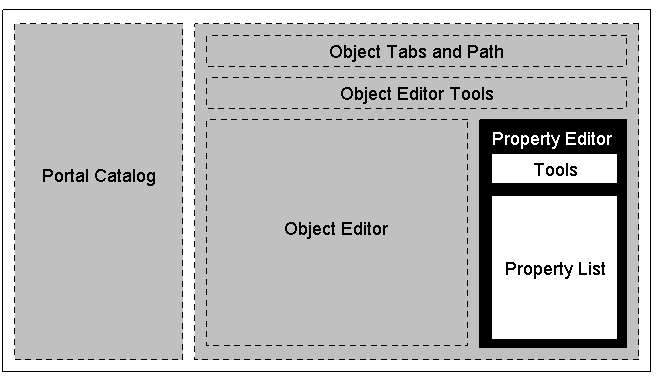
Wireframe schematic focusing on the Property Editor (black background)
The Property Editor interface is divided into the following areas:
Area |
Description |
|---|---|
Tools Area |
Displays the following:
|
Properties List |
Displays an alphabetical list of the properties and their corresponding values. The properties relate to the object currently in focus. Properties can either be customizable or read-only. For more information, see Defining Property Values.
End of the recommendation. |
 (Context Menu icon)
 Recommendation