 Defining Portal Display Rules
Rule collections allow you to define the way in which portal desktops are assigned to portal users at runtime.
You use the Portal Display Rules Editor to create rule collection objects.
 Note
Note
Note the following:
Conditions are prioritized according to their top-to-bottom order of appearance in the rule collection. If a user fits more than one condition, then the first condition that is true for that user, determines which portal desktop is displayed. See the example below for details.
An IF-THEN condition may contain unlimited nested IF expressions.
An IF-THEN condition may contain only a single THEN expression.
A rule collection object may contain conditions that reference other rule collection objects. For example:
IF Browser Type = Microsoft Internet Explorer
THEN Rule collection = pcd:Display_Rules/MSIE_Rules
Prerequisites
You have access to the Portal Display Rules Editor (by default, it is assigned to the system administration role).
You have at least read/write permissions for the Portal Catalog folder in which you are creating or editing a rule collection object.
You have at least read administrator permissions on the relevant portal desktop and rule collection objects in the Portal Catalog.
If you intend to use portal URL aliases in your display rules, you need to configure your portal gateway accordingly. See Portal URL Aliases.
Procedure
Creating a Rule Collection
Navigate to
 System Administration
 Portal Display Desktops &
Display Rules
Portal Display Desktops &
Display Rules  .
.In the Portal Catalog, right-click a folder in which you want to create a rule collection object and choose
New
Rule Collection . The Portal
Display Rules Editor opens.In the Rule Collection Name field, enter a friendly name for the rule collection object.
In the Rule Collection ID field, enter a unique ID for the rule collection object.
Define the conditions of the display rules using a combination of IF and THEN expressions:
Action
Description
Adding a new IF-THEN condition
In the rule collection list, choose any existing IF or THEN expression and click Add IF Expression. A new IF-THEN condition is added to the end of the rule collection list (use the Move Up and Move Down buttons to correctly position the new condition).
By default, the new expression is defined as:
IF User = * THEN Portal Desktop = pcd:portal_content/every_user/general/defaultDesktop. Change the default values for each expression, as needed.
Repeat the following steps to define each of the IF and THEN expressions separately:
In the rule collection list, choose the relevant IF or THEN expression. The expression's currently assigned parameters are displayed in the editing area above the rule collection list.
In the editing area, define the parameter, operator, and value of the expression in the appropriate dropdown menus and text boxes.
Note the following:
When choosing an operator, select = for equals and NE for not equals.
Roles, groups, users, portal desktops, and rule collections require that you enter a full path and object ID. Precede the path with pcd: (without the slash) and follow with the full PCD path name and object ID. For example:
pcd:portal_content/every_user/general/eu_role
Instead of typing in the name of a role, portal desktops, or rule collection manually, you can choose the target object by right-clicking it in the Portal Catalog and then choosing Add <object_type> to Expression in the context menu.
You may use a wildcard value in the form of an asterisk (*) where necessary.
When entering a portal URL alias, enter only the alias segment of the URL. For example: portal/light or portal/guest.
When you have completed the expression, click Apply. The updated expression is added to the rule collection list.
Assign the new condition to the appropriate position in the rule collection list using the Move Up and Move Down buttons.
Adding a nested IF expression
Choose a THEN expression in an existing condition. Note that the nested IF expression is added directly above the selected THEN expression and below the last IF expression in the current IF-THEN condition.
The parameters of the THEN expression are displayed in the editing area above the rule collection list.
In the editing area, choose IF as the expression type in the first dropdown menu. A new IF expression is added to the rule collection list.
In the editing area, define the parameter, operator, and value of the IF expression in the appropriate menus and text boxes, as described above.
When you have completed the expression, click Apply. The updated IF expression is added to the selected IF-THEN condition.
Changing the priority of IF-THEN conditions
In the rule collection list, choose the root IF expression in the IF-THEN condition that you want to move, and then click either Move Up or Move Down.
This action moves the entire IF-THEN condition of the selected IF expression, including any nested IF expressions.
Deleting an IF-THEN condition
In the rule collection list, choose the root IF expression in the IF-THEN condition you want to delete, and then choose Delete.
This action deletes the entire IF-THEN condition.
Click Save. The rule collection object is created in the selected folder. You may access it later from the Portal Catalog for further editing.
Editing a Rule Collection
Navigate to
System Administration
Portal Display Desktops &
Display Rules .In the Portal Catalog, right-click a rule collection object that you want to edit and choose
Open
Object .The Portal Display Rules Editor opens and displays the conditions of the selected rule collection object.
Add, remove, or modify conditions as described in the table above.
Click Save.
Example
The diagram below illustrates how conflicting conditions are resolved; for example when a user matches more than one condition. At logon, the system begins with the first condition at the top of the list and works its way down until it reaches a match. Once a match is made, the user is given the portal desktop assigned to that condition, regardless of any matching conditions that may follow.
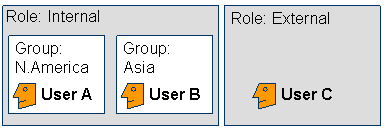
User Configuration
A particular company has the following setup:
Two roles: External and Internal
The role Internal contains users who also belong to two user groups: N.America and Asia
User A belongs to both the role Internal and the user group N.America
User B belongs to both the role Internal and the user group Asia
User C belongs to the role External
Conditions Defined in Portal Display Rules
If Group = N.America
Then Portal Desktop = Orange Flavor
If Role = Internal
Then Portal Desktop = Green Flavor
If Group = Asia
Then Portal Desktop = Blue Flavor
If Role = External
Then Portal Desktop = Red Flavor
Note that (i) user A matches conditions 1 and 2; (ii) user B matches conditions 2 and 3; and (iii) user C matches condition 4.
Results
According to the list of priorities, these are the results:
User A receives portal desktop "Orange Flavor" (according to condition 1 which has priority over rule 2)
User B receives portal desktop "Green Flavor" (according to condition 2 which has priority over rule 3)
User C receives portal desktop "Red Flavor" (according to condition 4)