 Adding a Second Data Service
In this example, you add a second data service to the model, create a dynamic expression and lay out the model.
Prerequisites
You have created the model in Creating the Base Model and it is open in Storyboard.
Procedure
Add a second data service to the model:
With the model open in the Design board, click the Find Data button in the task-panel toolbar and drag BAPI_SALESORDER_GETSTATUS onto the workspace.
In the Define Data Service dialog box, add the STATUSINFO output port. Click OK and then Yes to the displayed message box.
You can test the functionality of the Salesorder Getstatus data service (selecting Test Data Service from the right-click context menu) using 0000005650 as input to the Salesdocument field.
Define the input to the second data service:
To enable the user to select a document and get all of its details, the table created in the first example (Sales Orders Table) must serve as input to the second data service: Salesorder Getstatus. Therefore, connect the out port of the table to the Input port of Salesorder Getstatus.
If not already displayed, open the Configure Element task panel and click the select line to the Inputport of Salesorder Getstatus. As you can see in the table at the bottom of the task panel, the SALESDOCUMENT field of the Salesorder Getstatus data service must receive data from the table. To map the data, assign @SD_DOC to the SALESDOCUMENT field, by clicking on the fx column and choosing it from the drop-down list (you will need to scroll down in the list).
Define the output from the second data service:
In order to view the details of the selected document, the output can be displayed in a second table. First, drag out from the Statusinfo out port on Salesorder Getstatus, release and from the context menu, choose Add Table View. The Select Display Fields dialog box is displayed.
Select the following fields to be displayed in the table: CURRENCY, MATERIAL, NET_PRICE and REQ_QTY. These are the details of the selected sales order. Click OK. The Statusinfo Table icon is added.
Save the model. It should now look similar to the following:
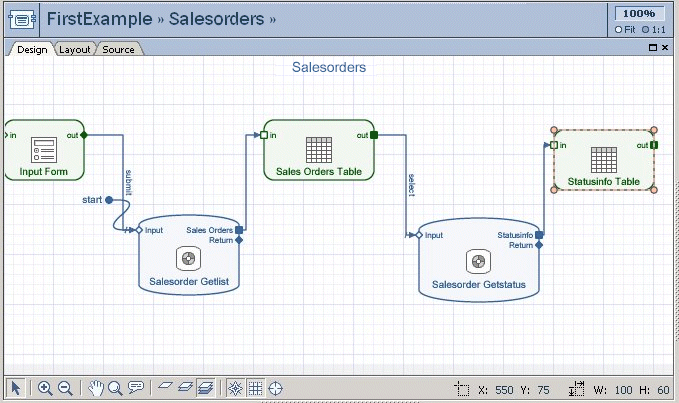 (Adding Output to Second Data Service)
Add a field with a dynamic expression:
This section explains how to add a “virtual field” to the second table (Statusinfo Table), in order to dynamically describe the order size of the selected material
On the Design board, double-click StatusInfo Table. The Configure Element task panel is displayed, showing the properties of the table itself and listing the columns displayed in the table.
Under the table at the bottom, click the
 (Add) button. The New UI Control dialog
box is displayed.
(Add) button. The New UI Control dialog
box is displayed.From the Select control type list, choose Expression Box. In the Fieldname field, type Order_Size (you can leave Text as the Data type) and click OK. Note that the Order_Size field is added to the list. The blue text indicates that the field is editable.
Double-click the Order_Size row in the table to display the Control Properties dialog box.
Click the General tab and to the right of the Expression field at the bottom, click Formula. The Computed Value dialog box is displayed, to enable you to create your formula for the computed field.
In the list of functions in the right pane, expand the Conditional Functions group and double-click the IF option. The following expression is displayed in the left pane:
IF(test,expr1,expr2)
 Note
NoteA Help pane is displayed at the bottom left, describing the function and giving an example of its use.
End of the note.In the left pane, edit the formula as follows:
IF(@REQ_QTY*@NET_PRICE>100000,@REQ_QTY*@NET_PRICE,'Small')
NoteWhen creating your formula, you can expand the Data Fields option in the right pane and drag the field names from the list, in order to assist you in data entry.
End of the note.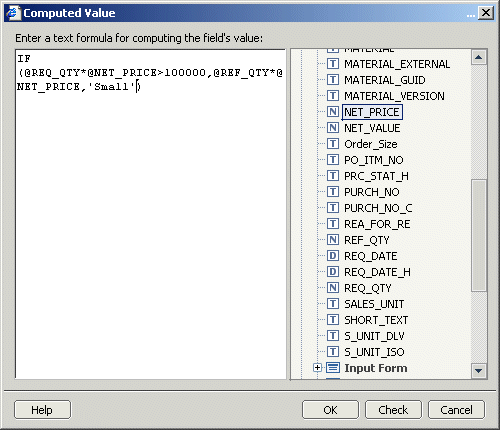 (Defining a Dynamic Expression)
This formula indicates that if the value of the order - requested quantity (REQ_QTY) multiplied by net price (NET_PRICE) - is greater than 100,000, the exact value will be displayed in the table. Otherwise (if the resulting value is less than 100,000) the word Small will be displayed in the list rather than the actual amount.
Click Check to ensure that the formula is valid. The following message should be displayed: Formula is valid.
Click OK. The formula you created is displayed in the Expression field.
Click Close to enter the dynamic expression in the Order_Size field of the table.
Save the model.
Rearrange the iView layout by clicking the Layout tab and clicking the Configure button in the task-panel toolbar (if not already selected).
Organize the iView as needed. The first table (Sales Orders Table) should be below the Input Form. The second table (Statusinfo Table) should be at the top right of the layout.
Click the edge of the Input Form, and click the Configure button in the task-panel toolbar. From the Align contents drop-down list, choose Absolute. This option lets you align the UI elements as you want.
From the Place labels drop-down list, choose Above. Labels are placed above the fields. Adjust the height of the form accordingly to accommodate all fields and controls.
From the Size frame drop-down list, choose Fit. This ensures that the form shrinks or expands at runtime so that it tightly fits around the fields and controls.
Change the Customer Number label as follows:
Select the field, right-click it, and from the context menu, choose Properties. The Control Properties dialog box is displayed.
Click the Display tab. In the Label field, change the label to "Customer No.".
From the Label position drop-down list, choose Long label.
Leaving the Control Properties dialog box open, click in the Sales Organization field and change its label to Sales Org. Then make it a long label as well.
Click Close.
Rename the tables as follows:
Right-click the edge of the Sales Orders Table (below the Input Form) and choose Edit Title from the context menu. Overwrite the text with Salesorders.
Change the Statusinfo Table name to Details.
Save the model. It should look similar to the following:
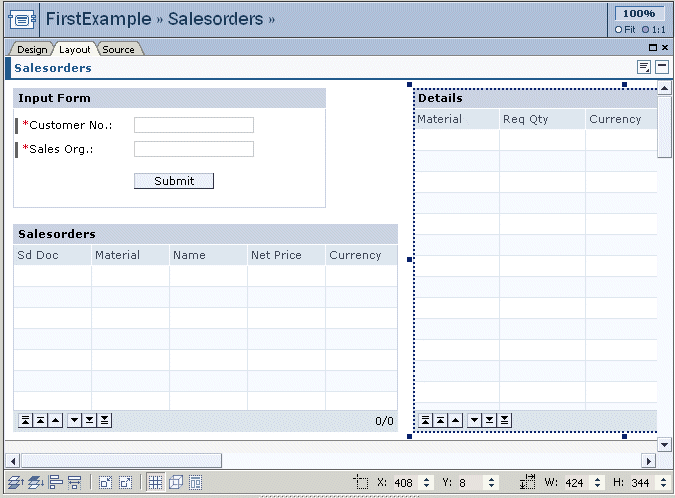 (Salesorders iView - Layout)
Deploy the model by clicking the
 (Deploy Model) button in the toolbar.
The model is compiled and deployed to the portal to which you are connected.
(Deploy Model) button in the toolbar.
The model is compiled and deployed to the portal to which you are connected.
Result
Your runtime model should look similar to the following:
 (Salesorder iView - Step 2)