 Creating a Portal Page
You create portal pages to display and assign content. Pages can organize content according to topics, roles, and various other categories that simplify content assignment.
You can create a portal page by:
Copying an existing page.
A copied page is a clone of the source page, including its content. Depending on whether you do a simple paste, or paste the page as a delta link, the new page may or may not have a direct link to the original. This determines whether the page will be affected by changes made to the source page.
Running the Page Wizard, which uses:
A predefined template, from which the page acquires its properties
A default layout, whose containers determine how content is displayed
Once you create a page, the wizard stores it in the Portal Content Directory (PCD) and displays it in the Portal Catalog, in the folder from which you ran the wizard. From there, you can open the page to edit its properties and format, as well as to add and edit content.
This method allows you to determine the initial page properties and format.
Using the Web Page Composer. More information: Web Page Composer.
 Note
NoteTo use the Web Page Composer, you must install the Knowledge Management (KM) capabilities.
End of the note.
Procedure
Copying a Page
Launch the Portal Content Studio. In the top-level navigation bar, choose
 Content Administration
  Portal Content
In the Portal Catalog, right-click the page that you want to duplicate, and choose Copy.
In the Portal Catalog, right-click the folder to which you want to copy the page, and choose either Paste or Paste as Delta Link. With either method, changes made to the template affect the new page.
Paste: The new page is not linked to the source page; changes made to the source page do not affect the new page.
Paste as Delta Link: The new page is linked to the source page. Changes made to the source page affect the new page. For information about delta links and inheritance, see Content Object Model.
Choose OK.
The following figure illustrates the two possible outcomes of a page copy:
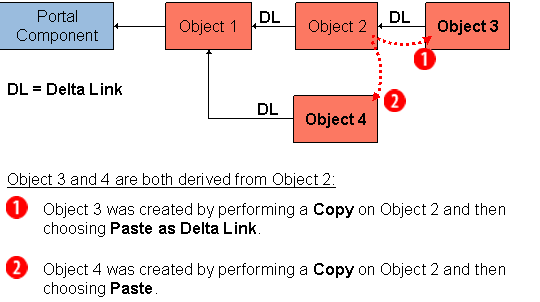
Copying Pages
Running the Page Wizard
In the Portal Catalog, right-click the folder to which you want to add the new page and from the context menu choose
New Page .Follow the instructions for each screen of the wizard, as detailed in the table below and on the wizard interface.
Screen |
Instructions/Additional Information |
|---|---|
Page Properties |
Enter the basic properties and choose Next. |
Page Name |
Display name that appears in the Portal Catalog, page title bar, and any form, dialog box, and window displaying a list of pages. |
Page ID |
Enter the unique page identifier that will be registered in the PCD. The page ID may include any of the following characters:
The ID must not exceed 100 characters. |
Page ID Prefix |
If you want all your pages to follow a specific naming convention, add a uniform prefix to each page you create. |
Master Language |
Defines the language on which all translations are based. |
Description |
An optional description that appears in the tooltip when you hover over the page name in the Portal Catalog and in search results. |
Page Template |
Select one of the predefined templates on which to base your page and click Next.
|
Page Layouts |
Select a default layout and any additional layouts that are to be available to this page, and choose Next. For a description of the out-of-the-box layouts, see Page Layouts. |
Available Layouts |
To associate a layout to this page, select it from Available Layouts and click Add to copy it to Selected Layouts. You can modify your selections later through the Page Editor. |
Selected Layouts |
Check the list you created and adjust if necessary. To delete a layout from the Selected Layouts box, click Remove. |
Default Layout |
The Default Layout list is identical to the Selected Layouts list. Choose the layout that you want as the default for this page. The default choice can be changed later through the Page Editor. |
Summary |
Review the options you selected for the new page. To make changes, choose Back until you return to the appropriate screen. When you are ready to create the page, click Finish. |
Next Step |
Choose your next step and click OK.
|