 Available Controls and Fields
This section lists all the controls and fields that can be defined within a UI component.
Controls and fields are defined either automatically when a component, such as a form, is created, or they are added using the Configure Element Task Panel. To configure the properties of the control, use the Control Properties dialog box, as described in the topics of this section.
Structure
The following table describes the available controls and properties:
Control/Field |
Example |
Description |
|---|---|---|
Bulleted list |
|
A selection control that displays a menu of options presented in a bulleted list. |
Calendar |
|
A date selection control that allows the user to select a date or a range of dates using a navigable monthly calendar. |
Checkbox |
|
A dual-state selection control used for setting or clearing Boolean (yes/no) fields. |
Clock |
|
A read-only control for displaying time values in an analog or digital clock. It can be used either for displaying the value of a time field, or the continuously running time of the system clock. |
Combo box |
|
A combination of a drop-down list and an input field, enabling the user to choose an option from a drop-down list or else enter values not available in the list. |
Date picker |
|
A date selection control that allows the user to select a date using a drop-down calendar. |
Drop-down list |
|
A list showing the possible values that a user can select and also the currently-selected value. |
Expression box |
|
A read-only control for displaying a calculated value in a single-line textbox. |
Gauge |
|
A read-only control for displaying numeric values on a radial scale. The current value of the gauge is determined by the angle of the gauge's needle relative to the total angular extent of the gauge |
Horizontal slider (HSlider) |
|
A numeric selection control that lets the user select a value by moving a slider thumb right and left between the end points of a horizontal slider track. |
HTML text |
|
A read-only control used for displaying an HTML-formatted fragment. |
Image |
|
A control used for displaying an embedded image. It is used in conjunction with the Image Library. |
Input field |
|
A single-line input control supporting all data types. |
List box |
|
A selection control consisting of a list that presents the possible values that a user can select. Exactly one item in the list can be selected at any time. |
Numbered list |
|
A selection control used for creating ordered menus of numbered options. |
Plain text |
|
A control used for displaying a text message with uniform formatting. If the control is associated with an action, it is displayed as a hyperlink. |
Progress bar |
|
A read-only control for displaying numeric values using a gradually filled bar. The current value is determined by the size of the filled portion of the bar, relative to the total size of the bar. |
Pushbutton |
|
A control used to invoke actions when it is clicked with the mouse or activated using the keyboard. |
Radio group |
|
A selection control consisting of a group of radio buttons, one for each of the possible values that a user can select. Only one radio button in the group can be selected at any time. |
Spinner |
|
A numeric range control with up/down buttons for stepping through the values in the range. |
Text editor |
|
A multi-line text editing control with support for line breaks, word wrapping and scrolling. |
Ticker |
|
An animated read-only control for displaying values on a continuously-moving display ribbon. |
Toggle button |
|
A dual-state selection control used for setting or clearing Boolean fields. Toggle buttons are usually associated with actions that are triggered when the toggle state is changed. |
Value help |
|
A button next to an input field that displays a dialog box with a list of valid values for the field. This helps an end-user select the right, properly formatted value to enter into the field. You configure the list of values with the Value Help Configuration Wizard. |
Vertical slider (VSlider) |
|
A numeric selection control that lets the user select a value by moving a slider thumb up and down between the end points of a vertical slider track. |
 (Bulleted List)
 (Calendar)
 (Checkbox)
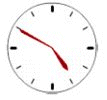 (Clock)
 (Combo Box)
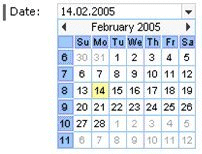 (Date Picker)
 (Drop-Down List)
 (Expression Box)
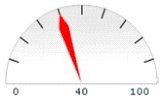 (Gauge)
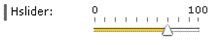 (HSlider)
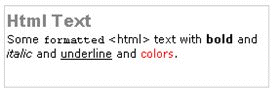 (HTML Text)
 (Image)
 (Input Field)
 (List Box)
 (Numbered List)
 (Plain Text)
 (Progress Bar)
 (Pushbutton)
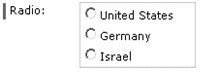 (Radio Group)
 (Spinner)
 (Text Editor)
 (Ticker)
 (Toggle Button)
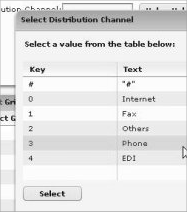 (Value Help)
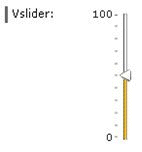 (VSlider)