
 Changing the Appearance of Business
Graphics
Changing the Appearance of Business
Graphics

Use
You can influence the appearance of a business graphic by:
● Specifying the dimensions of the business graphic
● Specifying the chart type
● Specifying the size of the business graphic
Dimensions
You can set the following dimensions for your business graphic:
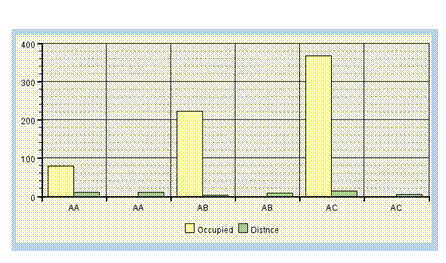
● 2D
The display is two-dimensional.
In vertical bar charts, the columns are displayed next to one another; in bar charts, they are displayed above one another.
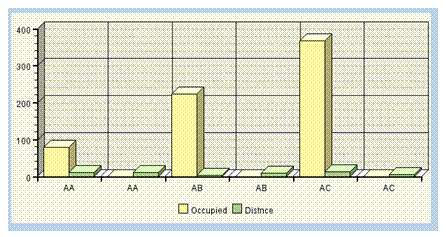
● Pseudo 3D
The display is three-dimensional.
In vertical bar charts, the columns are displayed next to one another; in bar charts, they are displayed above one another.
● 3D
The display is three-dimensional.
In vertical bar charts and bar charts, the columns and bars for each of the characteristics are displayed behind one another.

Chart Type
You can choose from the following chart types:
● Area chart
● Bar chart
● Vertical bar chart
● Doughnut chart
● Line chart
● Pie chart
● Split pie chart
● Stacked area chart
● Stacked bar chart
● Stacked vertical bar chart
● Stacked line chart
Prerequisites
● You display the data in the list as a business graphic (see Displaying Business Graphics).
● The Display tab page is available in the Settings dialog box.
Procedure
...
1. To change the appearance of the business graphic, open the Settings dialog box (see Using the Dialog Box with Settings for Lists).
The Display tab page is only visible if it is specifically activated for your application.
2. Choose the Display tab page.
3. To specify the dimensions for the business graphic, choose the required entry in the Dimension dropdown list box.
4. To specify the chart type, choose the required entry in the Type dropdown list box.
5. To specify the size of the business graphic, enter the required values in the Width and Height fields.