
 Information Consumer Pattern

Definition
Schema for user-friendly BEx Web applications that are intended for users without specific BI knowledge.
Structure
The Information Consumer Pattern is a template for BEx Web applications; there are different versions available. In general this pattern includes either a table or a graphic in which the data is displayed. The pattern can also include an application toolbar, which contains different pushbuttons and functions, depending on the version of the pattern.
Examples
This section provides examples of two versions (each with the application toolbar):
Information Consumer Pattern: Example A

In example A, the following functions are available:
The upper toolbar area displays the name of the query along with information about how current the data is.
In the lower area, the data is displayed either in a table or in a graphic. You can use the arrow keys in the column header to sort the column in ascending or descending order. A context menu is also available for the table cells; you can call this menu by choosing the right mouse button. The functions displayed in the context menu depend on the version of the pattern. For example, you can navigate to another BEx Web application. For more information, see Context Menu Functions.
The following pushbuttons are available in the application toolbar above the table or graphic. Each pushbutton has a different function.
Toolbar Functions
Pushbutton (or Link) |
Description |
Table (or Figure) |
You use this pushbutton to switch between the tabular and graphical display of the data. When the data is displayed in a table, Graphic is displayed as the pushbutton text. When you switch the display, the data is displayed in a graphic. Table then appears as the pushbutton text. You use this pushbutton to return to the table. |
Information |
You can use this pushbutton to display information about the data provider. You can display information about the key date, how current the data is, the time the last change was made, who last changed the query and the date of the last refresh. |
Send |
You use this pushbutton to distribute the BEx Web application by e-mail. The broadcasting wizard appears; it provides step-by-step instructions to help you enter the required data. More information: Broadcasting BI Applications with the Broadcasting Wizard. |
Print Version |
You use this pushbutton to make the settings for a print version of the BEx Web application. For example, you can specify the format for the print version and define whether a header is to appear on the pages printed. When you have made your settings and chosen OK, a PDF generation is triggered. You can print the generated PDF document. More information: Printing BI Applications |
Filters |
Using this link, you can display the filter area. The filter pane is displayed between the application toolbar and the table (or graphic). The characteristics that you can use for filtering are displayed in the filter area. You can select the characteristic values to be used for filtering for each characteristic that is used in the data provider. More information: Selecting Filter Values |
Information Consumer Pattern: Example B
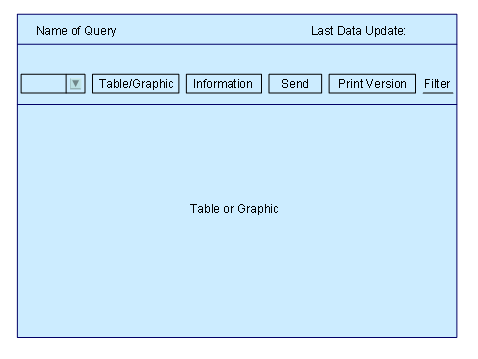
In addition to the functions in example A, example B includes a dropdown box in which you can select different views of the data. This allows you to switch between different navigation views that each displays a different aspect of the data.

For example, the BEx Web application displays the sales data for a specific product. You can choose from the following views in the dropdown box:
■ Sales for each distribution channel
■ Sales for each region
■ Sales for each customer