
 Editing Charts

Use
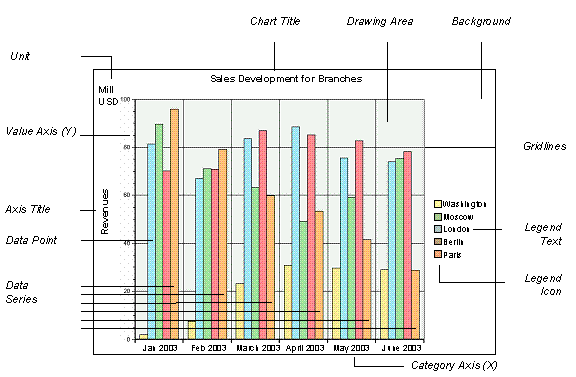
Charts display number series visually and make it easier for users to interpret business data.
Prerequisites
If you want to convert charts that you used in SAP BW 2.x or SAP BW 3.x to the current format, you require the standalone Internet Graphics Server (IGS) 6.40. You then need to change to the Internet Graphics Server 7.0. You can find more information under service.sap.com/upgradeNW70 → Upgrade.
You can edit charts in the Web Application Designer and in the Report Designer.
Editing in the Web Application Designer
You have created a new Web item of type Chart or selected an existing Web item of type Chart. You then chose Display → Edit Chart field on the Web Item Parameters tab page in the Properties window, thus calling the Chart Designer (see Creating Web Applications with the BEx Web Application Designer).

You can also open the Chart Designer by:
○ double-clicking the Web item
○ choosing Edit Chart in the context menu for the Web item
Editing in the Report Designer
You have created a report in the Report Designer and to insert and edit a chart, you have chosen Insert → Chart. More information: Functions in the Insert Menu
Process Flow
...
1. Before you begin publishing a chart, you need to specify which chart type you want to display. You can determine how the data provider is to be built by using the class of the chart type.
2. Select an existing query or design a new query with which you can generate a suitable view of the data, that is, a suitable data provider.
3. Start the publishing process and create a new Web item of type Chart.
4. We recommend configuring the properties of the chart Web item as follows:
○ Expanded hierarchy nodes should be hidden.
○ Totals should be suppressed.
○ If you want to swap the data providers in the chart, you should assign the Swap Display Axes property to the chart. The columns and rows are then swapped automatically when the chart is generated. You do not need to change the view on which the chart is based.
5. When you edit the chart, the Web Application Designer or Web Application Wizard first shows the default setting, that is, a column chart.
○ Firstly, format the chart using the wizard so that the most important settings and the number of displayed data series and data points correspond to your data provider (see also Formatting a Chart Using the Wizard). Assign the required chart type to the chart and format the chart as required.
○ All chart elements that you can format are displayed in the list of properties on the right of the screen. You can modify the properties as required here.