
 Planning Layout

Definition
A planning layout is a tool for providing data records from an InfoCube for manual planning or data entry.
The data records of an InfoCube can be seen as comprising characteristics that form the key, with key figures forming the data part of the records (see Star Schema). Planning level characteristics and key figures are assigned to the header, lead column, and data column area in a planning layout. At runtime for manual planning the key figure values of the data records for every combination of characteristic values are presented in the header in a matrix spanning the lead columns and data columns.
Structure
A planning layout consists of a header area and the lead and data columns. All characteristics of the planning level have to be distributed to the areas of the planning layout. The planning layout also has to contain at least one key figure.
Header area
The header area only contains characteristics. The values of the characteristics in the header area lie within the selection permitted in the planning level or planning package. SAP recommends you include characteristics in the header area that do not vary greatly.
You can also structure a planning layout without a header area. Normally this is only useful if you are only using a few characteristics and only a few combinations can be formed from the characteristic values.

For planning layouts which should be used in Web applications or in planning folders, the values of characteristics must be restricted to a single unique combination in the header area. Otherwise the layout cannot be executed in Web applications or planning folders.
Data columns
The underlying structure of the data columns is always fixed: The columns are created individually in the layout builder. Which key figure and which characteristic values are to be contained in the column are determined at that point. Each planning layout must have at least one data column.
To keep the number of the planning layout as low as possible, data columns can be parameterized: You can use a variable for a characteristic value or identify a data column for a characteristic as dynamic.
In this case the final structure of the data column is only determined at runtime: The system replaces variables and generates, from a dynamic column, as many columns as there are values according to the selection made in the master data. Only then is data from the InfoCube read and structured according to the structure of the planning layout. In this way the data columns for the planning layout always have a fixed structure (at runtime).
You can only use a characteristic in a data column if the selection for this characteristic is already determined in the planning level. This restriction does not apply to a dynamic characteristic in the data column.
Lead columns
Planning layouts can be divided into two basic classes:
· Those rows that appear at runtime and are not determined in the planning layout. The planning layout only describes which characteristics are to be used in the lead columns. The combination of characteristic values results from the data selected from the InfoCube. Lead columns of this kind are called Simple Lead Columns.
· As with data columns, you want to define each individual row in the planning layout. In this case the layout has just one lead column. You can determine which key figure and which characteristic values you want to use for each row on an individual basis. Here you have the same formatting options as in the data columns. As in the data columns, you can use a key figure and a characteristic value together. Therefore this lead column is also called a Complex Lead Column.
The key figures can either be used in the data columns or in the individually defined rows of a lead column. Each planning layout must contain at least one lead column.
The following graphic shows the ways in which you can structure planning layouts with the permitted layout types, in combination with different uses of characteristics and key figures:
Case 1: Layout type key figures in data columns
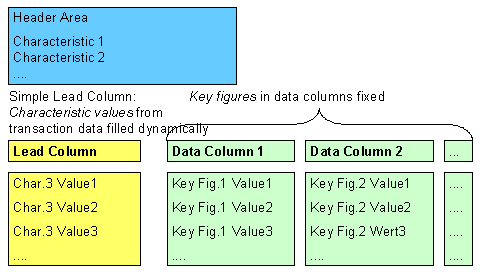
If you display key figures in the data columns, the lead column shows which characteristic values the plan data in the data columns refers to. The number of rows in the lead column is not fixed but is determined dynamically from the transaction data.
Case 2: Layout type key figures in data columns
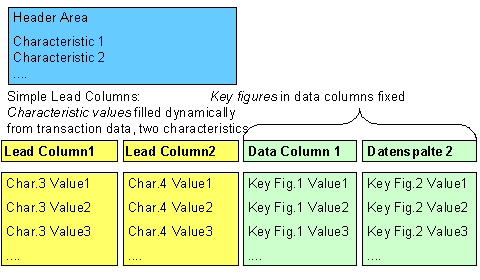
This planning layout differs from the first case only in that two characteristics have been included in the lead columns. For every additional characteristic, an additional lead column is generated. Therefore you see in the lead columns the exact combinations for characteristic values for which data records exist.
Case 3: Layout type key figures in data columns, rows defined individually

You can also create a planning layout so that you explicitly determine the characteristic values to be displayed in the layout in the definition of the layout.

The following example shows a planning layout with the characteristics fiscal year and business area in the lead columns. The revenue and the sales deductions are output for each fiscal year for the selected business area.
Revenue planning
1. Lead Column |
2. Lead Column |
1. Data Column |
2. Data Column |
Fiscal year |
Business area |
Revenue |
Sales deductions |
2000 |
Plant construction: Technical gases |
5002100 |
120350 |
2001 |
Plant construction: Technical gases |
5502250 |
130285 |
Case 4: Layout type key figures in lead columns

The following example shows a planning layout with a number of key figures in the lead column and the characteristics fiscal year and business area in the data columns.
Business area planning
1. Lead Column |
1. Data Column |
2. Data Column |
3. Data Column |
4. Data Column |
|
2000: |
2000: |
2001: |
2001: |
Gross domestic revenue |
|
|
|
|
Gross foreign revenue |
|
|
|
|
Stock changes |
|
|
|
|
Material expense |
|
|
|
|
Wages and salaries |
|
|
|
|
Depreciation |
|
|
|
|
Operating profit (Formula) |
|
|
|
|
Case 5: Layout type key figures in lead columns
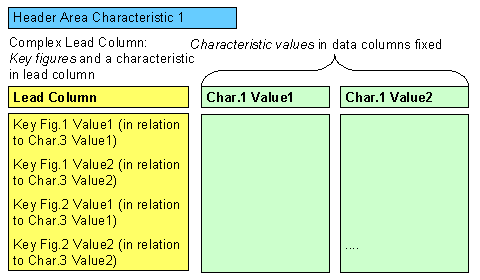
This planning layout differs from the previous case only in that a characteristic has been included in the lead column.
You are also able to mix key figures and characteristics in the data columns. Complex lead columns and data columns essentially behave in the same manner in the Layout Builder (Exception: Sign attribute as its own data column).
Rules for using characteristics
For the positioning of characteristics, SAP recommends that you include,
· few variable characteristics in the header area
· many variable characteristics in the lead columns
· characteristics that you always want to be able to see in the data columns.
Rules determine whether a characteristic can be displayed in one of the three available areas (header area, lead column, data column):
· According to presentation variants (see Determining Basic Settings).
· According to the selection conditions in the planning level (characteristics can then only be displayed when the characteristic values have been restricted in the planning level).
If you want to determine characteristic values using variables then further conditions apply. For more information, see Variables.
Formulas in the data column
To perform advanced calculations with the plan data you can add additional data columns to the data layout for formulas that you have created with Microsoft Excel.
Applications of this kind might be, for example, plan-actual deviation, margins, or key figures you have calculated.
For more information, see Formatting Generated Layout in Preview .
Filling column and row contents dynamically
For data and lead columns, you can set up that the number of columns or rows visible in the layout are determined dynamically at runtime from those characteristic values which are contained in the selection of the planning package. For more information, see Dynamic Data and Lead Columns.
See also:
Formatting Generated Layout in Preview