
 Propagation Request Release in Dev. Studio
Transport View Fails
Propagation Request Release in Dev. Studio
Transport View Fails

Problem Description
After you select Release on a set of waiting activities, the Release for transport dialog opens and the predecessor activities are displayed. After pressing the Release button (or Release with all predecessors respectively), an error dialog appears.
|
Scenario Type: |
Error analysis |
|
NetWeaver Component: |
Change Management Server (CMS) Integrated Development Environment (IDE, BC-DWB) |
|
Validity: |
CMS, IDE version >= 630 SP 5 |
Decision Roadmap
Prerequisites
-
Main Tools
SAP NetWeaver Developer Studio
Log Viewer
Visual Administrator
Analysis
There was an error during the calculation of the release of the propagation request. Perform the following steps to identify the error source:
...
1. Error popup text
Examine the text displayed in the error popup:
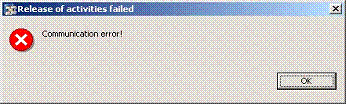
The following error texts are known:
Error text |
Problem |
Solution |
CMS server HTTP response: Service Unavailable |
The CMS server cannot be reached. |
Open the Visual Administrator of the J2EE Engine that hosts the CMS server. Select Server ® Services ® Deploy and click on Applications. If sap.com/tc~SL~CMS~PCS has a red state, select it and select Start Application. Once it has a green state, the CMS server should be running again. |
You do not have sufficient access rights to release activities. |
Your user has no right to release activities in CMS. |
Open the user administration tool of the J2EE Engine that hosts the CMS server. Search for your user and display the roles it is assigned to. At least one of them has to have the right to perform the action CMS.Export. After adding the action to the role, your user should be allowed to release activities. |
No key store provided, impossible to use HTTPS. |
The track is configured for secure connections but the IDE has no access to a key store. |
Open in your IDE Windows ® Preferences and select Java Development Infrastructure. Fill out Certificates ® Key Store File with a valid key store file. Now a secure connection can be established. |
If this displayed text is not in the table, proceed with step 2.
2. Error log
Close the error popup. Select Cancel on the Release for transport dialog.
Consult the error log for a detailed error message.
By
default log messages of severity Error will be handled by the Error Log View.
If the Error Log View is not yet visible in the Development Configurations
Perspective, you can open it via the main menu: Window ®
Show View
®
Other… and then PDE Runtime ®
Error Log.
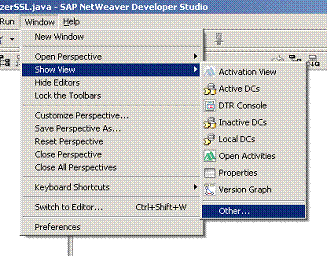
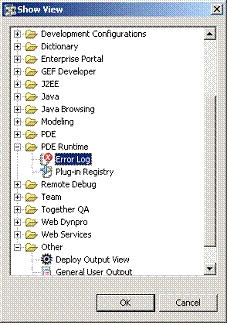
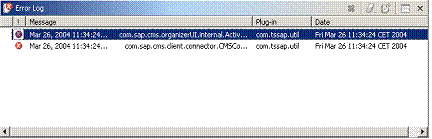
Select the uppermost error entry in the error log view and double click with the left mouse button (alternatively, select Properties in the context menu).
This opens the error properties. Select status details in the tree browser on the left-hand side of the window. The detailed error message is displayed in the right frame.
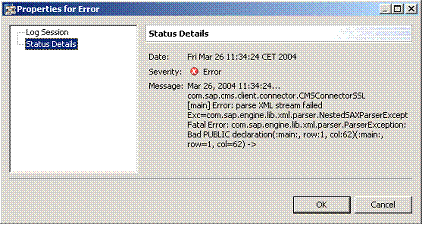
If there is more than one recent error in the error log (with approximately the same time stamp), the other errors may also contain valuable information.
If the detailed descriptions of all recent errors do not solve your problem, proceed with step 4.
3. CMS trace
If the error scenario can be repeated, you can enable the CMS trace and investigate the trace output for more hints.
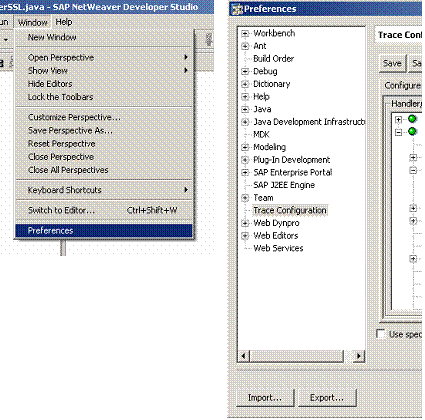
The trace can be configured in the preferences dialog: Window ® Preferences under Trace Configuration.
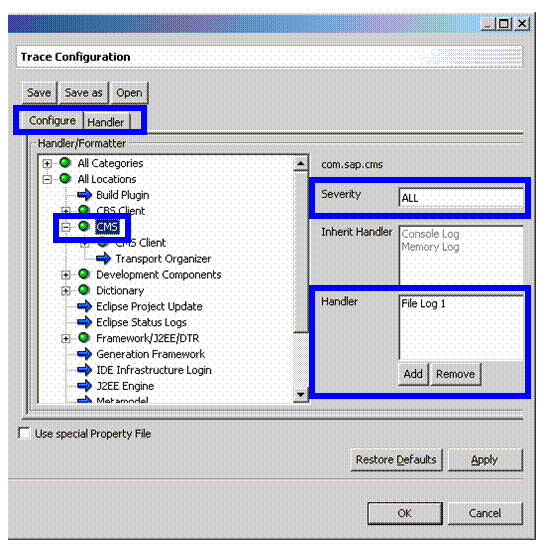
In the trace configuration dialog, open the node All Locations and select CMS in the tree. The configuration of the CMS trace is displayed in the right-hand side of the tree. By changing the Severity you can increase/decrease the amount of information that will be written to the trace (ALL causes all available information to be traced). The entries in Handler define where the trace information will be written. Choose add/remove to configure whether you want to see the trace in a view (for example,. the Memory Log) or in a file (File Log). The available handlers can be configured in the tab Handler and node Log Handler.
● If you select the Memory Log as the handler, you may need to open the view first. It can be found in Window ® Show View ® Other… and then Other ® Memory Log.
Note, however, that displaying the trace in a view is very performance-consuming.
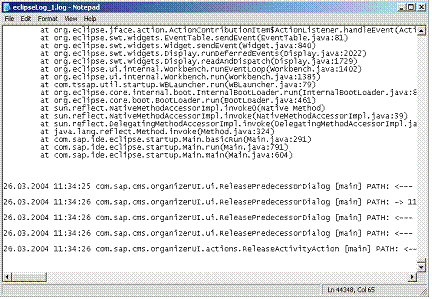
● If you select a File Log as the handler, the trace can be found in a file on your hard disk. Its location is also configured in the Handler tab. It is a readable text file that can be opened and viewed with a text editor.
After the trace has been enabled and the error reproduced, the trace can be examined for hints. Try to locate the exceptions or message you have seen during the steps before. The time stamp can also be a useful means for locating matching trace entries. If you have found it, examine any stack traces for further information.
If you still have no clue about the cause of the error, scan the trace for com.sap.cms.client.connector.CMSConnectorException. If you can find one, the error occurred on the server. Proceed with step 4.
4. CMS server log
Open the Visual Administrator and connect to the J2EE Engine hosting the CMS server.
In the tree on the left side select <server instance> ® server XXX ® services ® LogViewer.
In the Log Viewer in the tree on the left-hand side, double-click on Cluster XYZ ® Server XYZ ® applications ® cms.log.
The CMS server log is displayed in the frame on the right-hand side. It may contain detailed information about the error cause.
To locate useful information in the very large number of traces, use the search method with com.sap.cms.client. Compare the time stamp with the one when the error occurred. As soon as you have found a matching entry (one with the same error message as on the client), you can take this trace as a starting point to further explore the trace.
Additional Information
