
 TREX Global File System and TREX
Instances
TREX Global File System and TREX
Instances

Purpose
The TREX server software comprises two parts:
● TREX global file system
This is a directory structure, in which information about the TREX system instances is stored. For example, this information is required by management tools to start the TREX system.
● Installation files for the TREX instance
These are the TREX program files, configuration files, and so on.
The global file system must be highly available. All instances of a TREX system must have permanent access to it. When installing TREX and planning a distributed TREX system, you must decide which host the global TREX file system should be located on.

For information about installation and configuration of a distributed TREX system, see the Installation Guide – SAP NetWeaver 7.0 TREX Multiple Hosts on SAP Service Marketplace at service.sap.com/instguidesnw04s ® Installation.
TREX Instance and SAP System Profile Directories
During the installation of the global file system and TREX instances, the following directories are important:
● SAP system profile directory in the global file system:
○ On UNIX /<SAP System Mount Directory>/<sapsid>/profile
○ On Windows <SAPGLOBALHOST>\sapmnt\<SAPSID>\SYS\profile
● Installation directory for the TREX instance:
○ On UNIX /usr/sap/<sapsid>/trx<instance_number>
○ On Windows <disk_drive>:\usr\sap\<SAPSID>\TRX<instance_number>
Installation Procedure
You distinguish between the following scenarios when installing the global file system and the TREX instance:
...
1. Installing a TREX Global File System with a First TREX Instance
2. Installing a TREX Instance Only
3. Installing a TREX Global File System
1. Installing a TREX Global File System with a First TREX Instance
In this scenario, you install a TREX global file system with a first TREX instance, which consists of the installation of a TREX instance together with a TREX global file system on a local host. Basic information about a TREX landscape is stored in the directory for the SAP system profiles for the global file system. If you set up a new TREX system for a production scenario or if you are installing TREX for the first time, you always start with the installation of a TREX global file system together with a first TREX instance. In a distributed landscape with decentralized data storage and more than one TREX instance, you must install the TREX global file system with a first TREX instance on the same host as the TREX master name server. TREX is then administrated, started, and stopped from this host.
More information about configuring a distributed TREX system, see the Installation Guide – SAP NetWeaver 7.0 TREX Multiple Hosts on SAP Service Marketplace at service.sap.com/instguidesnw04s.
Directory structure and files
If you install the TREX global file system and the first TREX instance on a single host, a directory structure and SAP system profiles are created on Windows as shown in the graphic below:

2. Installing a TREX Instance Only
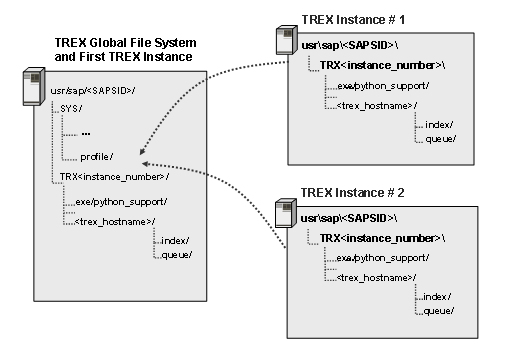
In this scenario, you install a TREX instance only. A TREX instance consists of a TREX instance without a TREX global file system on the local host. You install a TREX instance to add one or more TREX instances to an existing TREX system landscape. During installation, you must specify the path to the directory for the SAP system profiles for the TREX global file system. In the default scenario, the TREX global file system and the directory for the SAP system profiles are located on the same host.
In this case, the TREX global file system together with the first TREX instance on the one hand and the newly-installed TREX instance on the other hand form a unit from an administration perspective. This is visible in that they both have the same system ID (<SAPSID>) and use the same TREX global file system.
Directory structure and files
If you install an additionally TREX instance and connect it to an existing TREX global file system with a first TREX instance, there are directory structures on Windows as illustrated in the graphic below:
3. Installing a TREX Global File System Only
In this scenario, you install a TREX global file system only, without a TREX instance on you local host. You can install the TREX global file system on any host, as long as you ensure that the TREX global file system is highly available and accessible for all TREX instances at all times.
Directory structure and files
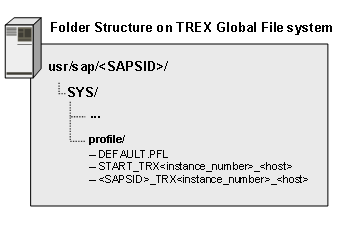
If you install only a TREX global file system on a host, the installation creates directory structures on Windows as illustrated in the graphic below:
SAP System Profiles for the TREX Global File System
During installation of a TREX dialog instance, you specify the central directory for the SAP system profiles. In this directory, the system automatically generates start profiles and instance profiles for the TREX instances installed. System profiles contain information about the configuration of individual SAP instances. A start profile determines which processes are to be started or stopped. (See Starting and Stopping TREX.)
Depending on the entries made during installation, the system creates the following profiles:
● System profile DEFAULT.PFL
The system profile contains settings and information that are important throughout the system. The system profile exists once only in the global file system.
● Start profile START_TRX<instance_number>_<host>
This is the start profile for a TREX instance. It specifies the TREX instance number and the host name on which the TREX instance runs.
● Instance profile <SAPSID>_TRX<instance_number>_<host>
The instance profile contains specific information about the runtime environment for a TREX instance.