 Access and General Steps
Maintenance Optimizer Access
You can start a product maintenance procedure in SAP Solution Manager either with transaction SOLUTION_MANAGER, as in the previous version, or in the Change Management work center.
Access with transaction SOLUTION_MANAGER:
You must select a solution at the start of the maintenance procedure:
Enter the transaction SOLUTION_MANAGER in the SAP Easy Access screen.
Select a solution in the Solution Overview.
Choose
 Change Management
  Maintenance Optimizer Create New Maintenance Procedure
  .
.
Access from Change Management work center:
You can start a maintenance procedure with or without assigning a solution:
Choose New Maintenance Procedure under Typical Tasks.
 Note
NoteAll new functions are only available in a product maintenance procedure in the Change Management work center.
End of the note.
Maintenance Optimizer in Change Management work center
The Change Management work center gives you an overview of the maintenance procedures in the Maintenance Optimizer. It tells you how many maintenance procedures with a particular status have been created or changed.
You can go to the desired display via links, e.g. to all maintenance procedures which have already been implemented.
The Change Management work center Maintenance Optimizer view lists the created maintenance procedures. You can display them and filter them by certain criteria.
To open a maintenance procedure, choose its ID or procedure description.
When you select a maintenance procedure in the list, detailed information about it is displayed below it. This includes the priority, status, short text and the product version.
There is also information about system status, the source component, and download files found and confirmed.
To create a new maintenance procedure, choose the option New Maintenance Procedure under Typical Tasks, in this work center.
Steps Common to Different Scenarios
There are a lot of scenarios in the Maintenance Optimizer. There are some steps common to all scenarios:

Depending on the scenario selected, the Maintenance Optimizer automatically adds further steps to the standard procedure.
Note
The system assigns a status with each step you perform. You can repeat previous steps until the procedure has the status Completed. Then you can no longer change the maintenance procedure.
Automatic Calculation of Download Files
The Maintenance Optimizer can automatically calculate the download files required, independently of the scenario which you have selected for the maintenance procedure.
The Maintenance Optimizer automatically calculates the files required for the maintenance procedure, based on the defined system landscape, in five additional steps:
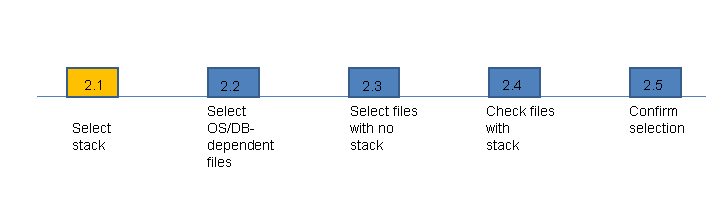
If you have specified that the calculated files are not to be displayed, you only see the two steps Select Stack and Confirm Selection.
A detailed description of these steps is in the descriptions of the maintenance procedure scenarios. For more information, see Maintenance Transaction Scenarios.
Note
After the download files for maintenance procedures, the relevant instances for the selected systems are determined.