
 SAPDBA: Informix

Use
SAPDBA for Informix is an integrated database administration tool developed by SAP for managing Informix databases for SAP systems under different host systems. It is particularly suitable for large databases.

The information
in this section is a summary and is not intended to give you exact
instructions. For more information before you start using SAPDBA, see
 Getting Started with
SAPDBA.
Getting Started with
SAPDBA.
You can use SAPDBA to monitor and tune your database, even if you do not have special knowledge of the database and its tools. SAP recommends you to familiarize yourself with SAPDBA since it can be used to reduce unnecessary database downtime as follows:
· Unplanned downtime by making fault diagnosis and database recovery easier
· Planned downtime by letting you monitor the database and perform preventive maintenance at a convenient time
Integration
SAPDBA is a standalone tool – that is, it works independently of the SAP system – since many database administration tasks require the database to be in offline mode. Tools that depend on the SAP system, such as the Computing Center Management System (CCMS), cannot operate when the database is offline. Many of the monitoring functions in SAPDBA are also available in the CCMS. SAPDBA runs with the UNIX and Microsoft Windows operating systems.
SAPDBA normally generates script files that then actually execute actions against the database. The results of the actions are recorded in log files for subsequent examination if problems arise. The script files are often restartable if an action needs to be repeated.
Features
SAPDBA filters information about the database, showing you only what you need and uses complex database statements to let you confidently manipulate the data with security and integrity. It offers the following features:
This offers you a safe way to change the database server mode. If you attempt to bring the server offline while the SAP system is running, you get a warning message.
·
Dbspaces
SAPDBA offers you the following analysis and change facilities for dbspaces:
– Analysis
The reporting options allow you to gather information about dbspaces, chunks and devices. You can easily see, for example, how full a dbspace is or how much free space is left in it. This helps you judge when to extend the dbspace.
– Change
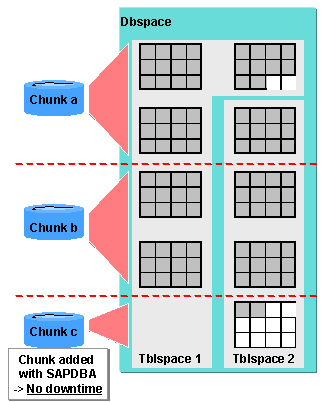
The change options allow you to easily create, extend, and add dbspaces. Knowledge of the underlying raw device layout is not needed since SAPDBA gives you a menu of available free storage areas. The following diagram illustrates this feature:
SAPDBA with Informix: Adding a Chunk to Extend a Dbspace
Prevent dbspaces from filling up
If a dbspace fills up, the Informix server refuses to accept any more inserts to tables in the affected dbspace. You must extend the dbspace as soon as possible (that is, “add a chunk”).
§ Monitor dbspaces
To identify
dbspaces that need extending, see
Listing Dbspaces with
SAPDBA.
To identify
dbspaces that are restricting table growth and that therefore need to be
extended soon, see
Analyzing Tables for
Critical Next Extent Size with SAPDBA. Tables appearing on this report
could not be properly extended due to a lack of contiguous space in their
dbspace. In this case, the Informix server allocates the largest available
portion of space to extend the table with the result that the table can become
scattered through the dbspace.
§ Extend dbspaces if necessary (see graphic above)
To extend a dbspace, see
Adding a Chunk with
SAPDBA. This procedure is fully automated and is much easier than
extending the dbspace manually.
SAPDBA offers you the following analysis and change facilities for reorganizing database objects:
¡
Analysis
You can use the analysis options to analyze tables and indexes by a variety of parameters (fill level, size, number of extents, number of extents still available, and so on). This helps you monitor database objects to make sure they do not run out of storage space.
¡
Change
You can use the change options to reorganize a table or index with different storage parameters (for example, a larger extent size, in a different dbspace, and so on). Since the Informix server automatically doubles the extent size as a table expands, you should only perform a reorganization in exceptional circumstances, that is, when the number of extents is very high and the table is still expanding rapidly.
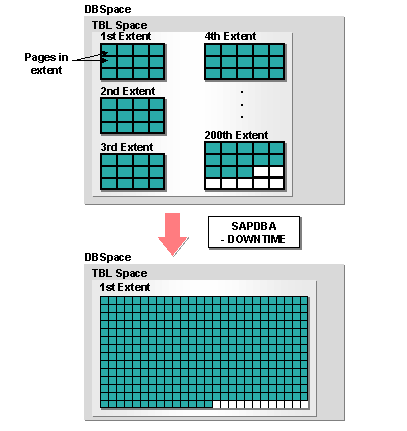
With these facilities, you could, for example, find all tables with only a small number of extents still available and then reorganize a table before it runs out of extents. The following diagram illustrates how you can use SAPDBA to reorganize a table (in this example, to rebuild the table with a larger initial extent):
SAPDBA with Informix: Reorganize Table
Prevent tables from filling up
Although the Informix server extends tables as necessary, there is a limit to how many extents each table can have. Refer to Managing Extents (Informix). If a table completely fills up, the Informix server cannot accept any more inserts to the table and you have an error situation that might cause applications to fail.
§ Monitor tables
To find the number of extents still available for a
table, see the report showing the number of extents left in
Analyzing Tables by
Fill Level, Size, and Extents with SAPDBA. If a table only has a few
extents left, you must reorganize it.
§ Reorganize a table
To reorganize a table with different storage
parameters, see
Reorganizing a Single
Table with SAPDBA. For example, if the table has become too big, you can
rebuild it with a larger initial extent and larger next extents.
If database data is not physically consistent when you perform an archive or backup, you might not be able to use the archive or backup to restore the database. Therefore, check data consistency regularly.
You can plan
a regular consistency check in the DBA Planning Calendar of the CCMS of the
SAP system. Refer to
Checking Physical
Consistency in the DBA Planning Calendar (Informix).
These checks help you make sure that the database is running optimally, so reducing unnecessary downtime. For example, you can check the parameters in the ONCONFIG file, the chunk and disk layout, and so on.
You can plan
a regular system check in the DBA Planning Calendar of the CCMS of the SAP
system. Refer to
Checking the DB System
in the DBA Planning Calendar (Informix).
When the report is correctly installed, this option enables you to list the recovery report(s) that have previously been automatically created. A menu of available reports is presented and you can choose the most up-to-date report. The report shows you the tapes you need to use and the sequence they need to be used for the restore. If the tapes on the most recent report are missing, damaged, or unavailable, you can look at previous reports until you find one that lists available tapes for the restore.
The report is only available for ON-Archive, not ON-Bar or ontape.
Install the recovery report (UNIX only)
SAPDBA enables you to create a report that is extremely useful if your database needs to be restored. Make sure that the report is correctly installed. If so, the report is automatically created after archives and logical log backups.
If you need to restore the database, use the recovery report (UNIX only)
In the event of database failure in which data is lost, use the recovery report to make restoring your data easier, so keeping downtime to a minimum.
See also:
BC SAP Database Guide:
Informix
SAPDBA and Informix Database Administration
You can find the above documentation on SAP Service Marketplace at:
service.sap.com/dbainf
You can find Informix documentation at the Internet address:
www.ibm.com/software/data/informix