
 Use of Easy Cost Planning

Use
You use Easy Cost Planning to calculate the costs for planning objects (such as internal orders, WBS elements, internal service requests, or appropriation requests) or generally to determine costs for a specific purpose using an ad hoc cost estimate.
Integration
You can plan costs in one of the following application components:
· Internal Orders (CO-OM-OPA)
· Project System (PS)
· Internal Service Request
· Investment Management (IM)
· Product Cost Planning (CO-PC-PCP)
Prerequisites
If you want to use
a planning form for the cost estimate, you must have already defined the
planning form in the system. For more information, see
 Editing Costing Models
and Assigning Attributes.
Before you can plan costs, a costing variant must have been defined in Customizing for the object to be planned. To be able to see groups of costs, you must have defined cost component groups in Customizing for the application component concerned under Define Cost Component Structure.
Features
The following screen areas are available when you use Easy Cost Planning:
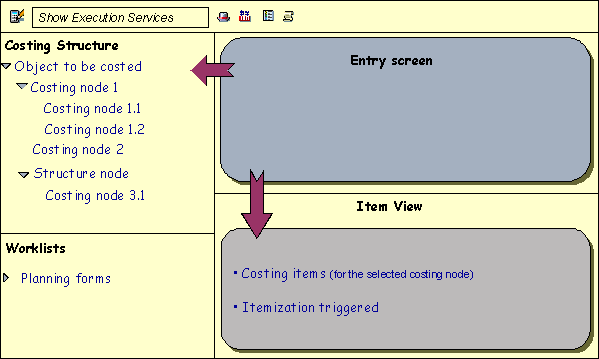

Depending on the settings for the role to which you have been assigned, you may not be able to use all of the functions described below.
You can configure the screen layout for your requirements as follows:
· Vary the size of the screen areas
· Display or hide the costing structure, worklists, and item view
Costing Structure Area
The top node is the object being planned or the ad hoc cost estimate. You cannot cost structure nodes, meaning you cannot assign them a planning form. For project structures, these are WBS elements which are not planning elements.
Functions in the Costing Structure
Pushbutton |
Quick Info |
Explanation |
|
Subdivide cost estimate
|
Structures the object being planned or the ad hoc cost estimate. The costs are calculated separately for each costing node. |
|
Delete cost estimate |
Deletes the selected costing node. Technically, a cost estimate is deleted. |
|
Close |
Closes the cost estimate or cancels the closing. You close a cost estimate to protect it against further changes. The close is recorded in the history. You can check this in the header data. You can cancel or set the close there. |
|
Display document flow |
The document flow shows for each costing item whether documents have been posted through an Execution Service for this costing item and object to be planned. |


Worklist Area
If you regularly create cost estimates using Easy Cost Planning, you can load the planning forms that you use frequently into your worklist. You can create worklists, subdivide them, and rename them.
Selection of Functions in the Worklist
Pushbutton |
Quick Info |
Explanation |
|
No quick info available |
Loads planning forms into the worklist |
|
Add to directory… |
Loads planning forms into the worklist |
|
Insert worklist… |
Subdivides the worklist |
|
Save worklist as… |
Makes the worklists available for a role or for all users, or restricts it to one user |
|
Load worklist… |
Calls up any worklists that are in the system but have not yet been displayed |
|
Delete worklist… |
Deletes the worklist |
|
Remove node… |
Removes subdirectories or planning forms from a worklist |
|
Save worklist… |
Saves the worklist |


Item View Area
You can edit
costing items in this area. For more information, see
Creating Costing
Items. The following differences against unit costing apply:
· It is not possible to make entries in the detail screen.
· You cannot use item categories O or S.
The item category
for planning forms is J. For more information about item categories,
see
Master
Data for Unit Costing.

The item number does not necessarily reflect the position of the row in the item view. If you want to have the rows listed in order of item numbers, define a layout that sorts the rows on the item number.
For WBS elements and internal orders you can define a time frame for a costing item by entering a latest end date. The costs are distributed uniformly across the periods in the time frame you defined.
Further Item View Functions
Pushbutton or Menu Path |
Quick Info |
Explanation |
|
Log |
Displays the log of the current costing node |
|
Revaluate all items |
|
|
Revaluate selected items |
Overwrites the price, cost element, or description of an item with the current planned and master data |
|
Transfer |
Cost entries or changes |
Goto → Triggered itemization on/off |
|
If you have costed several costing nodes in one structure, all of the costing items for all costing nodes in this structure are displayed in the itemization triggered. The top node in the costing structure must be selected for this. The display can be seen in the item view. By choosing |


For more
information on working with this type of list display, see
SAP List
Viewer.
Functions in the Upper Application Toolbar
Pushbutton |
Quick Info |
Explanation |
Show Execution Services |
|
After cost planning you can trigger Execution Services for some objects. |
|
Display cost estimate header |
|
|
Switch currency |
|
|
Assign account assignment object |
Only displayed for ad hoc cost estimates |
|
Display legend… |
Explains all of the symbol legends in the costing structure |
|
Log for overall cost estimate |
The error messages for all costing nodes are displayed together. |


Activities
· Create either the object you want to plan or an ad hoc cost estimate, or call up an existing one in change mode. Choose cost planning. For more information, see the documentation for the objects being planned:
¡
Internal orders:
Easy Cost
Planning for Internal Orders
¡
WBS elements:
Using Easy Cost
Planning
¡
Appropriation
requests:
Editing Cost Estimates
for Appropriation Requests
¡ Ad hoc cost estimates: Executing Ad Hoc Cost Estimates
· You have the following options for calculating the planned costs:
With Planning Forms
¡ Choose the node to be costed in the costing structure. Choose Choose Planning Form in the right screen area. Choose a planning form (costing model). If you have loaded the planning form into the worklist, you can also select it there. The system displays the entry screen.
To select a different planning form, you can:
§ From the worklist choose a new planning form by clicking on the corresponding node, and confirm the prompt with Yes.
§
Choose  and confirm the prompt with Yes, choose
Choose Planning Form in the right-hand screen area, and select a new
planning form.
¡ Enter the required planning data and choose Confirm.
If you have a multilevel costing structure and in a higher-level cost estimate assign a value to a characteristic that is used in lower-level planning forms, that value is defaulted as the value of the same characteristic in the lower-level cost estimate. If you want the value in the lower-level cost estimate to be different, you can overwrite this value. This does not change the value of the characteristic in the higher-level cost estimate. Changing the value in the higher-level cost estimate does not change the value in the lower-level cost estimate if the lower-level cost estimate has already been created.
¡ You can change the costing items in the item view.
Without Planning Forms
Your role must allow you to display the item view.
¡ Click on the node to be costed in the costing structure. Enter the costing items directly in the item view.
Result
The results are
displayed directly in the costing structure for every costing node. The
costs are displayed broken down into costing items. In essence, this display
corresponds both in use and structure to
valuated BOMs in
unit costing. The symbols next to the costing items specify the item category.
By choosing  for the legends you can see which item
category you are dealing with.
The costing items
are displayed in a nonhierarchical list in the item view. This
essentially corresponds to the display of the itemization. This means the
respective costing items for the selected costing node are displayed. The
standard SAP system provides a variety of itemization layouts. You can adapt
these to meet your individual requirements by creating your own
layouts. Using various factors, you can
calculate and delete
subtotals.
When currencies are translated, the system uses the exchange rate applicable on the valuation date of the cost estimate (and not the costing item, if they are different).
The values on
the upper-level costing nodes are only the same as the sum of the values of
the lower-level items if all costs are
relevant to
roll-up. This is specified in the cost component structure in Customizing.
In addition, cost elements must be assigned to all items.
If you exit
Easy Cost Planning using  with quick info Back, your cost estimate is saved temporarily. The cost
estimate is only saved to the database when you save the object being planned.
Exception: Ad hoc cost estimates. In this case the system asks whether you
want to save the data directly upon leaving Easy Cost Planning. If you choose
No, the data is lost.
You cannot
save or leave the cost estimate if it contains errors. For this reason, you
can only exit a cost estimate that contains errors by canceling with  with quick info Cancel.
For internal orders, WBS elements, and ad hoc cost estimates, you can now trigger Execution Services.
See also:
Easy Cost Planning and Execution Services