Preliminary Costing and Quotation Creation
Purpose
You can calculate the planned costs and revenues for a project before this project has been transferred. You can then create a quotation (see Customer Quotation ) on this basis.
 Note
Note
The process described in the following illustrates steps five and six of the process
From the Opportunity to the Sales Order
(see
From the Opportunity to the Sales Order
) in detail. This example uses only simulations, but that is sufficient to understand the function. You can also perform the process with operational projects.
To illustrate the entire process with all its functions, it is assumed that you have decided to calculate revenues with the dynamic item processor (DIP) (see
dynamic item processor) and that you create the quotation from within sales pricing. If you do not want to create a quotation from sales pricing, do not carry out steps five and six listed here. Then you can also use the revenue rates from Project Management (revenue calculation type
Use Cost/Revenue Rates from Project Management
).
Note
From
cProjects 4.00
, preliminary costing is in the form of an
ad hoc cost estimate
.
Prerequisites
You have made the necessary settings for cost calculation. For more information, see Costing Logic .
You have selected the revenue calculation type
Use Sales Pricing in S
AP ERP for the project type you are using for the simulation in Customizing forProject Management
by choosing
Connection to External Systems

Accounting Integration
Make General Settings
 .
.
You have made the necessary settings for Easy Cost Planning. For more information, see Easy Cost Planningand Ad Hoc Cost Estimate for Project Management .
You have made the necessary settings for the DIP. For more information, see Sales Pricing for Project Management .
This setting is only needed if you want to perform the process as it is described here.
You can use the fields
Grouping
andSearch Field
to specify the materials in the quotation. To do this, you must have executed the steps for adding the characteristicsGrouping
orSearch Field
to the DIP profile. For more information, see SAP Note 301117.You have created a simulation, created an object link to an SD inquiry or quotation for it, and assigned an organizational unit. The first item of this SD document is used for referencing in sales pricing. This SD document item must have a requirements type with a requirements class to which an account assignment category is assigned that has the value
E
(Accounting via sales order
) in theConsumption Posting
field. This creates a separate CO object for each SD document. You define the requirements class in Customizing forSAP ECC
, for example by choosing Sales and Distribution
Basic Functions
Account Assignment/Costing
Maintain Requirements Classes For Costing/Account Assignment
.
Process Flow
The following graphic shows the sequence of steps:
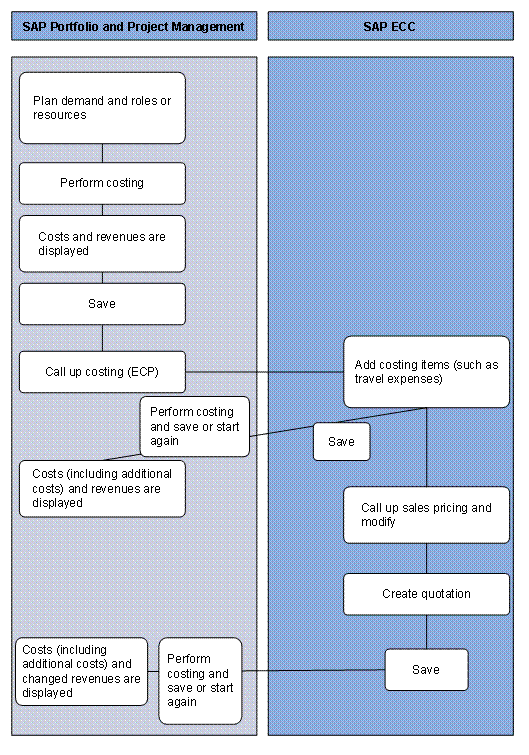
You plan the demand and the roles and resources.
If you want to influence the items in the quotation that you create in step six, you can use the fields
Grouping or Search Field,
for example. You can use the value that you enter here to derive materials for the quotation items through the DIP profile. This enables you to structure the quotation in Project Management according to the level of detail and language that the customer has selected. The materials selected in this way are available in sales pricing (see step five) for manual conditions (surcharges or discounts).In addition to the materials you specified with the fields
Grouping
orSearch Field
, materials and services for the quotation items can be determined in Easy Cost Planning if you have not entered anything in the fields for the individual phases or tasks or if additional items are added by means of a planning form in the ad hoc cost estimate. There can also be additional items (such as for travel expenses) that you enter in the ad hoc cost estimate.You calculate the costs and revenues. Choose
Cost
on theAccounting
tab page. For more information about calculating costs and revenues, see Costing Logic .The costing result is displayed.
 Example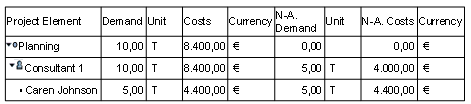
The consultant Caren Johnson has the role Consultant 1. The planned demand for this role is ten days. Five days are assigned to Caren Johnson, while an additional five days are still unassigned. The hourly rate for Caren Johnson from the business partner is €110, which differs from the role rate of €100.
The
Costs
column in the line for the role has the total amount of €8,400 for the role based on the specific rate for Caren Johnson and the rate for the role for the unassigned days. The column for the non-aggregated costs (N-A.Costs
) in the line for the role only shows the €4,000 for the unassigned five days for which no resource has been assigned.End of the example.Save your entries.
You now call up Easy Cost Planning (ECP) and can add additional costing items. For more information, see Ad Hoc Cost Estimate for Project Management .
You call up sales pricing. For more information, see Sales Pricing for Project Management .
You create a quotation. To do this, you choose

Quotation
in the sales pricing function.Changes that you make to the quotation here are not transferred to sales pricing, the ad hoc cost estimate, or Project Management.
You can also create the quotation later by calling up the ad hoc cost estimate again.
Save your entries and return to the project in Project Management. Perform costing for the project in Project Management and save it.
Result
The costing result with costs and revenues is displayed in Project Management. The quotation is available for further processing.
Example
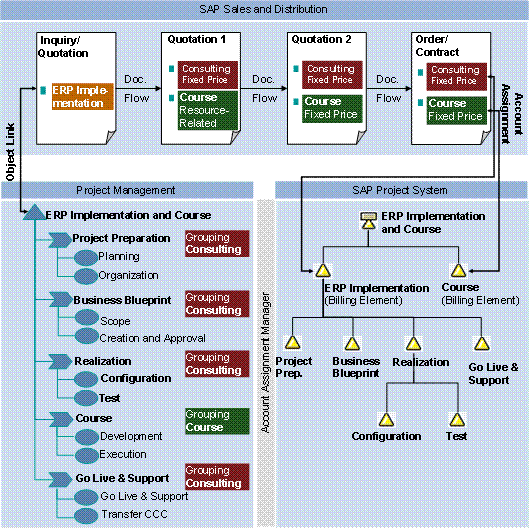
The following graphic shows an example in which individual phases were assigned to the values
Consulting
and
Course
with the field
Grouping
. The materials that form the items in the quotation are selected through the DIP profile. In the initial quotation, the course is to be invoiced using resource-related billing. The customer does not accept the quotation. A new quotation is therefore prepared in which the course has a fixed price. The customer accepts this new quotation. The items of the second quotation are added to the contract.
Cost controlling in this example is based on manually created multilevel controlling. For more information, see
Manual Creation of the Controlling Structure
and
Multilevel Controlling
. The billing elements were created such that they correspond to the groupings. A WBS element was created for each phase. For the Realization phase, detailed cost controlling at task level is to be performed. For this reason, additional WBS elements were created for the tasks
Configuration
and
Test
.