
 Example: Entering And Processing An Internal
Service Request

A user would like to make an application for a removal in the intranet. To do this, he chooses the scenario Request to Move Office. In Customizing this request category is specified as requiring approval. Therefore once you send this notification, the approval process is triggered. When the removal is carried out, costs are posted to the requesting cost center.
Environment
Intranet |
SAP System |
Entered by |
Person who processes/approves the request |
The Request to Move Office Form
The removal request in the intranet is structured as follows:
The title contains the request name, in this case Request to Move Officeand the company logo. Underneath the request creation function is the request number.
Under this, on the
right-hand side is the Entry data, such as Name and Telephone number of the person who makes the entry, and the
Date
entered.
On the left-hand side is the Request to Move Office data with the
following fields:
· Who is moving? (initiated by)
· From building
· From room
· To building
· To room
· Removal date
· Number of PCs to be moved
· Change telephone?
· Number of packing boxes required
Underneath this is a free text field called Remarks.
Next to the fields for the building or room, you may have included a pushbutton when you defined the request form. This pushbutton takes you to the building plan.
Creating The Removal Request
The requester chooses Internal Service Request.
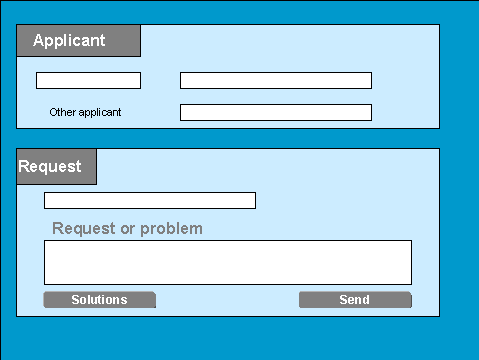
He chooses the
scenario Request to Move Office.
The entry form for the removal request is displayed.
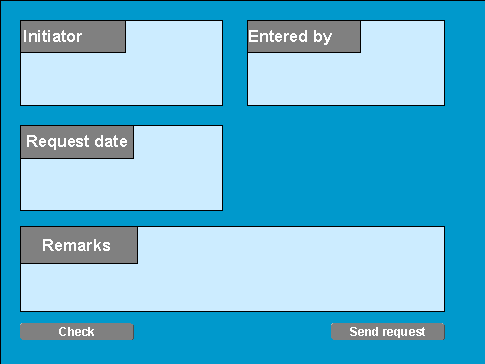
The fields for the person entering data are derived from the user data, and cannot be changed.
As a standard setting the field Applicant is defaulted with the name of the person making the entries, but this can be changed.
The fields for the removal details are mandatory.
Once you have entered your data, you can choose from the following two options:
· Check request
· Send request
After you send the request, you receive a success message containing the notification number.
After The Request to Move Office Has Been Sent
The fields Who is moving? and Removal date are checked according to the entry format.
At the same time, the Requesting controlling area and Requesting cost center are derived from the initiator data.
A notification is created in the SAP system for the intranet request. The fields in the HTML form are transferred to the notification.
Three tasks are created for the notification.
Task |
Partner Role |
Type of Item |
Costing Item |
Move PC |
Task processor |
Activity item |
If the number of PCs is greater than zero, an activity item is created with the: · Sending cost center = PC cost center · Activity type = PCMOVE · Receiver = Requesting cost center · Quantity = Number of PCs The requesting
cost center and the quantity are transferred from the form. |
Change telephone |
Task processor |
Activity item |
If the number of telephones is greater than zero, an activity item is created with the: · Sending cost center = Telephone cost center · Activity type = PHONEMOVE · Receiver = Requesting cost center · Quantity = Fixed quantity one The requesting
cost center and the quantity are transferred from the form. |
Move work place |
Task processor |
External activity |
The removal service is provided by an external company. |
The notification is automatically costed using three costing items.
The name of the person responsible for the notification is the cost center manager of the employee moving (this is a standard setting).
The notification is forwarded to the manager for approval.
Customizing Required For Automatically Transferring The Removal Request
You need to store certain data in Customizing to allow the system to forward the removal request to a notification with notification items.
· You specified whether the request requires approval, and who is to approve it for the notification type Request to Move Office.
· For each field from which a notification item has to be generated (here, for example, the number of PCs), the following was stored in Customizing depending on the requesting cost center:
Type of Item |
Stored Data |
Activity item |
· Sending cost center · Activity type · Quantity |
Material item |
· Material number · Storage location · Plant · Quantity |
External activity |
· Material number · Vendor · Purchasing organization · Quantity |
· These items are assigned to tasks.
The system displays the basic data for the request to the processors for the notification and task in the Extended view in the processing type.
Status Query By The Person Who Made The Request
The person making the request, meaning both creator and initiator, can check its status in the intranet.
The system displays (for example) the notification short text, who it was entered by, and on what date. You can see the notification priority and number for example, by using the worklist.
You can go from here to the notifications detail screen, or add a note.
In the Detail Screen for each notification, you can see the request form, which cannot be changed.
In addition, the following fields are displayed underneath:
· Status
· Approved by
Under this, there is a free text where you can enter more remarks.
Approval Of The Removal Request
You (the approving manager) also use the intranet. You receive a list of all service requests (regardless of request type) for approval.
The list contains the following fields:
· Description of the notification type, such as request to move office
· Entered by
· Initiator
· Created on
· Required date
· Status
The approver can either branch from here to the detail screen for a notification, or approve a notification.
In the Detail Screen for each notification you can see the request form, which cannot be changed.
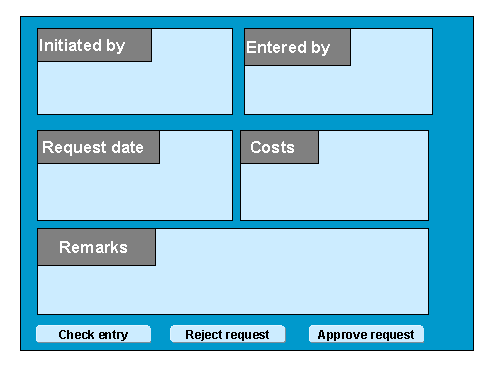
In addition, the following fields are displayed
underneath:
· Debited cost center
· Estimated costs
Underneath this there is a free text in which you can enter more remarks, for example, if you reject the request.
Once you have entered your data, you can choose from the following options:
· Reject request
· Approve request
After you approve the service request, the system sets the status to Approved. Each item is forward to the processor who is determined using the settings in Customizing.
Carrying Out The Removal
Each task has a different processor.
You (the processor) receive a list of all the tasks that are to be processed.
The list contains the following fields:
· Service request number
· Required date
· Initiator
· Created on
· And also more data from the form
You can go from here to the detail screen for a task, or complete a task.
In the Detail Screen for each notification you can see the request form, which cannot be changed.
Underneath this there is also a free text in which you can enter more remarks, such as when a material is longer available and is being replaced by another.
Once you have entered your data, you can choose from the following two options:
· Forward
Forwarding is useful if you are not responsible for this notification. You can enter the processor who is actually responsible.
· Complete
There are two different situations for completing a notification that you can choose in Customizing for the service request type:
¡ Non-integrated posting
You complete your work in and outside of the SAP system (for example, you carry boxes and post the activity allocation manually in the SAP system using confirmation). In this case, only Completed is available. This only completes the task in the system.
¡ Integrated posting
You complete your work outside of the SAP system, and want to post the data in the system with the completion of the service request. In this case, you can use the action box for Execution Services. A simple screen appears for the current application (such as activity entry, or for material issue) in which the relevant fields are defaulted with values from the plan data for the notification, and which you can change. You make your posting to the account assignment object stored in Customizing. The postings are made integrated. The system prevents accidental double postings by issuing a warning, and preventing you from going to the document flow.
If all the notification tasks are completed, it receives the Completed status.
Cost Analysis By The Approver
You (the approver) can analyze the costs of the service request using a report for your cost center.
You branch from the totals records report to the line item report. In the line items, the system displays the service request number if the line item was posted integrated from a service request. You can go from the line items of a service request to the service request itself.