 Favorites List
Administrators can use a favorites list to provide users with a CHIP that displays a list of CHIPs as links.
If the user clicks on one of these links, the CHIP opens in a new window or in a predefined container, called a Display Area. This setting applies to all the links in a favorites list. With SHIFT + mouse click the user can force a new window to be opened.
Users can add new favorites from the CHIP catalog, or remove favorites, by opening the context menu and choosing Add. If you enable drag & drop, users can change the order of the favorites, move favorites to another favorites list, and display favorites in a container of their choice.
Example
A favorites list could look like:
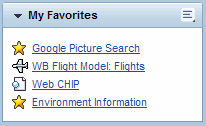 (Examples of the Display of a Favorites List)
Settings
You can make the following settings from the option menu of the CHIP:
Edit Favorites List
Here you can select CHIPs from the CHIP catalog, which are initially displayed in the favorites list.
CHIP Settings
Drag & Drop Enabled
This indicator enables users to move links to a chosen container and display the CHIP there.
Display CHIP in New Window
The default setting is to display a linked-to CHIP in a new window.
 Note
NoteIf you want to display links in a new window, all the links in the favorites list must be remote-enabled. IFrame-CHIPs and CHIPs from role maintenance are remote-enabled by default. For Web Dynpro CHIPs the indicator for Remote-Enabled CHIP must be set as described in Creating Web Dynpro CHIPs.
End of the note.If you remove the indicator, the CHIP will be displayed within the page. In this case you need a display area.
More information: Display Area (Work Area)
Name of the CHIP Display Area
Enter the name of the display area where you want to display the CHIPs.
NoteIf the display area that you specify here does not exist, or is embedded in a page that the user cannot access, the user cannot navigate to the application in question.
End of the note.Number of Lines
Specifies the number of displayed lines. If more links than can be displayed are available, a further link Display All/Display Fewer is embedded, which enables the user to toggle between viewing a restricted number of links and all links.