 Version Comparisons in Web Dynpro ABAP
Version management is used to store different versions of ABAP development objects. It allows you to display older versions of an object, compare versions and reset them, if necessary, to reverse unintended modifications.
A version comparison must also take into account that, in addition to classic code sections, a Web Dynpro application also contains a large amount of metadata. The ABAP Workbench provides you with a version comparison for the development of the individual entities of a Web Dynpro component. You can compare different versions of:
Views
Microsoft Windows
Controllers
Component Configurations
Application Configurations
Versions of an Object
The currently processed version of the object is always displayed in the development database. Furthermore, for every development object released, a corresponding version is stored in the version database.
You are also able to store a version of an object in the version database without releasing it.
To do so, the object must be selected in the object list and displayed in the Editor area.
Create Version
Select the required object in the navigation tree of the object list and display it in the editor.
Choose
 Tools
Tools  Versions Generate Version
  .
.You get a message that a temporary version was created under a specific number.
Start Version Comparison
Choose
Tools Versions Version Management .All versions of the object you selected previously saved by you are listed.
In addition to the current version in the development database, you are also shown all previously released or all active versions (see above) stored in the version database.
Select the version entries to be compared and choose
 (F8).
(F8).A screen similar to the editor is displayed which displays tab pages with all the implementation areas of the object. All areas containing differences between the two compared objects are indicated by a yellow triangle in the header line of the relevant tab.
 Example
For example, if one of two versions or with different properties of a view features an additional UI element, the Layout tab is flagged with the yellow triangle in the version comparison.
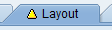 (Versions do not match)End of the example.
For all implementation areas without a yellow triangle the compared object versions are identical.
On each tab, the individual implementation details of the two versions are compared and contrasted in table form. Differences are highlighted by related selections in the form of an unequal sign:
 (Data does not match)
Component Configurations
The functions Display, Compare, and Retrieve are provided for component configurations in the version management.
The component configuration editor is started in a browser to Display component configurations. You get an overview of the Properties, and the component-defined and Web Dynpro Built-In objects and settings of the component configuration.
In the version comparison you get an overview of the properties and their values for the Properties, and the component-defined and Web Dynpro Built-In objects and settings and differences are displayed as described above.
Application Configurations
The functions Display and Retrieve are provided for application configurations in the version management.
 Note
Note
Note that at the moment you cannot compare versions of application configurations.
The application configuration editor is started in a browser to Display application configurations. You get an overview of the Properties, the Structure, and the Application Parameters of the application configuration.