 Table Data as Business Graphic
You can display the data from ALV output as a business graphic. You can make the following settings for business graphics:
Display business graphics
Specify data use
Change the appearance of business graphics
Allow or disallow display as business graphic
 Note
NoteIf you allow users to display data as business graphics, they can select from a range of chart types. Most users select the vertical bar chart or bar chart to display the data from the ALV output.
End of the note.
Displaying Business Graphics
You can specify whether a business graphic is to be displayed when the ALV output is first displayed. You can choose from the following variants:
Display as table only
Display as table and business graphic
Display as business graphic only
To do this, you use the methods of interface class IF_SALV_WD_TABLE_SETTINGS (implementing class CL_SALV_WD_CONFIG_TABLE):
Methods for displaying data as business graphic
Function |
Method |
Specify type of display |
SET_DISPLAY_AS |
Get type of display |
GET_DISPLAY_AS |
Specifying the Data Use
The data displayed in the business graphic depends primarily on whether and in which columns you make calculations:
If you do not make any calculations:
The first column with an alphanumeric data type is used for the axis that contains the characteristics of the chart.
In vertical bar charts, this is usually the X axis; in bar charts, this is usually the Y axis.
The first column with a numeric data type is used for the axis that contains the key figures of the chart.
In vertical bar charts, this is usually the Y axis; in bar charts, this is usually the X axis.
 Example
The first column with an alphanumeric data type is the Airlines column, which contains the names of the airlines. The first column with a numeric data type is the Occupied column, which contains the number of occupied seats for each flight.
The business graphic is a vertical bar chart.
A bar containing the name of the airline is displayed for each data record. The value in the Occupied column determines the height of each bar in the chart.
End of the example. NoteThe user may not want to display each data record as a separate bar. In the above example, the user may want the business graphic to display one bar for each airline. You can achieve this, for example, by generating intermediate results in the Occupied column using the Airlines column. This produces a figure that is displayed in a single bar in the chart.
End of the note.If you make calculations:
The first column with an alphanumeric data type is used for the axis that contains the characteristics of the chart.
Each column that involves a calculation is displayed in the axis that contains the key figures for the chart.
If you generate intermediate results:
Each column that is a criterion for intermediate results is displayed in the axis that contains the characteristics for the chart. If you specified more than one criterion, the combination of the criteria is displayed.
Each column that involves a calculation is displayed in the axis that contains the key figures for the chart.
You specify which data is to be displayed in the business graphic by moving the relevant column in the ALV output to the left, or by making calculations in the column. You cannot influence the content of the business graphic.
More information:
Changing the Appearance of Business Graphics
You can influence the appearance of a business graphic by:
Specify dimensions of business graphic
Specify chart type
Specifying the size of the business graphic
Dimensions
You can set the following dimensions for your business graphic:
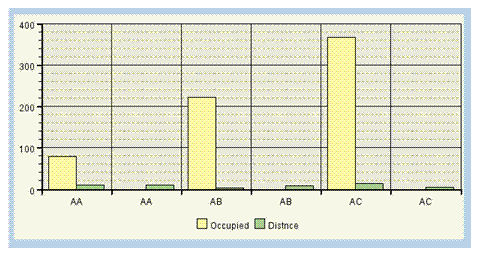
2D
The display is two-dimensional.
In vertical bar charts, the bars are displayed next to one another; in bar charts, they are displayed above one another.
Pseudo 3D
The display is three-dimensional.
In vertical bar charts, the bars are displayed next to one another; in bar charts, they are displayed above one another.

3D
The display is three-dimensional.
In vertical bar charts and bar charts, the bars for each of the characteristics are displayed behind one another.
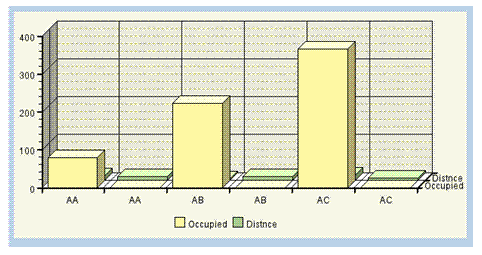
Chart Type
You can choose from the following chart types:
Area chart
Bar Chart
Vertical bar chart
Doughnut chart
Line chart
Pie chart
Split pie chart
Stacked area chart
Stacked bar chart
Stacked vertical bar chart
Stacked line chart
For more information, see BusinessGraphics Properties.
To change the appearance of a business graphic, use the methods of interface class IF_SALV_WD_GRAPHIC_SETTINGS (implementing class CL_SALV_WD_COLUMN).
Methods for the appearance of the business graphic
Function |
Method |
Specify dimensions of business graphic |
SET_DIMENSION |
Get dimensions of business graphic |
GET_DIMENSION |
Specify height of business graphic |
SET_HEIGHT |
Get height of business graphic |
GET_HEIGHT |
Specify chart type |
SET_TYPE |
Get chart type |
GET_TYPE |
Specify width of business graphic |
SET_WIDTH |
Get width of business graphic |
GET_WIDTH |
Allowing or Disallowing Display as Business Graphic
By default, users are permitted to display data from ALV output as business graphic. Using a dropdown list box in the toolbar, users can select from the following options:
Display as table only
Display as table and business graphic
Display as business graphic only
You can disallow users to display data as business graphic. To do this, you use the methods of interface class IF_SALV_WD_STD_FUNCTIONS (implementing class CL_SALV_WD_CONFIG_TABLE).
Methods for allowing the display of the business graphic
Function |
Method |
Allow display as business graphic |
SET_DISPLAY_AS_ALLOWED |
Check whether display as business graphic is allowed |
IS_DISPLAY_AS_ALLOWED |