 Object Editor Interface
This section describes the general interface and tools available in the editing area in the Portal Content Studio.
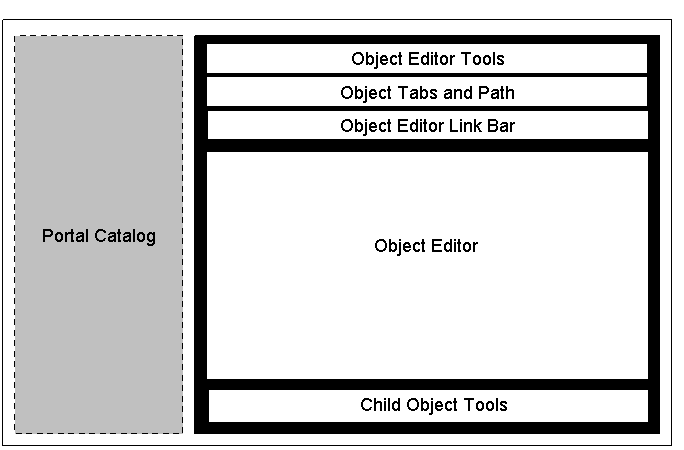
Wireframe schematic of the Portal Content Studio focusing on the Object Editor (black background)
The Object Editor user interface comprises the following:
Area |
Description |
|---|---|
Object editor tools |
Provides tools for performing actions and operations on the object currently in focus in the editing area. This area displays only the tools valid to the object type currently in focus. |
Object tabs and path |
The tabs located at the top of the editing area show which objects you are currently editing. Each tab indicates a different parent object or folder that you have opened from the Portal Catalog. The name of the object is displayed in the tab.
If you are editing a child object that has been assigned to a parent object in the Portal Catalog, it is displayed under the tab of the parent object. When a child object is brought into focus in the editing area, the path located below the tabs indicates the hierarchical path of the child object in relation to its parent.
|
Object editor link bar |
Enables you to access the various editors available for the respective object. |
Object editor |
Displays the respective object editor interface of the object being edited. For example, the Page Editor shows page layout and content (iViews and pages) assigned to the page being edited.
If the object being edited does not use a specialized editor, for example, Web Dynpro iViews, the Property Editor is displayed. End of the note. |
Child object tools |
Provides tools that are specific to child objects. For example, in the Page Editor, it provides tools for handling iViews (the child objects) that are assigned to a particular page (the parent object) that you have opened. Such a tool would be the Edit button for opening a selected iView from the Page Editor. The child object tools might appear in different locations in different editors. |
 Note
Note