 Supported Elements of ther Web Dynpro Native Object Library
Special Adobe UI elements are available in the Adobe LifeCycle Designer for form development in a Web Dynpro ABAP application. Go to the Layout tab page in the form builder.
On the Properties tab of the Form Builder, choose the entry ZCI Layout as the Layout Type, and use the Web Dynpro Native library in Adobe LiveCycle Designer.
The following elements are currently supported by the Web Dynpro ABAP environment:
Send
EnumeratedDropDownList and EnumeratedDropDownListNoSelect
Value Help
Send
With the Web Dynpro form UI element Send, the input data from a PDF form is sent to an SAP back-end system. The Web Dynpro context bound to the InteractiveForm (dataSource property in the view designer) is updated with the input data. As long as the event onSubmit of the Web Dynpro UI element InteractiveForm is set, it is triggered.
EnumeratedDropDownList and EnumeratedDropDownListNoSelect
Both value helps can be retrieved from the Web Dynpro Native library in the Adobe LifeCycle Designer using drag and drop on the form. The difference between the two values is that EnumeratedDropDownListNoSelect does not automatically select a value if either no entry at all is found in the data part or no entry is found that is relevant to the current selection list. EnumeratedDropDownList, however, would automatically propose the first entry in the selection list.
Procedure
Place the Adobe UI element as usual on the template and bind it to the context in the data view.
Change the element value binding.
Choose Element Values.
On the following popup the following entry for Objects appears below the group title Binding:
 Syntax
$record.sap-vhlist.REPLACE_THIS.item[*]
End of the code.Replace REPLACE_THIS with the SOM expression of the data binding.
You can get this value from the Object menu. This is the value that appears after $record in the standard binding.
 Example
Node.DVH3.
End of the example. Note
NoteNote that you escape each point of the SOM expression with \.
End of the note. ExampleExample of a correct value:
$record.sap-vhlist.Node\.DVH3.item[*]
End of the example.
Note
The values of the EnumeratedDropDownList are taken from the value set (VALUE_SET) of the bound Web Dynpro attribute. If the type of the attribute is DDIC (ABAP Dictionary) and domain fixed values are defined, these are shown. You can also program the value set to fill with values at runtime.
Input Help
The Adobe UI element input help makes it possible to call an input help from the form.
Example
 (Example of input help in an input field)
Note that the code (XFO) behind the input help control must be slightly adjusted. Enter the name of the bound attribute as field name. In the present example this is CARRID.
Before:
 (var fieldName)
After:
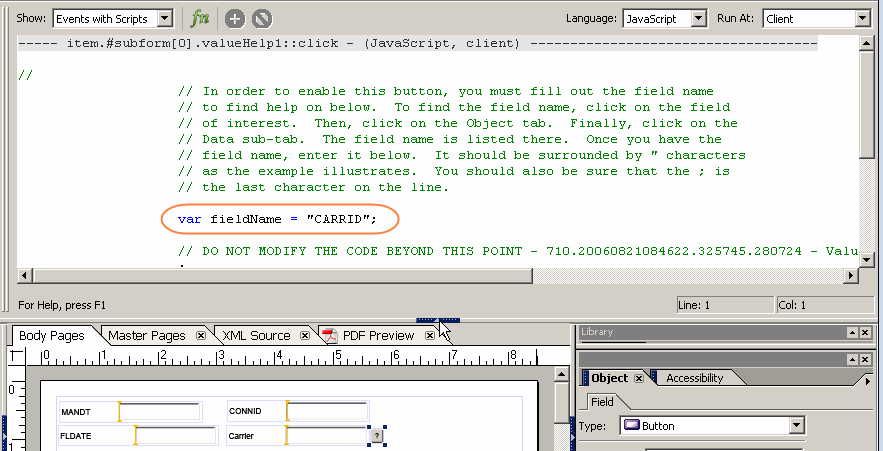 (Adjusting the input help; you may have to move the triangle icon to make the code visible and to make your changes.)
This makes the Adobe UI element value help the connection to the Web Dynpro ABAP input help.
Additional Value Help XFOs
If you are using Adobe LiveCycle Designer Version 8.2, an additional three value help XFOs are available:
Numeric Field Value Help: value help XFO for numeric values
Decimal Field Value Help: value help XFO for decimals
Text Field Value Help: value help XFO for strings
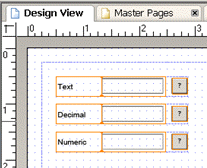 (Value Help XFOs)
The advantage of these three value help XFOs is that on the form they display the input field with the associated value help button next to it, without additional positioning or coding being necessary.
Example
You can find an example in the demo Web Dynpro application DEMO_IFBA_VALUEHELP_XFO in the system.
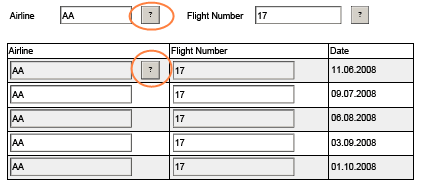 (Input help XFOs outside and in a table)
When input help buttons are displayed, the input help buttons for input fields that are not within tables are always displayed. The input help buttons for input fields within tables are displayed only for the table cell currently in focus.
The value help popup is displayed when the user chooses the value help button.
Prerequisites
Prerequisites for Using the New Input Help XFOs
Adobe Document Services Version 820.20080812.034112 or higher is required.
This required version is delivered with SAP NetWeaver 7.20.
The new input help XFOs are available with Adobe LiveCycle Designer 8.2 only.