
 Formatting Settings

Use
This function describes how to set formatting options.
Prerequisites
In the right-hand
corner of the editor screen, choose the Options
pushbutton ( ). In the Options dialog box, choose Formatting.
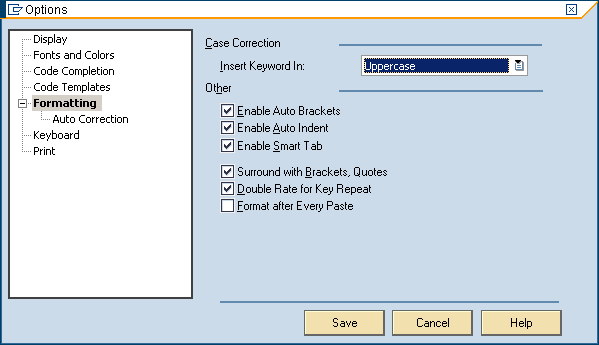
Formatting Settings
Features
Option |
Effect |
Case Correction |
|
Insert Keyword In |
This feature allows you to set keywords in the following styles: ● As typed ● UPPERCASE ● Lowercase ● Capitalized |
Other |
|
Enable Auto Brackets |
If you set this option, the system inserts an opening and a closing bracket automatically. |
Enable Auto Indent |
If you set this option, each time you press Enter, the editor automatically inserts exactly the same amount of white space at the beginning of the next line. |
Enable Smart Tab |
This option allows you to complete words by pressing Tab. |
Surround with Brackets, Quotes |
If you set this option, each time you press Enter, the editor automatically inserts the relevant character (,{,[,”,’. |
Double Rate for Key Repeat |
This feature allows you to speed up the function of buttons. When you press (and hold down) navigation buttons (Arrows, Page Up and Page Down), the navigation speed doubles. |
Format After Every Paste |
If you set this option, the code is formatted after every paste. |