
 Monitor for the QIN Scheduler
(SMQR)
Monitor for the QIN Scheduler
(SMQR)

Use
Normally, all LUWs written to the inbound queue are not automatically executed. Each application can activate these queues using APIs. To avoid each application having to write a specific scheduler, qRFC supports a general scheduler – the QIN Scheduler. Each qRFC application can also create its own scheduler in order to activate the required queues.
Procedure
The figure below illustrates how the QIN Scheduler works:
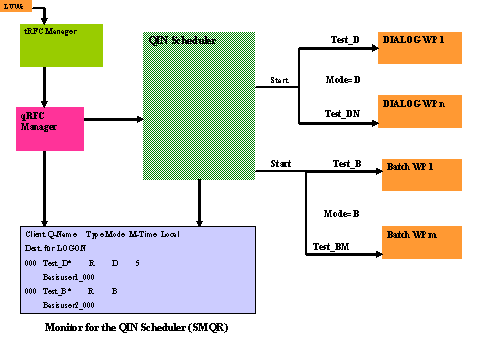
If a qRFC LUW has been written to a registered queue, and the QIN Scheduler is not already running, the QIN Scheduler is activated by qRFC Manager. There is one QIN Scheduler for each client (inbound queues are client-specific).
Result
Once the QIN Scheduler has been activated, it proceeds as follows:
...
1. The QIN Scheduler looks for registered queues in the database tables and processes them. Empty queues are not processed.
2. If a queue is to be activated in a BATCH WP, a batch job for activating this queue is scheduled in a BATCH WP.
3. The QIN Scheduler can only activate as many registered queues as there are resources available in the system (work processes in all application servers). As many queues can be activated as the number of free work processes permits. These queues are started by the function call “Call function ... starting new task ... destination in group GROUP_NAME performing ... on end of task”.
4. The default server group for the QIN Scheduler is DEFAULT. This means that all application servers on the local SAP systems are used to activate all the registered queues. You can create a server group according to your requirements. Server group DEFAULT does not need to be created and is not visible in transaction RZ12.
5. The maximum time that the QIN Scheduler should take to process a queue is specified in parameter MAXTIME during queue registration. If the maximum time is exceeded while a LUW is being processed, processing is not terminated immediately, but only after the LUW has been processed.
6. If all DIALOG work processes are busy, the QIN Scheduler has no resources. It sets the status (displayed in SMQR) to “Waiting” and waits for the next free work process.
7. After every queue has been activated once, the QIN Scheduler continues with step 1. At this point, the information is updated concerning registered and deregistered queues, or any changes to a new group of application servers.