
 Application Resources Management

Use
You use the Application Resources function to create, edit, and delete application resources such as JDBC resources, resource adapters, connection factories, and so on.
Features
On the Application Resources Overview screen you can view all resources, or choose a specific resource type from the Show dropdown list box. Initially, all resources are listed in the Resource List area. Application resources can have the following states:
 Fully
Available – the resource is up and available on all cluster
nodes.
Fully
Available – the resource is up and available on all cluster
nodes.
 Partly
Available – the resource is up and available on some cluster
nodes only.
Partly
Available – the resource is up and available on some cluster
nodes only.
 Not
Available – the resource is unavailable on all cluster nodes.
Not
Available – the resource is unavailable on all cluster nodes.
 Unknown
– the resource state cannot be determined.
Unknown
– the resource state cannot be determined.
When you select a resource from the Resource List, its details are displayed in the Resource Details area. When you list a resource’s details, the SAPNetWeaver Administrator constructs a roadmap of one element only, the currently viewed resource. Each resource that the currently viewed resource depends on is listed on the Antecedent <resource type> tab. Each resource that depends on the currently viewed one is available on the Dependent <resource type> tab. You can view details for antecedent and dependent resources by selecting the resource in the relevant tab and choosing the <resource type> Details button. For example, if you are viewing DataSource aliases dependent on a DataSource, the button reads DataSource Alias Details. When you view the details of a resource that is antecedent to or dependent on the currently viewed one, its details are displayed in the Resource Details area and the SAPNetWeaver Administrator adds a new element to the roadmap. Thus, each resource that you view from the Antecedent and Dependent tabs, is added to the roadmap and you can browse between dependent resources by choosing the corresponding element in the roadmap.

You list the details for the SAPDEMO_DS DataSource and the SAP NetWeaver Administrator constructs a roadmap of one element:
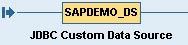
You choose the Dependent Data Source Aliases tab, select the alias testalias, and choose the Data Source Alias Details button. The Resource Details area is updated and displays the details for testalias. The SAP NetWeaver Administrator adds one more element to the roadmap. You can browse the resources by choosing the relevant element from the roadmap.

Activities
Managing JDBC DataSource Aliases
Viewing Managed Connection Factories’ Configuration
Managing JCA Connection Factories
Viewing Outbound Resource Adapters’ Configuration
Creating JMS Connection Factory References