
 Java Instance Overview Monitor

Use
Use this monitor to
display the most important information about all monitored Java instances. The
information is taken from the Java Startup Framework; you can also display it
in the
 SAP
Management Console.
SAP
Management Console.
The information covers the following topics, among others:
● Status of the instance and its associated processes
● Workload and memory released by Garbage Collections
● Threads and sessions of the Java instance
● Memory management of the Java instance (heap)

The template is defined in such a way that not only the Java instances of the local system, but also the instances of all systems registered with the local system are displayed. These are the systems in the system group J2EE_Systems.
Prerequisites
For the tree to be created, the system of the relevant instance must be centrally monitored. This means that at least one of the following prerequisites must be met:
●
If you are
monitoring the Java instance using a central monitoring system (CEN) with
release SAP NetWeaver 7.0, the monitored instance must be registered with CEN
using a
CCMS
agent.
● If you are using a system with release SAP NetWeaver 7.1 as a CEN, the monitored system must be registered with CEN (more information: Registering SAP NetWeaver Components and Hosts in CEN).
Features

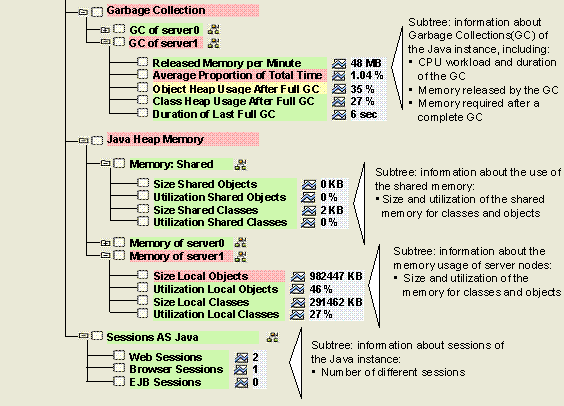
The monitor contains the following monitoring tree elements (MTEs):
MTE Name |
Meaning |
Java Instance: <instance name> |
Context in which all of the nodes below exist |
General Instance Information |
Monitoring object that contains general information about the Java instance |
Instance Name |
Name with which the instance logs on to the message server; the naming convention is JC_<host name>_<System ID>_<instance no.> |
Message Server Host |
Host name of the message server |
Message Server Port |
Internal port of the message server |
Number of Server Nodes |
Number of server nodes of a Java instance |
Java Instance Status |
Status of the Java instance in the Java Startup Framework; to display the possible statuses, call the F1 help for the node |
SAP Management Console |
URL for calling the SAP Management Console; to call the SAP MC directly from the alert monitor, double-click this node |
Process Table |
Information about processes of the Java instance |
server<number> |
Monitoring object that contains information about the process of a Java server node |
CPU Usage |
Extent of the CPU utilization by the process of the relevant server node; averaged over 30 seconds
The value is specified in CPUs; that is, with a value of one, the entire capacity of exactly one CPU of the host is used by the server process. |
Process
Type |
Type of the process; J2EE Server is displayed here. |
Number of
Restarts |
Number of restarts for a server node since the start of the instance |
Process
Status |
Status of a server node; to display the possible statuses, call the F1 help for the node |
Threads |
Information about threads of the Java instance |
Threads of
server<number> |
Monitoring object that contains information about threads of a Java server node |
Long Running
Threads |
Number of threads with too long a runtime; a thread is regarded as long-running if it exceeds the value defined in the profile parameter service/j2eethreadtasktime/red. By default, this time is 20 seconds. |
Active
Threads |
Number of active threads |
Garbage Collection |
Information about Garbage Collections of the Java instance |
GC of server1 |
Monitoring object that contains information about Garbage Collections of a Java server node |
Released Memory
per Minute |
Memory released by Garbage Collections per minute; the value displayed in the monitoring tree is averaged over the last 15 minutes, in the detail display, the exact minute values are displayed |
Average
Proportion of Total Time |
Percentage of the time during which a Garbage Collection is running for the relevant server process |
Object Heap
Usage After Full GC |
Utilization of the memory for local objects after a complete Garbage Collection as a percentage |
Class Heap Usage
After Full GC |
Utilization of the memory for local classes after a complete Garbage Collection as a percentage |
Duration of
Last Full GC |
Duration of the last complete Garbage Collection in seconds |
Java Heap Memory |
Information about the memory usage of the Java instance |
Memory: Shared |
Monitoring object that contains information about the shared memory of the Java instance |
Size Shared
Objects |
Size of the memory for shared objects of the Java instance in kilobytes |
Utilization
Shared Objects |
Utilization of the memory for shared objects of the Java instance as a percentage |
Size Shared
Classes |
Size of the memory for shared classes of the Java instance in kilobytes |
Utilization
Shared Classes |
Utilization of the memory for shared classes of the Java instance as a percentage |
Memory of
server<number> |
Monitoring object that contains information about the memory usage of a Java server node |
Size Local
Objects |
Size of the memory for local objects of a Java server node in kilobytes |
Utilization
Local Objects |
Utilization of the memory for local objects of a Java server node as a percentage |
Size Local
Classes |
Size of the memory for local classes of a Java server node in kilobytes |
Utilization
Local Classes |
Utilization of the memory for local classes of a Java server node as a percentage |
Sessions AS Java |
Monitoring object that contains information about sessions of the Java instance |
Web Sessions |
Number of Web sessions of the Java instance; a Web session is identified using a cookie (a Web session can therefore include multiple browser sessions, if these share the same cookie) |
Browser Sessions |
Number of browser sessions of the Java instance; a browser session represents an open browser window with a connection to the AS Java |
EJB Sessions |
Number of EJB sessions of the Java instance |
Activities
To start the monitor, follow the procedure below:
1. Start the Alert Monitor using transaction RZ20 or choose CCMS → Control/Monitoring → Alert Monitor.
2. On the CCMS Monitor Sets screen, expand the SAP J2EE Monitor Templates set.
3. Start the Java Instance Overview monitor from the list by double-clicking it.