
 BAPI Explorer

Overview
Using the Business Application Programming Interface (BAPI) Explorer, you can use BAPIs in your BSP applications. This allows you to access data and processes from external application systems.

You develop your BSP application on SAP Web Application Server in your SAP system environment. You want to integrate an availability check for a certain material in your BSP application. To do this, you have to use the MaterialCheckAvailability BAPI. This is not stored on your SAP Web Application Server, but in your application system. Using BAPI Explorer on your SAP Web Application Server, you can select the BAPI and add the relevant type definitions and calls to your BSP application.
BAPI Explorer
Procedure
...
1.
To start BAPI
Explorer choose Goto → BAPI Explorer on the Web Application Builder start page.
The system displays a list of all the RFC connections in your system
environment.
2. You now have two choices:
...
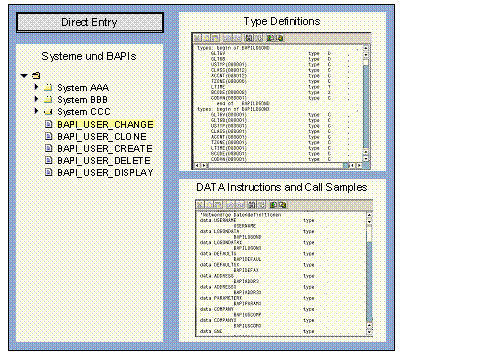
a. Use the navigation structure on the left-hand side of the screen.
i.
Choose your
application system and double-click the relevant structure to expand it.
The system displays a list of all BAPIs available in this application
system.
ii.
To select a BAPI,
double-click it.
The system displays the type definition for the BAPI in the upper right-hand
window.
In the lower right-hand window, the system displays a sample BAPI
call.
iii. Select the structures and types you need and use copy & paste or drag & drop to copy them to the type definition tab for your BSP in Web Application Builder. Use the same procedure for the DATA statements and the call template.
...
a. Use direct input.
i. Choose the Direct Input pushbutton.
ii. In the dialog box, enter the name of the BAPI or function module and the target system ID.
iii.
Choose  .
.
iv. Use the same procedure as described in 2. a) iii.
3. Save your entries in Web Application Builder and continue developing your BSP application.

With direct input, you can enter name of the function module instead of the BAPI..
Result
You can now use the BAPI or function module in your BSP.