
 Processing Top Texts

Use
The aim of processing top texts is to create as many system standards with quality status A as possible for source texts that only need one translation which fits all possible contexts.
Another aim is to avoid creating such proposals for ambiguous source texts that need more than one translation, depending on the context.
This ensures that “easy” source texts, which can be translated automatically, are translated via automatic distribution. It also ensures that ambiguous source texts, which need human attention, are translated correctly during manual translation and in accordance with the context of the object in which they occur.
Prerequisites
· Before processing top texts, we recommend that you do as much research as possible about the subject area to be translated. Discuss and define as much terminology as you can, so that you can create as many proposals as possible with confidence while processing top texts.
· Read the documentation on the proposal pool and automatic distribution carefully, so that you are aware of the consequences of distributing an unsuitable translation, and the work involved to correct it.
· You need to know the technical names of the top text objects you want to process. If you have a number of top text objects and more than one translator available to process the top texts for your target language, decide on the objects that each translator will process. It can also be useful for all translators to sit around one PC to discuss and decide how to deal with each source text in the top text objects. This ensures that everyone translates using consistent terminology and style when manual translation starts, because all translators discussed these issues during top text processing.
· To process top texts, you need to be able to create proposals with quality status A, to ensure maximum distribution potential. Your translator profile must therefore contain authorization PPQ1 (Assign Quality Status) with value 04 (Level 4).
Procedure
There are two different ways of calling up top texts for processing:
● Directly in SE63
This is the simplest way to access a top text object for processing. You can only call up one object at a time, and you cannot see how many lines you have processed in each object, until you call the object up.
● Using a worklist
Calling up top text objects via a worklist means that you enjoy all the benefits that the worklist screen offers, such as sequential processing and the fact that the processing status of each line of each top text object is displayed in the worklist screen. To be able to use this option, you user requires authorization object S_ADMI_FCD with value TRNR.
Calling Up One Top Text Object Directly
...
1. Call up transaction SE63.
2. Enter dems in the command field.
3. Choose F4 on the Object Name field and double-click the top text object you want to process in the list that appears.
4. Check that the translation area, source language and target language are correct, and choose Edit.
Using a Worklist to Call Up Top Texts
...
1. Call up transaction LXE_MASTER.
2. Choose Environment → DEMS Objects.
3. Ensure that the Object Namefield contains *, then choose Select Objects.
4. Choose Display Selection.
The system displays a list of all DEMS objects available in the system.
5. Double-click the top node of the hierarchy (Choose Objects) to deselect all the DEMS objects, and then double-click the top text objects that you want to process.
6. Choose Execute.
7. Under Analysis, choose Branch to Worklist.
8. Double-click your source language in the dialog box that appears.
9. Double-click your target language in the next dialog box that appears.
The system displays the top text objects you
selected in a worklist structure. For more information, see
 Translating Objects
via a Worklist.
Translating Objects
via a Worklist.
Processing Source Texts in Top Texts
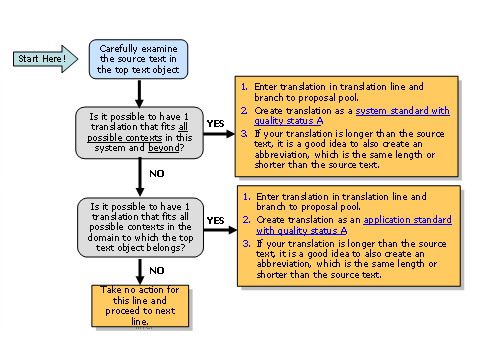
The graphics below illustrate the decision process for dealing with source texts in top texts.
In the status bar above each source text, the system displays the frequency of the source text. So if you see the value 299 in the status bar above your translation, it means that:
● If you can create a system standard with quality status A for this source text, you will save 299 lines of manual translation.
● If you create an unsuitable translation as a system standard with quality status A for this source text, you could end up with 299 incorrect translations to correct.
Processing Source Texts for Which No Proposal Exists
Processing Source Texts for Which Proposals Already Exist
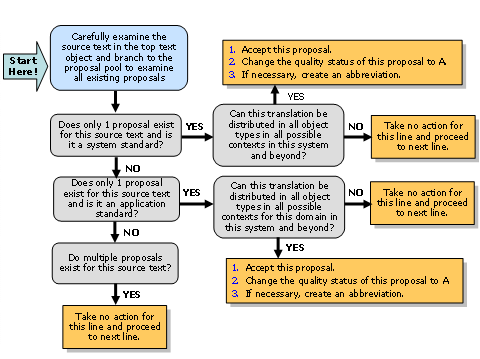
For more information, see Changing the Quality Status of Proposals.
Finishing Processing of a Top Text Object
...
1. Choose Save.
2. Choose Back (F3).
3. Repeat for the next top text object you need to process.
4. Once you have finished processing top texts, report back to the person responsible for running evaluations, so that he or she can check the results and start an evaluation with automatic distribution.
Result
After top text processing is completed, an evaluation with automatic distribution must take place. You can then trigger manual translation.
Examples
The table below contains a few sample source texts that you might encounter in a top texts object, along with our recommendations on how to proceed.
Source Language |
Target Language |
Source Text |
Recommendations |
English |
German |
Program & |
It is possible to define a unique translation that fits all possible contexts. Create Programm & as a system standard with quality status A. This text occurs 400 times, so you have saved 400 lines of manual translation! |
English |
German |
Change Document |
It is not possible to define a unique translation that fits all possible contexts, because Change Document can be translated as Beleg ändern or Änderungsbeleg, depending on the context. Leave this line of the top text object blank, and proceed to the next line. |
English |
German |
Application |
Here it is not possible to define a unique translation, because Application can be translated as Bewerbung, Anwendung, or Applikation, depending on the context. Leave this line of the top text object blank, and proceed to the next line. |
German |
English |
Beschaffung |
Here it is not possible to define a unique translation, because Beschaffung can be translated as Procurement or Recruitment depending on the context. You are, however, sure that the translation Recruitment fits all possible contexts in the collections belonging to the domain PA (Personnel Management). Create Recruitment as an application standard for the domain PA with quality status A. |
German |
English |
Daten sichern |
It is possible to define a unique translation that fits all possible contexts. Create Save Data as a system standard with quality status A. |
German |
English |
Parameter |
Here it is not possible to define a unique translation, because this German source text can be translated as Parameter or Parameters depending on the context. Leave this line of the top text object blank, and proceed to the next line. |