
 Peripheral Options Menu for Scanner Peripheral
Type
Peripheral Options Menu for Scanner Peripheral
Type

Definition
This menu provides functions to prepare barcode data, set the emulation behavior, and emulate scanning. Each function is explained below.

There is also a toolbar, the Peripheral Options Toolbar, which relates directly to this menu:

The relationship between each button and a function from the menu is explained in the next table.
Some of these functions are also available in a popup menu which can be triggered by right clicking on the input area of the scanner peripheral panel.
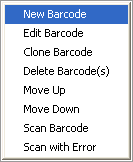
Use
Peripheral Options menu functions for the scanner
Menu option |
Button |
Description |
New Barcode |
|
Only available after a Data group has been selected. Allows the user to create a new barcode by entering all the necessary information. |
Edit Barcode |
|
Only available after an existing barcode has been selected. Allows the user to modify the information of the selected barcode. |
Clone Barcode |
|
Only available when an existing barcode is selected. It duplicates an existing barcode and triggers the Clone Barcode dialog box that prompts the user to modify all information of the duplicated barcode. |
Delete Barcode(s) |
|
Only available when at least one barcode is selected. Deletes all selected barcodes.
This function supports multiple selections in the barcode list. |
Move Up |
|
This function is only available when a barcode is selected and is not in the top row of the barcode list. The selected barcode moves up one row in the barcode list each time the button is pressed. |
Move Down |
|
This function is only available when a barcode is selected and is not in the bottom row. The selected barcode moves down one row in the barcode list each time the button is pressed. |
Scan Barcode |
|
Only available when a barcode is selected. Starts an emulated scanning process.
The scanning may or may not be successful based on the barcode itself and the scanner’s settings. |
Scan with Error |
|
Only available when a barcode is selected. Emulates a scanning process that generates a hardware scanning error. When the application is in "Scan Aware Mode", this function triggers an error event. |
After barcode scan go to next barcode |
|
Toggles a switch in the scanner emulator. When the switch is on, the next barcode in the list will be selected after a successful scan of the barcode currently selected. |
Reset |
|
Resets the scanner. It sets the scanner to its initial states. |
Capability... |
|
This function provides access to the scanner configuration attributes in each of the available categories. These categories are explained in the structure section below.
The PIOS Emulator emulates attributes supported by the Scanner API. |
Wedge Window... |
|
Displays the wedge window selection dialog box. Here the user may select another application as the target for the scanning result in wedge mode. This is an emulated wedge mode; a special instance of the wedge mode. The data does not go to the Emulator window, which has the focus. Instead, the data goes to the application selected in the wedge window selection dialog box.
If no application is selected the data is sent to the Emulator's default wedge window. |


Structure
When you click on Capability… a window with several tabs is displayed. Each tab is explained in the next table:
Capability... Categories
Category |
Description |
General |
Contains general scanner attributes. The state of each attribute can be modified by clicking on the attribute node selection checkbox or selecting the node and pressing the space bar. |
Symbology |
Contains a list of the supported symbologies and their supported attributes. The state of each attribute can be modified by either clicking on the attribute node selection checkbox or selecting the node and pressing the space bar. |
· Some attributes are grouped in folders. The first entry inside these folders is referred to as the base attribute. This base attribute is automatically selected if any of the other options within the folder is selected. If the base attribute is unselected any other selected entries within the folder are cleared as well.

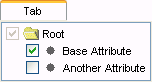
· Selecting a folder will select all attributes in that folder.
Integration
The peripheral options menu contains options specific to an individual peripheral type. Menu options will vary per peripheral type.