Deploying and Running the Sample
Application
Deploying and Running the Sample
Application

Prerequisites
● You have made sure that the SAP Web Applications Server Java has been launched.
● You have checked that the application server is correctly selected in the Developer Studio. To check the server settings, choose the menu path Window → Preferences → SAP AS Java. If it is not already done so, specify the Message Server Host, and Message Server Port. For example: Message Server Host localhost, Message Server Port 3602 (it is constructed as 36<SYS instance number>).
Procedure
Deploying the Java EE Application
1. Open the Servers view via the menu path Window → Show View → Other…Server → Servers.
2. Choose Add and Remove Projects from the context menu of the servers node.
3. Add the Enterprise Application project studsapp and start the deployment with Finish.

Each time when you choose Publish in the context menu of the server, the Java EE application will be deployed on the engine.

Deploying and Running the Web Dynpro Client Application
...
1. If you have not already done so, save the data for your Web Dynpro project in their current state. In the Web Dynpro Explorer, select the project node and choose Rebuild Project in the context menu.
2. Make sure that the Tasks view does not display any errors for your project.
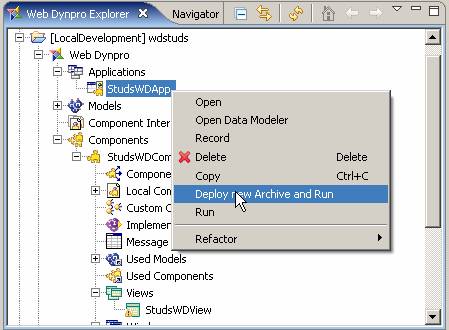
3. In the Web Dynpro Explorer, open the context menu for the application object StudsWDApp.
4. Choose Deploy new Archive and Run.