 Creating InfoProviders
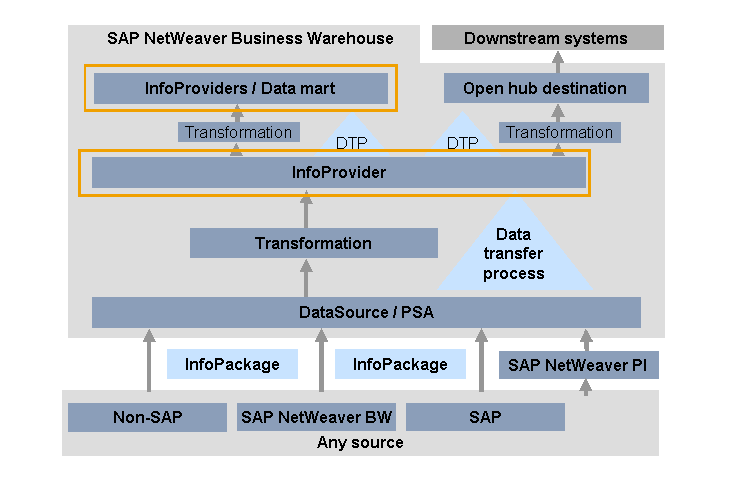
The Data Warehouse layer and the architected data mart layer are built up of InfoProviders.
InfoProviders are BW objects into which data is loaded or which display views of data. You analyze this data in BEx queries.
There are InfoProvider types in which the data is stored physically and InfoProvider types that are only views on the data. However, in the BEx Query Designer, they are seen as uniform objects.
More information:
The following graphic shows how InfoProviders are integrated in the dataflow:
Prerequisites
Ensure that all the InfoObjects you want to add to the InfoProvider are available in an active version. Create any InfoObjects you require that do not already exist and activate them.
Instead of creating a new InfoProvider, you can install an InfoProvider from the BI Content delivered by SAP.
More information: Installing BI Content
Procedure
Select the InfoArea to which you want to assign the new InfoProvider, or create a new InfoArea. In the Data Warehousing Workbench, choose
 Modeling
  InfoProvider Create InfoArea
  .
.In the context menu of the InfoArea, choose the type of InfoProvider that you want to create.
Enter a name and a description for the InfoProvider. You can also enter details for the objects on which you are basing the InfoProvider.
Choose Create. The InfoProvider processing screen appears.
Copying InfoObjects:
On the left side of the screen, there are various templates to choose from. These allow you to get a better overview in relation to a particular task. For performance reasons, the default setting is an empty template. You use the pushbuttons to select different objects as templates.
The InfoObjects that are to be added to the InfoProvider are divided into the categories characteristic, time characteristic, key figure, and unit. You have to transfer at least one InfoObject from each category.
On the right-hand side of the screen, you define the InfoProvider. Use drag and drop to assign the InfoObjects in the dimensions and the Key Figures folder. You can select several InfoObjects at once. You can also transfer entire dimensions using drag and drop. The system assigns navigation attributes automatically. These navigation attributes can be switched on to analyze data in BEx.
Or:
You can insert InfoObjects without selecting a template in the left-hand side of the screen. This is useful if you already know exactly which InfoObjects you want to include in the InfoProvider. In the context menu for the folders for dimensions or key figures, choose Insert InfoObjects. In the dialog box that appears, you can enter and transfer up to 10 InfoObjects directly, or you can select them using input help. You can use drag and drop to reassign them.
For more information about the object-specific settings, see:
You create VirtualProviders in the same way as you create InfoCubes. You create InfoSets in a different way to other InfoProviders.
More information: Creating InfoSets
In the context menu of the Key Figures folder and the Data Fields folder, you can Insert New Hierarchy Nodes. In this way you can sort the key figures in a hierarchy. You then get a better overview of large quantities of key figures in query definition.
More information: Defining New Queries
Save or activate the InfoProvider.
Only activated InfoProviders can be supplied with data and used for reporting and analysis.