 Using the Search and Analytics Modeler
The search and analytics modeler allows you to extend the search object connector models provided by SAP to meet your requirements. You can also create new models to connect additional search objects to your search. To create modes for additional search objects, import the metadata and model the corresponding search BO object according to your requirements.
You access the modeler through the Connector Administration Cockpit.
Structure
The overview screen for the search and analytics modeler has the following structure:
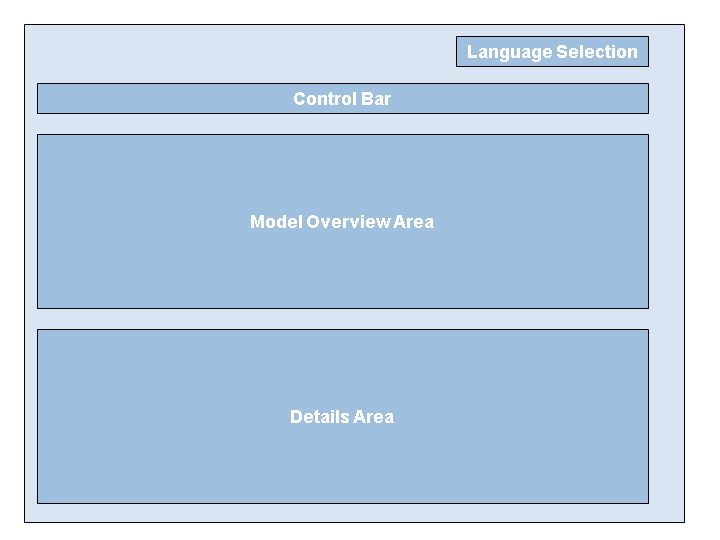
The control bar and the model overview are always displayed. The details area is only displayed once you select a model in the overview area.
Language Control
In the Model Language field, you can select the language in which language-specific content in model fields is to be displayed and maintained.
Control Bar
This section contains the buttons for executing the following actions:
Pushbutton/Command |
Function |
|---|---|
Import |
You use this button to import modes from an SAP Business Suite application. |
Create |
You use this button to create a new search object connector model. |
Copy |
You use this button to copy an existing search object connector model. The button is active when you select a search object connector model in the model overview area. |
Display |
You use this button to open an existing search object connector model in write-protect mode in the roadmap. You cannot change the model. |
Edit |
You use this button to change an existing search object connector model. This can be a model that you have created or a model delivered by SAP. The button is active only when you select a search object connector model in the model overview area. |
Delete |
You use this button to delete an existing search object connector model. This button is active when you select a search object connector model that you have created or changed. |
Software Components |
This button opens a dialog in which you can define and embed software components. Define Software Components This button opens a dialog in which you can create and delete software components. Software components are used to organize models. Embed Software Components Select the software component in which you want to embed further software components and their models and choose this pushbutton. In the selection dialog, choose the software component to include. The chosen software components are added to your software component as a copy with all properties. Properties that you have not set in the original version can be set in the copy. Properties that you have set in the original version cannot be changed in the copy. If changes are made to the original version , these are transferred to all included copies. Changes to a copy apply only to that copy, not to the original version or other copies. Export to File (XML) You can use this function to export a software component as an XML file. Choose the Download function and use the Save function in the browser to save the XML file that is displayed. In the modeler, you can use the |
Actions |
Includes the commands listed in the table below. |
Administration Cockpit |
Takes you to the administration cockpit. |
 Import
  Import from File (XML)
The Actions button contains the following entries:
Action |
Function |
|---|---|
Display Models |
This view is active by default. Here, you can change content. If you have selected the action Display Inactive Connectors or Display Active Connectors, you can choose this action to return to the default view. |
Display Inactive Connectors |
Shows objects that are currently not used by active search object connectors. This view is read-only. You can check the status of search object connectors in the administration cockpit. |
Display Active Connectors |
Shows objects that are currently used by active search object connectors. This view is read-only. You can check the status of search object connectors in the administration cockpit. |
Client Copy |
This pushbutton is available only in a system with a customizing client. You use this function to generate a copy of a software component and transfer it to other clients. |
Resolve Conflicts |
More information: Resolving Naming Conflicts |
Create Connector |
This button is used to create a search object connector. |
Switch Assignment |
This function is available only for SAP and is part of the SAP Switch Framework. |
Model Overview Area
The model overview area comprises the following columns:
Selection column
Click the relevant row in this column to select a software component or search object connector model.
Software Component/Model
This column displays the available search object connector models sorted by product version.
The available models in a software component are displayed in a tree-like structure. To see the models that belong to a specific software component, you must expand the corresponding nodes by clicking them.
Description
In this column, you can enter descriptions for the models you create. Click into the field in the relevant row and enter your description. The description of a software component can be changed in the software component dialog.
Type
In this column, you can see whether the row refers to a software component or search object connector model. You can display the following models: Models for business objects, models for technical objects, and models for authorization objects. The fields of the column are read-only.
Name in Back End:
This column contains the name of the model as used in the back-end system.
Switched
Specifies whether or not a model with the Switch Assignment function has been activated using the SAP Switch Framework.
 Note
Note
The modeler is subject to authorization checks at the software component level and search object connector model level. If you log on with limited access rights, the overview area may not contain any entries or may automatically switch to display mode.
Details Area
If you have selected a software component in the upper area, you can assign back-end systems to this software component in the details area. You can use the models in this software component for these back-end systems. Furthermore, you can use the systems assigned here to import additional models definitions.
If you have selected a model in the upper area, you can display the node structure and the assignments in the details area.
Modeling Roadmap
Once you select a created model and choose Change, the display changes to show a roadmap for modeling the model. You can save your settings at various points within this roadmap. This allows you to stop working on a current modeling project and resume work later.
While working through the steps in the roadmap, the following buttons are available for navigation:
Previous: If you choose Back, you go to the previous step in the roadmap. The settings made in the current step are retained, but not saved to the database.
Next: If you choose Next, you go to the next step in the roadmap. The settings made in the current step are retained, but not saved to the database.
Save: Choosing Save saves your entries in the database and you stay on the current screen.
Finish: Choosing Finish saves your entries and takes you back to the modeler entry screen or to the administration cockpit.
Cancel: Choosing Cancel discards the changes you have made since you last chose Save and takes you back to the modeler entry screen or to the administration cockpit.
Note
When you have launched the roadmap, you can move forwards or backwards to the required roadmap step at any time by choosing the required roadmap step.
More information: Working Through the Roadmap Steps