
 Importing Portal Certificate into SAP System
< 4.6C
Importing Portal Certificate into SAP System
< 4.6C

Check whether there is a DIR_PROFILE\SAPSSO2.pse file in the profile directory of the component system. (DIR_PROFILE is a profile parameter.)
●
If not, copy the
 verify.pse file from the portal into the DIR_PROFILE directory of the component system and rename it to
SAPSSO2.pse. For more information, see Keystore
Administration.
verify.pse file from the portal into the DIR_PROFILE directory of the component system and rename it to
SAPSSO2.pse. For more information, see Keystore
Administration.
●
If yes, check
whether it is still needed, for example if there is a current SAP Workplace
installation that must be used after SAP NetWeaver Portal is set up. If it is
not needed, replace it with the renamed
verify.pse. If it is still needed, perform the steps
outlined below.
If you need to keep the existing PSE file in your component system
You can use the Trust Manager to import the portal certificate into the existing PSE file. To do this, you need any SAP system with Release 4.6C or higher.
...
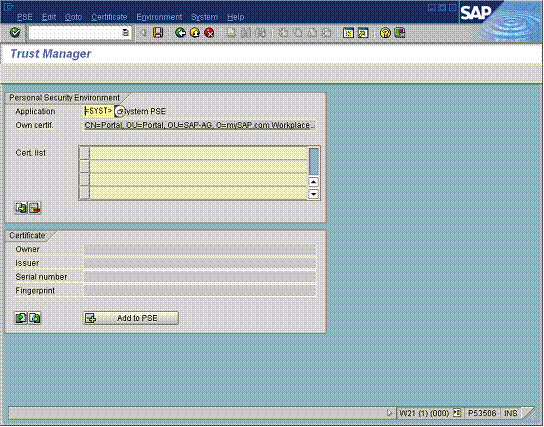
1. In an SAP system with Release 4.6C or higher, start transaction STRUST.
The following screen appears.
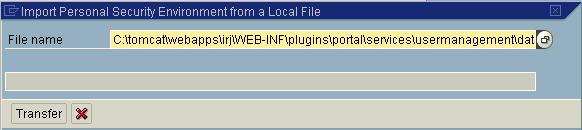
2. In the Application field, choose <FILE>, and enter the path to the SAPSSO2.pse file of your component system. Choose Transfer.
3. Choose Import certificate. Enter verify.der from the Portal Server.
4. Choose Add to PSE.
5. Save the updated SAPSSO2.pse.
6. Copy the updated SAPSSO2.pse to the DIR_PROFILE directory of your component system.