 Developing the EJB 3.0 Module
Prerequisites
The  Windows
  Open Perspective Other Java EE
  perspective is opened.
Procedure
Creating the EJB Module Project
You develop the EJB 3.0 classes in an EJB 3.0 project in the Java EE perspective.
1.Choose
File New Project.. from the main menu.2. Choose
EJB EJB Project on the New Project screen. Choose Next.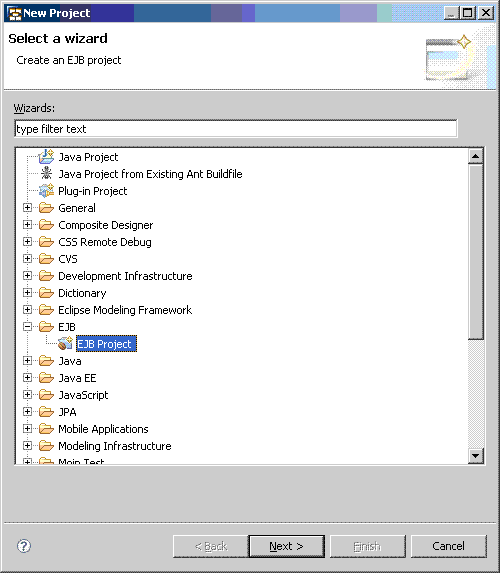
Enter ConverterEJB in the Project name field.
Leave the Default Configuration for SAP Libraries in the Configuration field. The default configurations include EJB 3.0 and Java 6.0 project facets.
To assign the EJB project to an Enterprise Application project, choose Add project to an EAR and enter ConverterEAR in EAR Project Name field.
 Note
NoteThe ConverterEAR project is created automatically when you complete the wizard.
End of the note.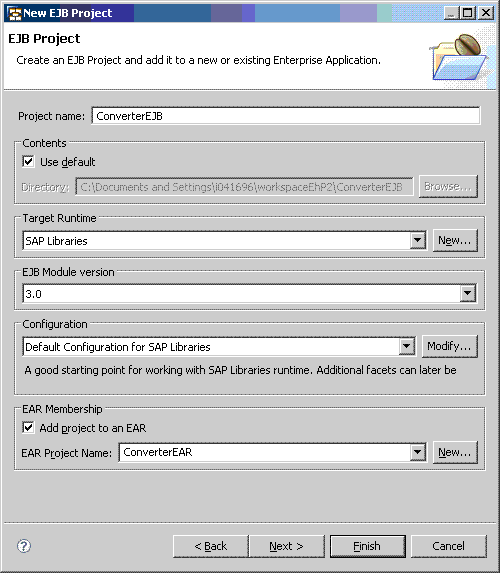
Choose Finish to create your EJB 3.0 project.
Creating the Stateless Session Bean
In the context menu of the ejbModule node of the ConverterEJB project, choose
File Other 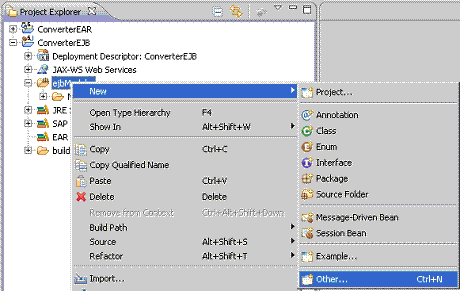
Choose
EJB Session Bean on the New screen. Choose Next.Enter ConverterBean in the Class Name field and com.sap.tutorial.javaee in the Java Package field.
Select Stateless in the State type field.
Select Container in the Transaction Type field.
Deselect the Remote checkbox for Create business interface.
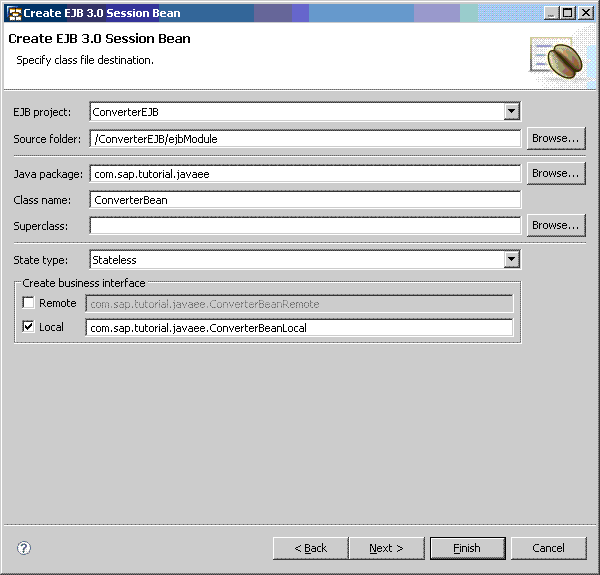
Choose Finish.
Implement the business logic of ConverterBean by entering the following code in its body:
 Syntax
private BigDecimal dollarRate = new BigDecimal("1.2"); private BigDecimal euroRate = new BigDecimal("0.83"); public BigDecimal dollarToEuro(BigDecimal dollars) { BigDecimal result = dollars.multiply(euroRate); return result.setScale(2, BigDecimal.ROUND_UP); } public BigDecimal euroToDollar(BigDecimal euros) { BigDecimal result = euros.multiply(dollarRate); return result.setScale(2, BigDecimal.ROUND_UP); }
End of the code.To import the additional classes that you refer in your code, choose
Source Organize Imports from the main menu.To add the dollarToEuro business method to the bean’s local interface, locate the Outline view and in the context menu of the method, choose
EJB Methods Add to Local Interfaces .Repeat the same step to add the euroToDollar method to the local interface as well.

Choose
File Save from the main menu to save the bean.