
 Modeling Business Object Nodes

Prerequisites
You have created the carpool application in SAP NetWeaver Developer Studio. It is listed in the Composite Application Explorer view.
Procedure
In the following section, you create business object nodes and their attributes for:
· Employee
· Travel Location
· Travel
Creating Business Objects
...
1. In the Composite Application Explore view, expand the carpool node and click the modeled package with the secondary mouse button.
2. Choose New → Business Object.
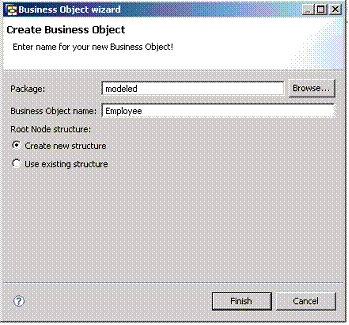
3. Leave the default value in the Package field – modeled or choose an existing package you have created.
4. In the Business Object name field, enter Employee.

The business object name must not contain any special characters or spaces between letters.
5. Select Create new structure and choose Finish.
6. Repeat steps 1-2 to create business objects for:
○ TravelLocation
○ Travel
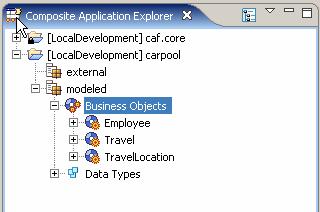
The business objects you have created appear under the Business Objects node.
Creating Attributes
...
1. Choose the business object node Employee and on the Structure tab page, choose Edit Main Structure.
2. On the Edit tab page, in the Existing Types tree, navigate to the caf.core → primitive → LONG.
3.
Choose  .
.
The new attribute appears under the Structure Fields list.
4. To change the name of the attribute, click it and enter id.
5. On the Structure tab page of the Employee object editor, enable the Custom key indicator for the attribute id.
6. Repeat steps above to add attributes for the following business object nodes:
○ Travel
○ TravelLocation
The information you need is listed in the tables below.
Business Object Node: Employee
Field Name |
Data Type |
Key |
Cardinality |
id |
primitive.LONG |
Yes |
1..1 |
lastName |
primitive.STRING |
No |
0..1 |
firstName |
primitive.STRING |
No |
0..1 |
primitive.STRING |
No |
0..1 |
Business Object Node: TravelLocation
Field Name |
Data Type |
Key |
Cardinality |
id |
primitive.LONG |
Yes |
1..1 |
name |
primitive.STRING |
No |
0..1 |
Business Object Node: Travel
Field Name |
Data Type |
Key |
Cardinality |
id |
primitive.LONG |
Yes |
1..1 |
startDate |
primitive.DATE |
No |
0..1 |
Defining Associations Between Business Object Nodes
...
1. Open the Associations tab page of the business object node Travel.
2.
From the Available Business Object Nodes tree, select the
carpool application relevant business object node
and choose with the quick info text Add Association.
3. From the Cardinality dropdown box, choose the relevant cardinality of the attribute.
Business objects can have associations to other business objects. They are listed as data types in the Travel table below.
Business Object Node: Travel
Field Name |
Data Type |
Key |
Cardinality |
keeper |
Association to Employee |
No |
NONE_TO_ONE |
Passenger |
Association to Employee |
No |
NONE_TO_ONE |
startLocation |
Association to TravelLocation |
No |
NONE_TO_ONE |
targetLocation |
Association to TravelLocation |
No |
NONE_TO_ONE |
4.
To save your
application, choose  with the quick info text Save application.
Result
You have created your first business object nodes.
Step 3: