Defining Data Mappings
You define data mappings to show how data used as input and output by the activities and the events in your process is transformed. When you define input mapping, you define how the data transformation between the process context and the input context of an activity or event is done. When you define output mapping, you define how the data transformation between the output context of an activity or event and the process context is done.
Data mapping defines rules for transforming the source context to the target context. Each context consists of one or more nodes. Nodes can be of simple type, which means that the node has no children or of complex type, which means that the node has child nodes. If you define data mapping to a child node, all of its parent nodes are also included in the mapping and this mapping is visualized with an asterisk (*) next to the parent node in the target context.
Depending on whether you define mappings between parent nodes or between their child nodes only, you can achieve different mapping results. The results also depend on the cardinality of the parent node. If the cardinality of the parent node is 1 and you map only the child nodes, the mapping engine creates the parent target node (B), even if the source context is empty.
 Syntax
A B
A1 → B1
A2 → B2
If you map the parent nodes and the source structure is not initialized, then the target structure is not created.
Syntax
A → B
A1 → B1
A2 → B2
If the cardinality of the source parent node is greater than 1, which means that the source is a list, you have to map the parent nodes of the source and the target. Thus, for each of the elements of the source, an element is created in the target context and the mapping between child nodes is executed. If no mapping between the source and the target parent nodes exists, the mapping editor shows an error. You need to specify how the elements of the source context are transformed to the target with an expression.
Syntax
A[] → B[]
A1 → B1
A2 → B2
The data mapping in the process composer does not support all data types. For more information about all limitations on data types, see SAP Note 1266539. You need to consider the data type compatibility when you define data mappings. For more information, see Data Type Compatibility.
Mapping Assignment Options
Depending on the nodes type and their cardinality, you can define the following mapping assignment options:
Set
Set is the default assignment for both node types. When you use the set option, the source context overrides the target context.
 Example
In the source context object you have one element and the target object is a list containing five elements. When you use the set option, after the mapping you have one element.
End of the example.Append
Append option is available for both node types if maximum occurrence is greater than 1. When you use the append option, the source context objects are appended to the list of existing target context objects.
ExampleIn the source context object you have one element and the target context object is a list containing five elements. When you use the append option, after the mapping you have six elements.
End of the example.Merge
The merge option is intended for structured target data. When you use the merge option, the source context objects are merged with the target context objects. New objects are created in the target object if the number of objects in the source object is greater than the number of objects in the target object.
ExampleIn the source context object you have a list containing five nodes A, B, C, D, and E. In the target object you have a list containing two nodes M and N. When you use the merge option, after the mapping you have a list with the following nodes: M, N, C, D, and E.
End of the example.
Context Nodes Decorations
When you define data mappings, you may see the following decorations on the context nodes:
Question mark (?)
The question mark (?) decoration at the upper right corner of a node means that the mapping to this node is optional.
At sign (@)
The at sign (@) decoration at the bottom right corner of node means that the element is an attribute and is always of simple type.
Stack icon
A node decorated as a stack icon means that this node may contain multiple nodes or values.
A text() child node may be also presented in the source or target context. When you define data mapping from a text() node, the text() node selects the text value of its parent node. The parent node is of complex type with simple content. When you define data mapping to a text() node, the text value is assigned to the parent node as a text value. Note that the text value is not necessary of type string but can be also of type integer, and so on.
Automapping Option
When you define input and output mappings, you may use the automapping option. Automapping option creates all the possible mappings. Possible mappings are created based on matching the elements' names.
Prerequisites
You have created the necessary data objects in your process.
You have set the data type of the data objects.
You have opened the Process Composer perspective in the SAP NetWeaver Developer Studio and have expanded your project in Project Explorer view.
Procedure
Choose
 Process Modeling
  Processes
  .
.Click a process with the secondary mouse button and choose Open.
In the modeling surface, choose an activity or an event.
Defining Input Mapping
In the Properties view, choose Input Mapping.
In the Process Context field, choose a node.
Map the node to a node in the Inputs field using drag and drop.
You can map a process context node to more than one input nodes. You can also map more than one process context nodes to an input node. You define how this mapping is done with an expression. For more information, see Creating Expressions.
 Caution
If you map a node, whose content is a list or a node, with one or more parents that are lists, to a single-valued node, you get an error. Depending on your needs you could provide custom expression, for example to aggregate the list to a single value, or you could do parent mapping between the multi-valued parent nodes.
Data mappings between parent nodes and child nodes are described at the beginning of this document.
End of the caution.In the context menu of the mapping line, choose Assignment and then select one of the assignment options available, depending on the mapping you want to define.
Defining Output Mapping
In the Properties view, choose Output Mapping.
In the Outputs field, choose a node.
Map the output node to a node in the Process Context field using drag and drop.
You can map an output node to more than one process context node. You can also map more than one output node to a process context element. You define how this mapping is done with an expression.
 Note
NoteYou can drag an element from the output mapping to the modeling surface to create a data object with the corresponding elements. For more information about data objects, see Creating Data Objects.
End of the note.In the context menu of the mapping line, choose Assignment and then select one of the assignment options available, depending on the mapping you want to define.
Note
If you want to undo a mapping you have created, you have to select the mapping line and delete it.
Caution
An error marker on the function icon of the mapping line means that the mapping has an error and cannot be done. Errors in mappings are only visible in the mapping editor but are not visible on the modeling surface or in the Problems view.
(Optional) Defining Mappings Using the Automapping Option
In the Properties view, choose respectively Input Mapping or Output Mapping.
In the Process Context or Outputs field respectively, select and drag with the secondary mouse button a node to a node in the Inputs or Process Context field respectively.
A context menu appears when you release the secondary mouse button.
Choose Map automatically.
The automapping option creates the possible mappings if any.
In the context menu of the mapping line, choose Assignment and then select one of the assignment options, depending on the mapping you want to define.
Example
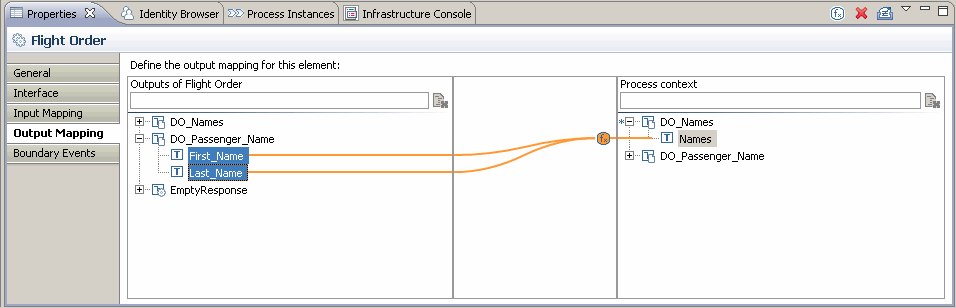
You want to perform data mapping from a source context object that contains two nodes to a target context object that contains one node. To do that, you select the two source nodes and drag them to the target node. Since you map multiple nodes to one, this mapping requires an expression to transform the data from the source context object to the target context object. When you drag the two nodes to the target node, a default expression is created which concatenates the two source nodes.
You can see the expression in the expression editor when you click the function icon on the mapping line.
The mapping example described above is shown in the following picture: