
 Configuring Guided Procedures with the
Universal Worklist
Configuring Guided Procedures with the
Universal Worklist

Use
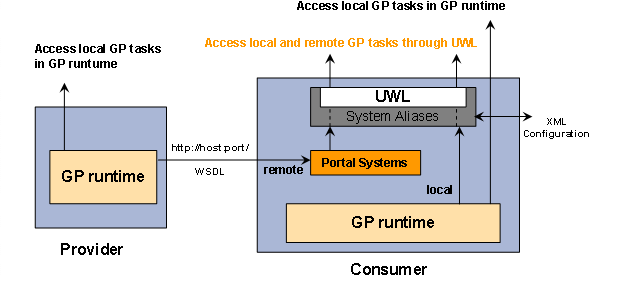
You can configure your system so that the tasks generated in Guided Procedures (GP) workflows, both on local and remote systems, are displayed in the Universal Worklist (UWL) together with the tasks pertaining to other SAP NetWeaver Portal work areas.
You can either use a local GP system or connect remotely to another GP system. If you are connecting remotely to the GP system, you first have to create a portal system and then register it and assign a system alias. If you are using a local GP system, you directly create the system alias without creating a portal system.
You perform the configuration steps on the consumer side:
...
1. Create a portal system, specifying the host name, HTTP port of the GP tasks provider and, if available, the WSDL of the relevant service.
You execute this step only if you are connecting remotely to the GP system.
2. Register the system as the item provider for UWL and configure it for remote access.
You establish the connection between GP and the UWL by assigning a system alias.
3. In UWL, browse, track and forward all pending GP tasks assigned to your user.
You can only view tasks assigned to your user, that is, the logon ID of the user on both systems must match.
You access the UWL at the top navigation level of the portal using Home → Work. The Home tab is covered by the Standard User portal role (eu_role).
For more
information:, see
 Managing Tasks and
Alerts in the Universal Worklist.
Managing Tasks and
Alerts in the Universal Worklist.
Prerequisites
●
You have the System Admin portal role assigned, in order to create
portal systems and aliases. For more information, see
Administration
Roles.
● You the Standard User role or the or Every User Core Role assigned, in order to access UWL in the portal.
For more information, see:
Configuring the Universal Worklist
Mapping Portal Users to System User.
● You know the host name of the system from which you want to retrieve GP tasks.
Procedure
1. Create a Portal System
...
You need to create a portal system only if you are connecting remotely to the GP system. If you are using a local GP system, you directly register a system alias.
1. In the portal, navigate to System Administration → System Configuration → System Landscape.
2. Select a preferred location in the Portal Content catalog and create a new system.
From the context menu, choose New → System (from template).
3. Under Available Templates select the Web Service Systemradio button.
4. On the General Propertiesscreen, enter the System Name, System ID and Master Language for the new system and choose Next.
5. Choose Finish and open the system object for editing.
6. From the Show Category dropdown menu, select Web Service.
a. On the right-hand side of the screen, choose the Modify pushbutton.
b. In the WSDL URL field, enter the host name and port of the GP task service in the format http://<host>:<port>/GPWorkItemProvider/Default?wsdl or http://<host>:<port>/.

To be able to access and use the GPWorkItemProvider Web service, you have to configure the relevant Web service security options first:
i. In the NetWeaver Administrator, navigate to SOA Management → Application and Scenario.
ii. In the Find field, enter *gp* to search by WSDL port type name all GP proxies and choose the Go pushbutton
iii. Select GPWorkItemProviderVi and under Details About GPWorkItemProviderVi Proxy Definition open the Configuration tab page.
iv. Select DefaultPort and under Details About DefaultPort Logical Port open the Security tab page.
v. Choose the Edit pushbutton and from the Authentication dropdown menu, choose HTTP Authentication. Select the User ID/Password (Basic) radio button.
vi. Choose the Details pushbutton and provide a username and password. These credentials must match the user’s username and password on the provider system.
Make sure that you have assigned the portal role GP Administrator to the user that accesses the Web service.
For more information, see Setting Up Portal Roles.
vii. Save the changes.
viii. In order to use the Forward functionality in the UWL, repeat the same procedure for the GPWorkItemForwardVi proxy.
c. Choose Save.
7. From the Display dropdown menu, select System Aliases.
a. Enter an arbitrary but meaningful name for the system alias, for example GPRemote.
b. Choose Add and save the changes.
8. Optionally, you can test the connection on the Connection Testsscreen.
For more information about
creating portal systems, see
Running the System
Landscape Wizard.
2. Register a System Alias as Item Provider for UWL
...
1. In the portal, navigate to System Administration → System Configuration → Universal Worklist & Workflow → Universal Worklist – Administration.
2. Create an alias by choosing New and enter a name for the system alias.

If you are connecting remotely to the GP system, you must use the name of the portal system you created previously as a system alias name.
3. From the Connector Type dropdown box, select the GuidedProceduresConnector and choose Save.
4. To configure UWL item behavior, use the Click to Administrate Item Types and View Definitions link.
a. From the Current Configurations tab page, download the uwl.gp.config file and add an item type for the alias you have created.
The name of the item type must be a concatenation of the uwl.task.gp string and the alias name, for example uwl.task.gp.GPRemote.
For remote systems, you have to use the UrlLauncher handler and provide an external URL to access the runtime. For more information, see the example below.
b. Save the file and upload it using the Upload New Configuration tab page.
Specify uwl.gp.config as the configuration name and browse to find the file on your file system.
c. Choose Upload.
d. Log off and then log on again.
For more information about administering the UWL provider systems, see Registering the Provider Systems.
3. Manage GP Tasks in the UWL
...
...
1. Access the UWL at the top navigation level of the portal using Home → Work → Universal Worklist.
2. You can do the following:
○ Launch a task
From the task list, select a task, and from its context menu choose Open Task.
○ Forward a task to another user
From the task list, select a task and from its context menu choose Forward.
For more information, see
Forwarding
Tasks.
You can forward tasks only if you are using SAP enhancement package 1 for SAP NetWeaver Composition Environment 7.1 or higher.
○ Check the status of a task
Open the Tracking tab page and from the dropdown menus next to Show, choose which tasks you want to track, such as the tasks that are In Progress.
For more information, see Tracking Tasks.
Example
In the example XML configuration below, replace <HOST>:<PORT> with the host name and port of the item provider.
For each item type, you may use a different system alias as long as it matches the one specified for the remote provider system from which you want to retrieve GP tasks.
In the example XML configuration below, the GPRemote alias is used.
XML Configuration for Local System Aliases |
<ItemTypes> <!-- local system with system alias [GPSystem] code for enabling handover --> <ItemType connector="GuidedProceduresConnector" defaultAction="launchGP" defaultView="uwlTaskGPView" executionMode="default" name="uwl.task.gp.GPSystem"> <Actions> <Action groupAction="no" handler="IViewLauncher" launchInNewWindow="no" launchNewWindowFeatures="resizable=yes,scrollbars=yes,status=yes,toolbar=no,menubar=no,location=no,directories=no" launchNewWindowName="GPWindow" name="launchGP" referenceBundle="launch_sap" returnToDetailViewAllowed="yes"> <Properties> <Property name="DynamicParameter" value="app.processId=${item.processID}&app.taskId=${item.activityID}&"/> <Property name="page" value="pcd:portal_content/com.sap.pct/platform_add_ons/com.sap.caf.eu.gp.folders.gp/com.sap.caf.eu.gp.roles.runtime/com.sap.caf.eu.gp.worksets.runtime/com.sap.caf.eu.gp.pages.procinstance2"/> <Property name="System" value="SAP_LocalSystem"/> </Properties> <Descriptions default="Open Task"/> </Action> <Action groupAction="" handler="GPActionHandler" launchInNewWindow="no" name="forward" referenceBundle="forward" returnToDetailViewAllowed="no"> <Properties> <Property name="userIdList" value="${users}"/> <Property name="display_order_priority" value="3"/> </Properties> <Descriptions default="Forward"/> </Action> </Actions> </ItemType>
<!-- remote system with system alias [GPRemote] code for enabling handover --> <ItemType connector="GuidedProceduresConnector" defaultAction="launchItem" defaultView="uwlTaskGPView" executionMode="default" name="uwl.task.gp.GPRemote"> <Actions> <Action name="launchItem" groupAction="" handler="UrlLauncher" returnToDetailViewAllowed="yes" launchInNewWindow="no"> <Properties> <Property name="app.taskId" value="${item.activityID}"/> <Property name="url" value="http://HOST:PORT/webdynpro/dispatcher/sap.com/caf~eu~gp~ui~rt/Runtime"/> <Property name="app.processId" value="${item.processID}"/> </Properties> <Descriptions default="Open Task"/> </Action> <Action groupAction="" handler="GPActionHandler" launchInNewWindow="no" name="forward" referenceBundle="forward" returnToDetailViewAllowed="no"> <Properties> <Property name="userIdList" value="${users}"/> <Property name="display_order_priority" value="3"/> </Properties> <Descriptions default="Forward"/> </Action> </Actions> </ItemType>
<!-- local system with system alias [GPSystem] code for enabling tracking --> <ItemType connector="GuidedProceduresConnector" defaultAction="launchGP" defaultView="uwlTaskGPView" executionMode="default" name="uwl.request.gp.GPSystem"> <Actions> <Action groupAction="no" handler="IViewLauncher" launchInNewWindow="no" launchNewWindowFeatures="resizable=yes,scrollbars=yes,status=yes,toolbar=no,menubar=no,location=no,directories=no" launchNewWindowName="GPWindow" name="launchGP" referenceBundle="launch_sap" returnToDetailViewAllowed="yes"> <Properties> <Property name="DynamicParameter" value="app.processId=${item.processID}&app.taskId=${item.activityID}&"/> <Property name="page" value="pcd:portal_content/com.sap.pct/platform_add_ons/com.sap.caf.eu.gp.folders.gp/com.sap.caf.eu.gp.roles.runtime/com.sap.caf.eu.gp.worksets.runtime/com.sap.caf.eu.gp.pages.procinstance2"/> <Property name="System" value="SAP_LocalSystem"/> </Properties> <Descriptions default="Open Task"/> </Action> <Action groupAction="" handler="GPActionHandler" launchInNewWindow="no" name="forward" referenceBundle="forward" returnToDetailViewAllowed="no"> <Properties> <Property name="userIdList" value="${users}"/> <Property name="display_order_priority" value="3"/> </Properties> <Descriptions default="Forward"/> </Action> </Actions> </ItemType>
<!-- remote system with system alias [GPRemote] code for enabling tracking --> <ItemType connector="GuidedProceduresConnector" defaultAction="launchItem" defaultView="uwlTaskGPView" executionMode="default" name="uwl.request.gp.GPRemote"> <Actions> <Action name="launchItem" groupAction="" handler="UrlLauncher" returnToDetailViewAllowed="yes" launchInNewWindow="no"> <Properties> <Property name="app.taskId" value="${item.activityID}"/> <Property name="url" value="http://HOST:PORT/webdynpro/dispatcher/sap.com/caf~eu~gp~ui~rt/Runtime"/> <Property name="app.processId" value="${item.processID}"/> </Properties> <Descriptions default="Open Task"/> </Action> <Action groupAction="" handler="GPActionHandler" launchInNewWindow="no" name="forward" referenceBundle="forward" returnToDetailViewAllowed="no"> <Properties> <Property name="userIdList" value="${users}"/> <Property name="display_order_priority" value="3"/> </Properties> <Descriptions default="Forward"/> </Action> </Actions> </ItemType>
</ItemTypes>
|