
 Checking Deployment

You can use the Administrative Console to check the deployment of a single application or to check all applications deployed on a node.
For more information on how to deploy and remove portal runtime applications, see Deploying Applications Via the Archive Uploader.
Single Application
The following describes how to check the deployment of a specific application:
...
1. Run the Administration Console by clicking System Administration → Support → Portal Runtime → Administration Console. The following is displayed:
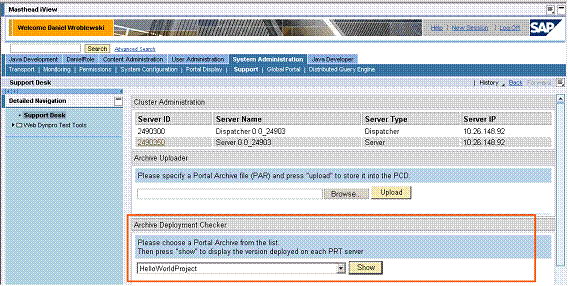
2. Under Archive Deployment Checker, select the application that you want to check, and click Show. The following is displayed:

The console shows a line for each server in the cluster, and shows the version of the application in the Application Repository and the version deployed on each server. If the local version is shown in red, the local version is different from the Application Repository version.
The following buttons are provided for each server:
¡ Update: Redeploys to the server the application from the Application Repository.
¡ Delete: Deletes the application from the server. The application remains in the Application Repository and is redeployed automatically when a request for one of its components or services is made. The application can also be redeployed manually by clicking Install.
¡ Install: Redeploys the application to the server.
If the application has already been deployed locally, Update and Delete are displayed. If not, Install is displayed and Not Installed is displayed for the local version number.
All Applications
With the Application Console, you can also check the deployment of all applications at once.
...
1. Run the Administration Console by clicking System Administration → Support → Portal Runtime → Administration Console. The following is displayed:

At the top is a list of servers within the cluster.
2. Click the link for the server that you want to check, for example, 2490350 in the above example. The console lists applications whose version in the Application Repository is different than the one deployed on the selected server, as in the following:
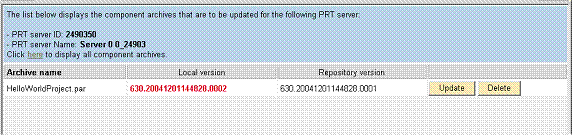
In the above example, the console shows the application’s version number in the Application Repository (.0001) and the version deployed locally (.0002).
To see all applications in the Application Repository, click here.
The following buttons are provided for each application:
¡ Update: Redeploys to the server the application from the Application Repository to the server.
¡ Delete: Deletes the application from the server. The application remains in the Application Repository and is redeployed automatically when a request for one of its components or services is made. The application can also be redeployed manually by clicking Install.
¡ Install: Redeploys the application to the server.
If the application has already been deployed locally, Update and Delete are displayed. If not, Install is displayed and Not Installed is displayed for the local version number.