
 Introducing the Storyboard Desktop

Purpose
Visual Composer Storyboard contains all the tools you need to create your model. The Storyboard desktop has two main areas: the workspace and the accompanying task panel. The workspace displays your model as you build and modify it, while the task panels display the tools you use to build your model.
Features
The main parts of the Storyboard desktop are shown in the following figure and are described in more detail in the following sections:
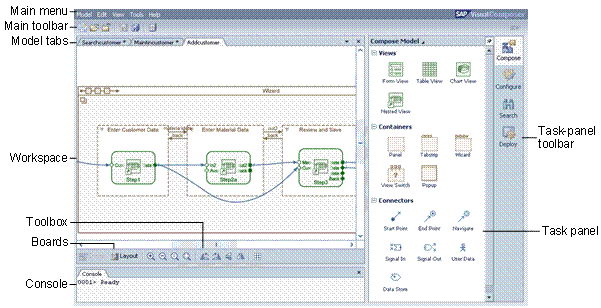

Some of the items in the Storyboard desktop are displayed only after you open a model, and may differ depending on the currently-selected element in the Storyboard.
You can use the settings in the Options pane (Tools → Options) to define certain aspects of Storyboard behavior, performance, and appearance. For more information, see Options Pane in the Visual Composer Reference Guide.
Main Menu and Toolbars
The main menu contains the options required to create and modify models, create and lay out elements within your models, and manage and save your models.
Visual Composer Storyboard provides the following toolbars and toolboxes:
● Main toolbar: Enables quick access to frequently-used menu options.
● Toolbox: Contains buttons that enable you to change the workspace display between the Design board and the Layout board. It also contains buttons you can use to change the way items are displayed on the Design board and Layout board. The toolbox is displayed by default directly below the workspace. You can choose to display it at the left side of the workspace by right-clicking the toolbar and from the context menu, choosing Side.
Workspace
Each model that you open is displayed in a separate tab in the Storyboard workspace. You can switch between models by selecting the relevant tab.
The Storyboard workspace contains the set of boards on which you design and lay out your model. The workspace contains the following boards, each displaying a different view of the model and providing different modeling functionality:
● Design board: Used to construct your model and define the flow between model elements
● Layout board: Used to lay out the UI controls in the views in your model (applicable only for composite views)
You change the board displayed in the workspace by choosing the required option from the toolbox (displayed by default directly below the workspace).
Task Panels
Task panels are the panes located at the side of the workspace. The task panels support the typical Visual Composer workflow process, with each step in the workflow using options from one of the task panels. For more information about the workflow process, see Typical Workflow.
You can choose to display the task panel to the left or right of the workspace area, by right-clicking the task-panel toolbar and choosing Switch Side from the context menu.
The tools on the task panels are dynamic and context-driven, and display one set of tools at a time. In other words, the displayed task panel provides options relevant only to the model element currently selected in the workspace. For example, if a Dropdown List control is displayed on the Layout board, only properties that are relevant to that control are displayed in the Configure task panel. You can display each tool set using the task-panel toolbar to the right of the task panel. You can also display the different task panels using the View → Task Panel menu options. You can choose to show or hide the task panel using the View → Show Task Panel menu option.
Additional task panels may also be available to you, depending on the Visual Composer kits you have installed and loaded.
The following task panels are available:
Name |
Toolbar Button |
Description |
Get Started |
Displayed by default when there are no models currently open in Storyboard. |
Provides quick access to recently-used models, and also enables you to create a new model, open an existing model, and manage models. |
Compose |
|
On the Design board, enables you to add views, containers, connectors, and operators to the model. On the Layout board, enables you to add controls to the views and containers in a model. |
Configure |
|
Enables you to define properties of the currently-selected model element. The properties available depend on whether you select the element on the Design board or on the Layout board. Some of the properties relate only to the design environment, while others relate to the behavior and display of content at runtime. |
Search |
|
Enables you to locate data services and components to import into your model (on the Design board). You can use the Search task panel to locate BAPIs, RFCs, Web services, enterprise services, or other Visual Composer components. |
Deploy |
|
Enables you to compile and deploy the model. |


Console
The console is located directly below the workspace. It displays messages as errors and warnings occur during the design process. You can also use the console to display trace log information. By default, the console is not displayed. You can choose to show or hide it by using the View → Console menu option.
You can right-click the console and choose the following options:
● Clear Pane: Deletes all displayed messages from the console
● Copy to Clipboard: Copies the contents of the console to the Windows clipboard so you can paste it into another application
● Hide: Hides the console