General Settings
SAP GUI for Windows supports accessible access to SAP systems with different options.
Note The SAP Signature theme is the best fit for accessibility purposes. The Classic Theme can also be used in accessibility mode, but SAP Signature is the preferred option (for information about selecting the theme, see the locally installed SAP GUI help).
The following table shows you the recommended settings in SAP GUI for Windows according to the type of assistive technology used or the type of disability. You can find these settings under Options in SAP GUI for Windows. The settings are described in more detail further below.
| Type of Setting | Screen reader users | Screen magnifier users | Users with visual impairments who do not use assistive technologies | Users with motor impairments |
|---|---|---|---|---|
| Use accessibility mode | Switch on | Switch on | Switch on | Switch on |
| Include read-only and disabled elements in tab chain | Switch on | Switch on only if preferred | Switch off | Switch off |
| Displaying symbols as letters in lists | Switch on | Switch off | Switch off | Switch off |
| Open Office documents outplace for better screen reader support (available from Version 7.4, PL3) | Switch on | Switch off | Switch off | Switch off |
| Notify when a script attaches to a running SAP GUI | Switch off | Not relevant | Not relevant | Not relevant |
| Type of Setting | Chapter in the Options Dialog in SAP GUI | Screen reader users | Screen magnifier users | Users with visual impairments who do not use assistive technologies | Users with motor impairments |
|---|---|---|---|---|---|
| Activate high contrast mode | Folder Visual Design, Chapter Theme Preview/Settings | Switch on if preferred | Switch on if preferred | Switch on if preferred | Not applicable |
| Automatically move mouse cursor to focused element (for magnifier tools) | Folder Interaction Design, Chapter Keyboard Settings | Switch off | Switch on | Switch off | Switch off |
| Show success/warning/error messages in a dialog box | Folder Interaction Design, Chapter Notifications | Switch on | Switch on | Switch on if preferred | Switch off |
The use of the keyboard instead of a mouse is particularly significant for the accessible use of SAP GUI for Windows. The SAP GUI help contains a complete list of the keyboard combinations available here.
Set F4 help to modal dialog
This setting is defined for each individual user in every system and is not in the options dialog in SAP Logon. You can find this setting by choosing  Help
Help  Settings F4 Help
  in the menu.
Help Settings F4 Help in the menu.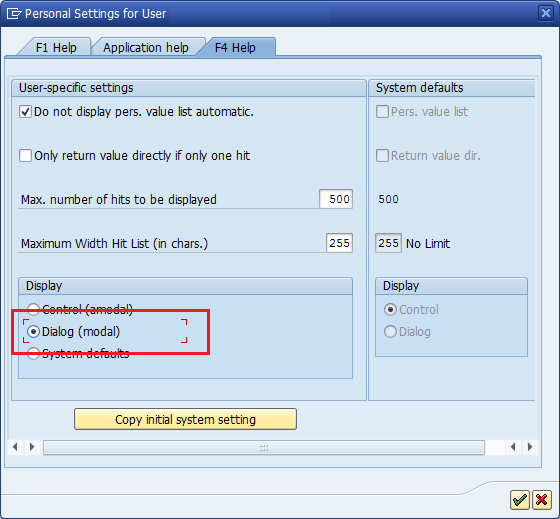
| Type of Setting | Screen reader users | Screen magnifier users | Users with visual impairments who do not use assistive technologies | Users with motor impairments |
|---|---|---|---|---|
| Dialog (modal) | Switch on | Switch on if preferred | Switch on if preferred | Switch off |