Messages
In Web Dynpro for ABAP, you can create and display messages that contain important information for the end user of the Web Dynpro application. Messages are language-dependent texts that are displayed on the screen if, for example, an error occurs when an application is run or the user enters data in the wrong format.
We recommend that you restrict the number of messages to a manageable amount. If there are too many messages it overburdens the end user.
Only issue messages for subjects that have something to do with the current user interaction, for example validation errors. Do not use messages to issue a general log.
As of NW7.0 SPS11, messages and the message area have a new design that improves user guidance but is similar to the old design. The new design is active by default. However, you can switch to the old design. More information: Configuration of Messages
Example messages in the WDR_TEST_MSG_AREA applicaiton

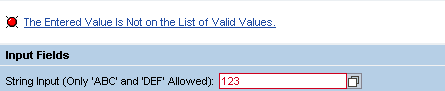
Example application for user input checks (WDR_TEST_INPUT)
If the displayed message is a T100 message, in the message tooltip the message class followed by the message number is automatically displayed.
Example of a tooltip for a T100 message with message class WEBDYNPRO_RT and message number 007:

For programming these user messages (information, error messages, and warnings), the Web Dynpro runtime of the application server ABAP provides a runtime service. The message component is part of every Web Dynpro application and can be configured if required in the settings for a Web Dynpro application. There are three settings for handling messages:
- Show message component if required
If messages exist, they are displayed.
Example with message:
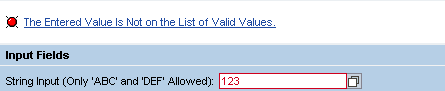
Example without message (the upper area is empty):

- Always show message component
Even if there are no messages, the message component is still displayed in the top view.
Example:

User messages are displayed as links in the status bar. The user can then use the link to navigate to the UI element that can be used to remove the error reported in an error message. The input focus is thus transferred automatically, thereby significantly increasing the efficiency of the messages. It is also possible to display multiple messages on the screen in a table.
You can assign specific views and windows to messages so that messages that actually belong to the main window, for instance, are not displayed in a popup. To do this, you can use the optional VIEW parameter in the message manager methods to specify the name of the relevant view or window.
To improve how your application displays messages, check whether or not it might be useful to include a message in a view or window in certain places, rather than displaying it in a popup. If you use read-only popups, it may also be useful to suppress the entire message display.
Messages are defined at the level of a Web Dynpro component.
More Information:
Reusable Components and the Message Area
New Visualization of MessageArea
If required, you can specify that the MessageArea is displayed with a new visualization in the application. The new visualization has the following advantages:
- Fully controllable using an API
- Minimum height is one line
- Flexibly adaptable to the scenario
- No "jumping" if right setting made
To use the new visualization, use IF_WD_MESSAGE_AREA=>SET_DISPLAY_ATTRIBUTES. You can find more information in the relevant method documentation in the system.
You can find an example in the system in component WDR_TEST_MSG_AREA.
Messages in Popups
The message display in a popup works on demand in the standard configuration, regardless of what is set in the application.
Popups can still be configured using an indicator so that they behave as follows:
- Display all messages as up to now (standard setting)
- Only display the messages that belong to their window as well as all non-window-specific messages
- Display no messages at all
- If a long text exists for a message, the message is displayed with a link.
- Display
Depends on the settings for the application described above.
Several messages are displayed in a scrollable table.
- Current messages from the last user interaction.
- Switch to message log possible
Example
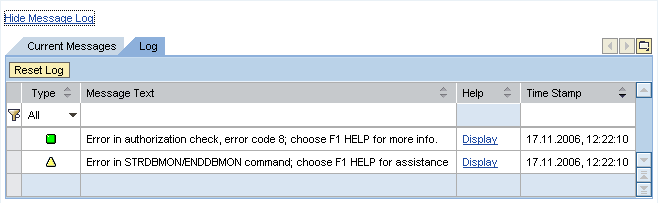
Note that only messages of types info and warning are displayed in the message log Messages of all types are currently displayed.
- The last message with the highest severity is at the beginning of the current messages. In contrast, in the message log the individual messages are displayed according to the time they occurred.
- One counter for new messages and one counter for all messages.
- Symbol for the weighting of each message.
- Time stamp for all messages.
- Messages are sorted in a tab strip by:
- Weighting
- Message text
- Help (message long text)
- Time Stamp
- Input of filter criteria for:
- Weighting
- Message text
- Help (message long text)
- Time Stamp
- Reset (delete) the entire message log
- Show and hide the message log.
- Hide
Only the current messages and the Display Message Log link are displayed.
- Show
Table view of the current messages and the total number of messages.
- Hide
For application development, the MessageArea UI element is provided for positioning the message display on the screen.
Note that the properties maxVisibleMessages and historyVisible are not evaluated in View Designer, they can only be used by the program.
You can find example applications in the system in the WDR_TEST_MSG_AREA and WDR_TEST_INPUT components.