Data Transfer for UI Element FlashIsland
Data transfer with FlashIsland is described by using an example. The example shows a bar chart created with the Adobe Flex Builder using values from the SAP system, for which the values for on time deliveries (OTD) and delivered material throughput (RTY) are displayed in two bars. In a Web Dynpro application end users can enter values for OTD and RTY in InputFields, and when they press the Save pushbutton, the Adobe Flash components embedded in the Web Dynpro application are updated together with the bar charts.

The starting point in this example is a SWF file (including the debug SWF file) together with details of the SWF file, for example, which variables, lists, and actions are needed.
The SWF file expects a list called flexSource with columns:
-
Company
-
otd
-
rty
Bear case-sensitivity in mind.
To enable communication between the Adobe Flash application and the Web Dynpro application, make the Web Dynpro Island Library for Flex known to your project:
-
This involves the .swc files WDIslandLibrary.swc and WDIslandLibrary-debug.swc.
Both files are stored in the MIME repository under the path SAP/PUBLIC/BC/UR/nw7/FlashIslands/.
Save both these files so that you can access them at any time, for example on your computer's local file system .
-
In Adobe Flex Builder, store them under BuildPath.
-
In Adobe Flex coding you import the library everywhere where you want to program something with Flash Islands.
In the following coding example, this is the import sap.FlashIsland; line
-
For the data transfer to function properly, register the relevant Adobe Flex component in the Adobe Flex application using FlashIsland.register( <component_name>);
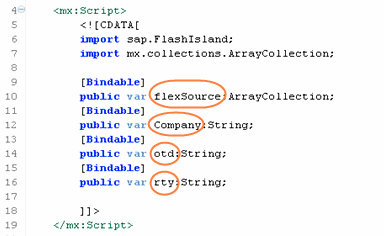
These variables should be transferred as bound variable from the Web Dynpro application to the FlashIsland and vice versa.
-
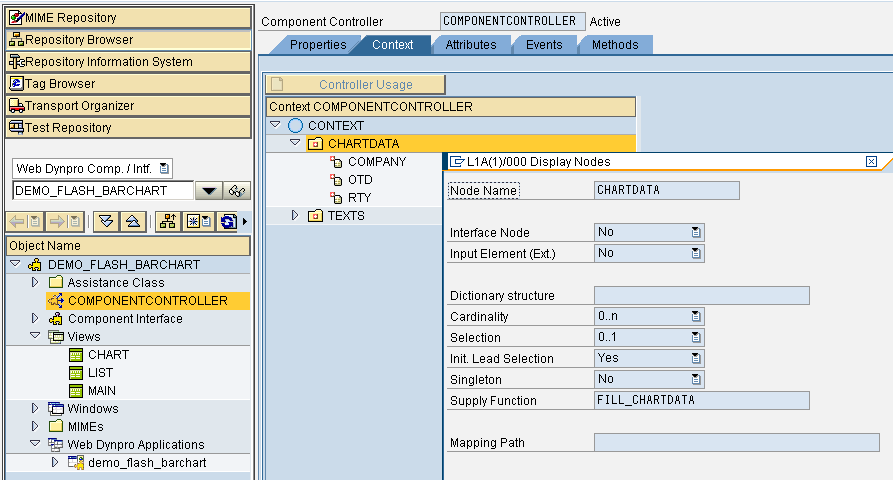
In your Web Dynpro application there is a context node with at least three attributes.
-
COMPANY
-
OTD
-
RTY
This may appear as follows:
-
-
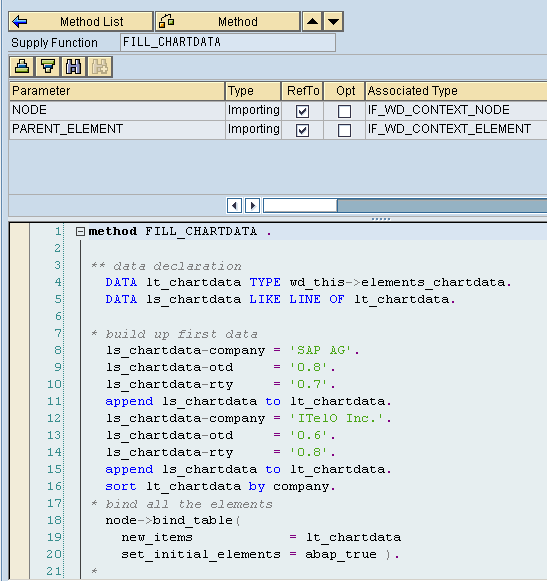
This context node should be filled before calling the FlashIsland. For example, you can use a supply function for this:
The rest is defined from the layout.
-
Specify the layout.
For each SWF file you need a separate Web Dynpro view, since a FlashIsland is always the RootUIElementContainer of a view, and its property swfFile cannot be changed during the lifespan of the view. Proceed as follows:
-
Go to your view.
-
Change the type of RootUIElementContainer using Swap Root Element in the context menu to FlashIsland .
-
Since the SWF file expects a list, as described above, in this case you aggregate a GACDataSource with three aggregated poperties. Since the GACDataSource displays the expected list, as the property dataSource use the filled context node, and as property name use flexSource. A list called flexSource is expected in the FlashIsland.
CautionAlways use the same names.
The ID of this UI element is not important, and is of no interest to the Web Dynpro application nor to the FlashIsland.
Like with GACDataSource you now declare the GACProperties ( value is the binding path to the associated context attribute, name is the name expected in the FlashIsland, and the ID is likewise insignificant).
This may look like:

-
-
Store the MIMEs.
Always save the SWF file (and also the -debug.swf file) within the component if only this one component has access to it. If several components are to access a SWF file, store this file in a separate folder in the MIME repository. Bear in mind the customer namespaces.
Enter the path to the relevant SWF file as the value for the property swfFile of the FlashIsland:

-
Activate the component and the view, an start the application.
The application appears in the browser, as shown in the example above.