Columns with Special Technical Meaning
As a rule, columns from the internal data table are displayed directly in the ALV output. However, you are able to define columns that have a special technical function. These columns are then either not displayed at all or their content is presented in a special way. You are able to use the following types of special columns:
-
Control columns These columns are technical columns, which means they are usually not displayed. They contain information on how the contents are being displayed in another column. Examples of control columns are:
-
Color column (technical column)
-
Currency column (visible column)
NoteMany of the properties that you assign to specific cells using control columns can also be assigned to a whole column (for example assigning a currency to a whole column).
-
-
Graphic columns To display icons, exceptions and symbols, you use specific notation (for example @AB@). So that these character strings are interpreted as IDs for a graphic and not as text, you define the column accordingly as an icon-, exception or symbol column.
-
Columns with special function These columns include functions that are only useful in very specific situations. Examples of these columns include:
-
Expansion column for the hierarchical-sequential list
-
Text Column for Labels in Results Rows for Intermediate Results
-
Counter Column to Determine the Number of Rows
-
Depending on how you use a special column, you need to be aware of different things.
Using Control Columns
With control columns you assign specific properties to one or more cells.
An entry in the control column always refers to cells from those rows that include the entry as well.
There are two types of control columns:
-
Control columns that are fixed and assigned to a specific column.
-
Control Columns That Contain Information for Any Number of Columns
Control Columns That are Assigned to a Specific Column
Specifications in the control column exclusively refer to the current column. The cells of this control column each can only contain one value that controls the content of the linked cell.
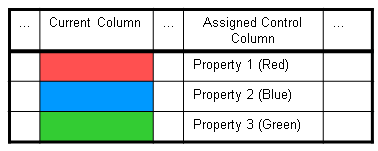
For this type of control columns, use the following methods:
|
Control column |
Class |
Method |
|
Currency column |
CL_SALV_COLUMN |
SET_CURRENCY_COLUMN GET_CURRENCY_COLUMN |
|
Column for decimal places |
SET_DECIMALS_COLUMN GET_DECIMALS_COLUMN |
|
|
Column for units of measure |
SET_QUANTITY_COLUMN GET_QUANTITY_COLUMN |
|
|
Rounding column |
SET_ROUND_COLUMN GET_ROUND_COLUMN |
|
ALV Tool |
Display type |
Function available |
|
Simple, two-dimensional table |
Classic ABAP List |
Yes |
|
Fullscreen |
Yes |
|
|
In the Container |
Yes |
|
|
Hierarchical-sequential list |
Classic ABAP List |
Yes |
|
Tree Structure |
Fullscreen |
Yes |
|
In the Container |
Yes |
In hierarchical-sequential lists you also have to specify in which of the two hierarchy columns the control column is located. To do this, use one of the SET_*_COLUMN_LEVEL methods in the class CL_SALV_COLUMN_HIERSEQ.
Control Columns That Contain Information for Any Number of Columns
The cells of this control column contain whole tables:
-
Each of these tables exclusively refers to cells in the same row of the ALV output.
-
If this table contains multiple rows, each of these rows controls a specific column of the ALV output.
-
Every row then contains the name of the column in the ALV output to which the settings refer (in the graphic below, rows 1 and 2).
-
If no column name is specified, all columns of the ALV output get the settings (in the graphic below, row 3).
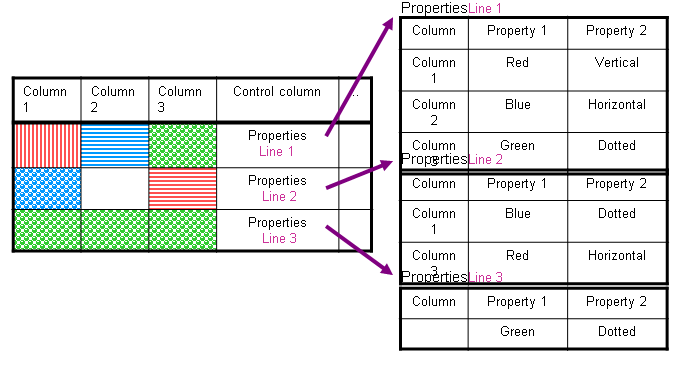
For this type of control columns, use the following methods:
|
Control column |
Class |
Method |
|
Column for cell types |
CL_SALV_COLUMNS_LIST |
SET_CELL_TYPE_COLUMN GET_CELL_TYPE_COLUMN |
|
Color column |
SET_COLOR_COLUMN GET_COLOR_COLUMN |
|
|
Hyperlink column |
SET_HYPERLINK_ENTRY_ COLUMN GET_HYPERLINK_ENTRY_ COLUMN |
|
|
Dropdown column |
SET_DROPDOWN_ENTRY_ COLUMN GET_DROPDOWN_ENTRY_ COLUMN |
|
ALV Tool |
Display type |
Function available |
|
Simple, two-dimensional table |
Classic ABAP List |
No |
|
Fullscreen |
Yes |
|
|
In the Container |
Yes |
|
|
Hierarchical-sequential list |
Classic ABAP List |
No |
|
Tree Structure |
Fullscreen |
No |
|
In the Container |
No |
In the tree structure you are able to assign colors to nodes or to an individual item .
Use Graphic Column
In list-type ALV outputs, you are only able to display icons or symbols in columns that are specifically defined for this purpose. They may only contain entries that uniquely identify an icon or symbol in your system.
|
ALV Tool |
Display type |
Function available |
|
Simple, two-dimensional table |
Classic ABAP List |
Yes |
|
Fullscreen |
Yes |
|
|
In the Container |
Yes |
|
|
Hierarchical-sequential list |
Classic ABAP List |
Yes |
|
Tree Structure |
Fullscreen |
No |
|
In the Container |
No |
In the tree structure you can display an icon in any item. To do this, use the method SET_ICON in the CL_SALV_ITEM class.
|
Function |
Class |
Method |
|
Defining the column as a lead column |
CL_SALV_COLUMN_LIST |
SET_ICON |
|
Check whether the current column is an icon column |
IS_ICON |
|
|
Define the column as a symbol column |
SET_SYMBOL |
|
|
Check whether the current column is an symbol column |
IS_SYMBOL |
Exception Column
The exception column is a special form of the graphic column:
It displays a status of the current data record with specific icons.
The most common display of exception icons is the traffic light: You can display
 ,
,
 and
and
 the release status, for example, with these icons.
As opposed to regular graphic columns, the exception column has additional properties:
-
The values in the exception column must be between 1 and 5
-
It can only display a specific set of icons. You are able to choose the icons you wish to display from several exception groups. In the exception column itself, only the values allowed in this exception group are available
-
Users cannot hide the exception column
-
In list-type ALV outputs, the exception column is always displayed as the first column
|
ALV Tool |
Display type |
Function available |
|
Simple, two-dimensional table |
Classic ABAP List |
Yes |
|
Fullscreen |
Yes |
|
|
In the Container |
Yes |
|
|
Hierarchical-sequential list |
Classic ABAP List |
Yes |
|
Tree Structure |
Fullscreen |
Yes |
|
In the Container |
Yes |
|
Function |
Class |
Method |
|
Specify exception column |
CL_SALV_COLUMNS_LIST CL_SALV_COLUMNS_TREE |
SET_EXCEPTION_COLUMN |
|
Get exception group |
GET_EXCEPTION_COLUMN |
|
|
GET_EXCEPTION_SETTINGS (Parameter GROUP) |
Results rows from aggregations remain empty in the exception column by default. In list-type ALV outputs, however, you are able to display exception icons. To do this, in the class CL_SALV_COLUMNS_LIST, use the method SET_EXCEPTION_COLUMN (Parameter CONDENSED). You check whether the results row is displaying an exception icon using the method IS_EXCEPTION_CONDENSED or GET_EXCEPTION_SETTINGS (Parameter CONDENSED).
You cannot use every exception group in every display type of simple, two-dimensional tables or hierarchically-sequential lists. The following table shows which exception group you can use and where:
|
Exception group |
Icon Representation |
Cl. ABAP list |
Fullscreen |
Container |
Hierarch.-Seq. List |
|
1 |
LIGHTS |
Yes |
Yes |
Yes |
Yes |
|
2 |
LED |
No |
No |
Yes |
No |
|
3 |
STATUS |
No |
No |
Yes |
No |
|
4 |
TREND |
No |
No |
Yes |
No |
|
5 |
MESSAGE |
No |
No |
Yes |
No |
|
6 |
ALERT |
No |
No |
Yes |
No |
|
7 |
FAILURE/INCOMPLETE/ CHECKED |
No |
No |
Yes |
No |
Columns with Special Function
With some special columns, you control functions that are only useful in very specific situations.
Expansion Column
This column is only available in the hierarchical-sequential list. You use it to specifically display and hide position rows for specific headers. Here you only check whether an entry in a row of this column is included: if the cell is empty, only the position rows for the associated header are displayed. If the cell gets a value, the position rows for the associated header are hidden.
|
ALV Tool |
Display type |
Function available |
|
Simple, two-dimensional table |
Classic ABAP List |
No |
|
Fullscreen |
No |
|
|
In the Container |
No |
|
|
Hierarchical-sequential list |
Classic ABAP List |
Yes |
|
Tree Structure |
Fullscreen |
No |
|
In the Container |
No |
|
Function |
Class |
Method |
|
Define expansion column |
CL_SALV_COLUMNS_HIERSEQ |
SET_EXPAND_COLUMN |
|
Get current expansion column |
GET_EXPAND_COLUMN |
Text Column for Labels in Results Rows for Intermediate Results
You are able to display intermediate results for aggregations. These intermediate results are displayed in a special results row in the column the values of which are used in the aggregation. All other columns in this row are empty by default. You are able to specify a column the values of which are also transferred to the results row.
|
ALV Tool |
Display type |
Function available |
|
Simple, two-dimensional table |
Classic ABAP List |
Yes |
|
Fullscreen |
Yes |
|
|
In the Container |
Yes |
|
|
Hierarchical-sequential list |
Classic ABAP List |
No |
|
Tree Structure |
Fullscreen |
No |
|
In the Container |
No |
|
Function |
Class |
Method |
|
Define text column |
CL_SALV_COLUMN_LIST |
SET_TEXT_COLUMN |
|
Get current text column |
GET_TEXT_COLUMN |
Counter Column to Determine the Number of Rows
You are able to determine and output the number of data records of the ALV output. To do this, you need a special column, the count column. The rows of this count column never display data. The results row, however, contains the number of data records.
|
ALV Tool |
Display type |
Function available |
|
Simple, two-dimensional table |
Classic ABAP List |
Yes |
|
Fullscreen |
Yes |
|
|
In the Container |
Yes |
|
|
Hierarchical-sequential list |
Classic ABAP List |
Yes |
|
Tree Structure |
Fullscreen |
No |
|
In the Container |
No |
|
Function |
Class |
Method |
|
Define count column |
CL_SALV_COLUMNS_LIST |
SET_COUNT_COLUMN |
|
Get count column |
GET_COUNT_COLUMN |