Compiling Design Objects
You use the design object to design the area around the ALV output.
You put together a design object from a variety of elements of various types and then display it.
Element Types
You are able to use the following element types:
-
Header element (header info)
-
Text element with or without label (text label)
-
Action information
NoteThe elements only differ in appearance. No functions are linked to the various element types.
Layout Forms
You can arrange these elements within your design object. To do this, choose between two forms of layout:
-
Row-type layout All elements are lined up in a row.
-
Table-type layout You arrange the individual elements in rows and columns.
NoteYou are able to combine the two layout forms with one another as you wish, that is, you can insert rows into a table and vice versa.
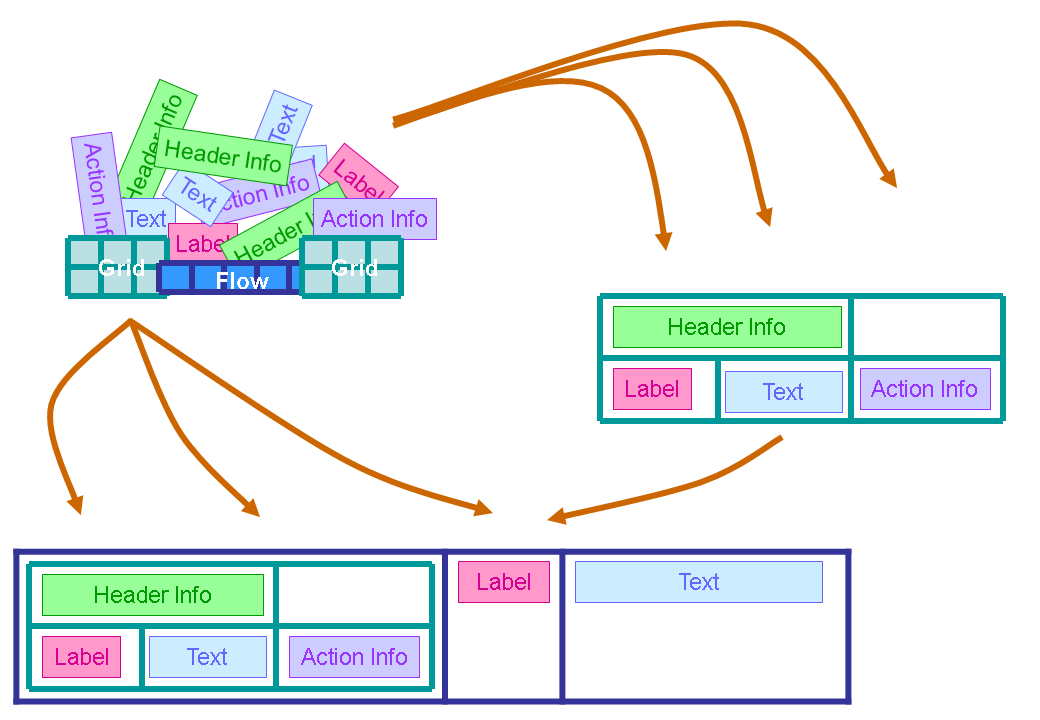
Restrictions
For Top of List, Top of Page, and End of Page a design object is not allowed to be more than one page long. If the design object is longer than one page, a runtime error occurs or the display of the ALV output is negatively affected in some other way, depending on the position of the design object.
For End of List, there is no restriction on length.
For the Top of List design object, you can activate a special mode that makes it possible to wrap text within the design object. For more information, see Display List Header and .
By default, a page is 65 lines long. Ensure that the design object contains fewer than 65 lines.
A class is available for each element type:
|
Layout |
Class |
|
Row-type layout |
CL_SALV_FORM_LAYOUT_FLOW |
|
Table-type layout |
CL_SALV_FORM_LAYOUT_GRID |
|
Element Type |
Class |
|
Action information |
CL_SALV_FORM_ACTION_INFO |
|
Header |
CL_SALV_FORM_HEADER_INFO |
|
Label |
CL_SALV_FORM_LABEL |
|
Text |
CL_SALV_FORM_TEXT |
Depending on the number of elements in your design object, you proceed differently:
-
If you only want to display one element, generate the associated object.
-
If you want to display multiple elements, generate the desired elements with the methods for the row- or table-type layout element and specify the desired position within the layout element.
Layout
The following functions are available for the layout forms:
|
Function |
Class |
Method |
|
Generate an element of the desired type |
CL_SALV_FORM_LAYOUT_ FLOW CL_SALV_FORM_LAYOUT_ GRID |
CREATE_* |
|
Move element |
SET_ELEMENT |
|
|
Count elements |
GET_ELEMENT_COUNT |
|
|
Link cells |
CL_SALV_FORM_LAYOUT_ GRID |
CREATE_* SET_ELEMENT (Parameter COLSPAN or ROWSPAN) |
|
Show lines between columns and rows |
SET_GRID_LINES |
|
|
Get number of columns and rows |
GET_COLUMN_COUNT GET_ROW_COUNT |
|
|
Specify which column contains the labels and which column contains the associated texts |
SET_COLUMN_LABEL_FOR |
|
|
Add rows |
ADD_ROW |
Element Types
You have similar functions available for the element types:
|
Function |
Class |
Method |
|
Entering Text |
CL_SALV_FORM_ACTION_INFO CL_SALV_FORM_HEADER_INFO CL_SALV_FORM_LABEL CL_SALV_FORM_TEXT |
SET_TEXT |
|
Enter tooltip |
SET_TOOLTIP |
|
|
Specify alignment within a cell |
SET_HORIZONTAL_ ALIGNMENT GET_HORIZONTAL_ ALIGNMENT |
|
|
Specify the text element to which the label belongs |
CL_SALV_FORM_LABEL |
SET_LABEL_FOR GET_LABEL_FOR |
The following example shows how you display an element of type Text at the end of the ALV output:
...
*... END_OF_LIST
  data: lr_text type ref to cl_salv_form_text.

  create object lr_text
    exporting
      text    = 'MyText'.
  gr_table->set_end_of_list( lr_text ).
...
The following example shows how you insert a design object with a table-type layout at the beginning of the ALV output:
...
*... TOP_OF_LIST
  data: lr_text type ref to cl_salv_form_text.
  data: lr_label type ref to cl_salv_form_label.
  data: lr_grid type ref to cl_salv_layout_grid.

  create object lr_grid.
  lr_label = lr_grid->create_label(
               text   = '1.1 LABEL'
               row    = 1
               column = 1 ).
  lr_text = lr_grid->create_text(
              text   = '1.2 TEXT'
              row    = 1
              column = 2 ).
  lr_label->set_label_for( lr_text ).
  lr_text = lr_grid->create_text(
              text   = '2.2 TEXT'
              row    = 2
              column = 2 ).
  gr_table->set_top_of_list( lr_grid ).
...