Storage Structure for Templates and Template Groups
Path for Templates
The paths to the folders for templates and template groups are defined in the template service (default setting: /documents/Templates ). The system administrator is responsible for maintaining this information.
Storage Structure
The figure below illustrates the folder structures for templates and template groups:
Structure for storing templates and template groups

|
Folder |
Description |
|---|---|
|
Folder for individual templates ( SingleTemplates ) |
You upload your template documents to this folder ( template document A ). You can also create template folders ( template folder B ) You can upload documents to the template folder and you can create subfolders ( document C and folder D ). If a user creates a new folder based on the template folder B, document C and subfolder D are created with it. If you activate templates in the Details dialog box for a folder, a checkbox is displayed for template document A and template folder B . |
|
Folders for template groups ( TemplateGroups ) |
Folders that you create on the first level below the folder for template groups ( Default, group 1 and group 2 ) are for grouping templates. You use this folder to create links to individual templates (link to template document A, link to template document B ). The templates that are in the group default are available by default in all folders to which you have not assigned templates manually. If you activate templates in the Details dialog box of a folder, the system displays group 1 and group 2 in a dropdown list. You can also upload template documents to a group folder ( template document E ). This template is only available in this group. You cannot select this template using a checkbox. |
Nesting Template Groups
You can create links to other template groups from a template group. (In the graphic the folder group 2 contains a link to the folder group 1 ). Group 2 contains all templates from group 1 as well as the template document E .
Do not create any recursive links. For example, if you have a link to group 1 in group 2 and a link to group 2 in group 1, that would be a recursive link.
The following graphic shows nested submenus.
Nested Submenus
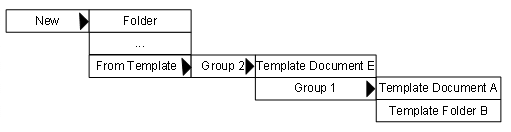
To have the system display these submenus, you assign group 2 to a folder and activate the option As Submenu .