Distribution by Static Value and Date Range
The following example illustrates the use of rules with constant values, device binding, and a date pattern.
Scenario
A sales organization has three teams responsible for customers with specific sales volumes:
-
Team type L: Responsible for large customers with an order volume of more than 500,000 Euro per year
-
Team type M: Responsible for medium-sized customers with an order volume between 100,000 and 500,000 Euro per year
-
Team type S: Responsible for small customers with an order volume of up to 100,000 Euro per year
The sales representatives of a team should receive the data of all customers with a sales volume matching the responsibility of their team plus all the sales orders of these customers from the past 90 days.
Data Model and Distribution Logic
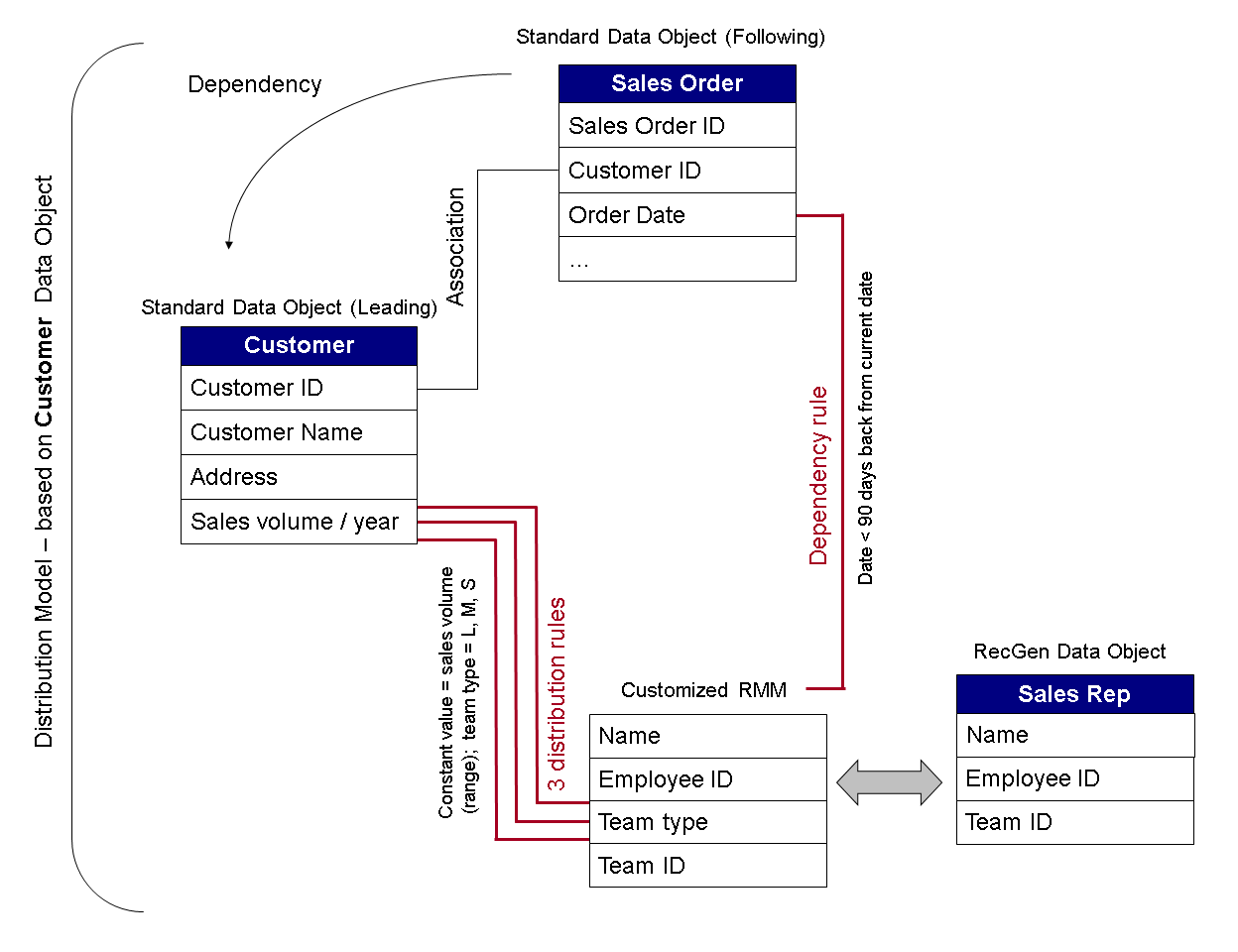
Data and Distribution Logic Modeling
You can model this scenario as follows:
-
You create and activate the following data objects:
-
Two standard data objects: Customer (including an attribute for the sales volume), Sales Order (including the customer ID and the order date)
-
A receiver generation data object containing the team type (for example, large for large customers) to which the device is assigned.
RecommendationWe recommend that you add an association between the Sales Order data object and the Customer data object to ensure referential integrity in the consolidated data store.
-
-
You customize the receiver meta model so that it includes a field for the team type and team ID.
-
You create a distribution model for the Customer data object because it contains the main criterion for the distribution of the customer and order data: the sales volume.
-
You add the following dependency to the distribution model:
Leading data object: Customer, Following data object: Sales Order
NoteIf you have defined associations between the data objects, you can use these as the basis for defining the dependencies.
-
Create three distribution rules for the Customer data object, using the following values:
Rule Details
Field
Action
Rule Name
Enter a name of your choice.
Description
Enter a description of your choice.
Data Object Name
No action. Displays the data object for which the dependency was created, here CUSTOMER.
Rule Fields
Field
Action
Node
Select the node that contains the order date attribute.
Node Attribute
Select the attribute that holds the order date and click > .
Operator
-
Rule 1: Enter GT for the Greater Than operator.
-
Rule 2: Enter BT for the Between operator.
-
Rule 3: Enter LE for the Less Than Or Equals operator.
Logic Selection
Field
Action
SubGen Mapping, Device Attribute Mapping, None
Select None .
Logic Details
Field
Action
Buttons
Select the Constant Values button.
Distribution Rule box
-
Rule 1: In the Value Low column, enter 500000 .
-
Rule 2: In the Value Low column, enter 100001 .
In the Value High column, enter 500000 .
-
Rule 3: In the Value Low column, enter 100000 .
Device Binding
Field
Action
Choose Device Binding
Select Device Binding .
Distribution Rule box
Field
Action
Device Binding Name
Enter a name of your choice.
Receiver Category type
Select MOBILE RMM .
Receiver Category SWCV
The DOE fills this field in automatically.
Fetch Attributes
Select Fetch Attributes .
Receiver attributes table
Select the RMM attribute you have defined for the team type and choose > .
Operator
Enter EQ for the Equals operator.
Value Low
Enter the value that identifies the team type:
-
Rule 1: L
-
Rule 2: M
-
Rule 3: S
-
-
Confirm the following steps with Continue and complete the rules.
Dependency Rule
-
Create a dependency rule for the Sales Order data object, using the following values:
Rule Details
Field
Action
Rule Name
Enter a name of your choice.
Description
Enter a description of your choice.
Data Object Name
No action. Displays the data object for which the distribution model was created, here SALESORDER.
Rule Fields
Field
Action
Node
Select the node that contains the order date attribute.
Node Attribute
Select the attribute that holds the order date and choose > .
Operator
Enter BT for the Between operator.
Logic Selection
Field
Action
SubGen Mapping, Device Attribute Mapping, None
Select None .
Logic Details
Field
Action
Buttons
Select the Date Pattern button.
Distribution Rule box
-
In the Custom Type column, select Constant Offset .
-
In the Date Pattern column, select Current Date .
-
In the second Date Pattern column, select Current Date .
-
In the second Range column, select - .
-
In the second Value column, enter 90 .
-
In the second Offset Type column, select Days .
Device Binding
Field
Action
Choose Device Binding
Select All .
-
-
Confirm the following steps with Continue and complete the rule.