Distribution by Type and Dependency
The following example illustrates the use of a static filter to distribute an order based on the order type. The example also uses direct device attribute mapping without a subscription generation data object.
Scenario
There is one central customer contact center that records orders, no matter whether these are orders for products or service orders. The orders are recorded with TYPE flag = S for service or P for product.
Depending on their type, the orders are distributed to the devices that are assigned to either a sales center or a service center. There they are distributed further (to keep the example simple, this is not included in this example). For both order types, the customer information must be distributed to the devices assigned to the sales representatives or service technicians, respectively. The sales representatives also require information about the product ordered while the service technicians require information about the equipment to be serviced.
Data Model and Distribution Logic
The following figure illustrates the data model and distribution logic to be created:
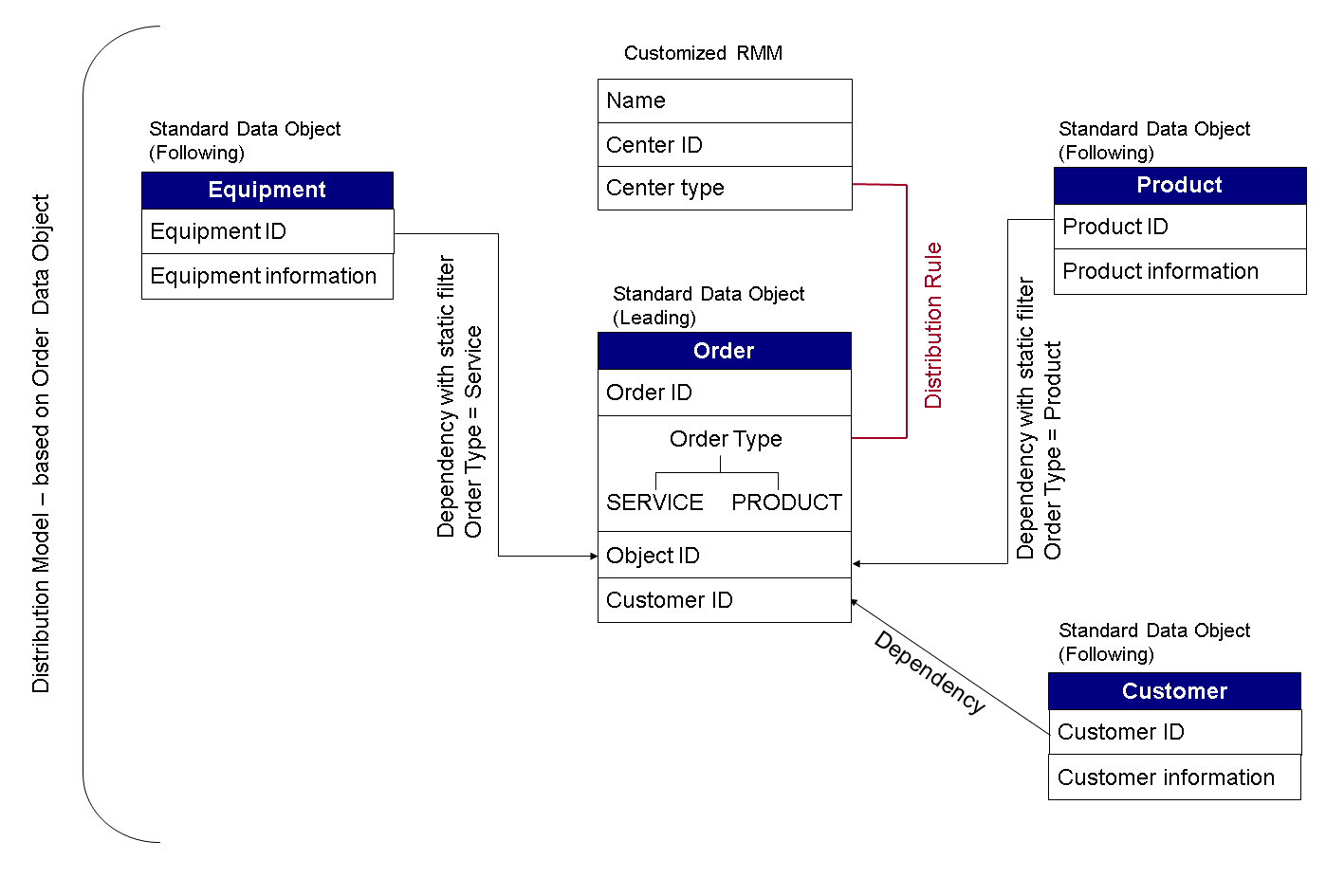
Data and Distribution Logic Modeling
You can model this scenario as follows:
-
You create and activate the following data objects:
-
Four standard data objects: Order (including an attribute for the order type), Customer, Product and Equipment with the attributes that reflect the information that you want to be contained.
-
A receiver generation data object containing the center type, that is sales center or service center and the center ID to which the device is assigned.
RecommendationWe recommend that you add associations between the Order data object and the Customer, Product and Equipment data objects to ensure referential integrity in the consolidated data store.
-
-
You customize the receiver meta model so that it includes a field for the center type and center ID.
-
You create a distribution model for the Order data object because it contains the main criterion for the distribution of the orders: the order type.
-
You add the following dependencies to the distribution model:
-
Leading data object: Order, Following data object: Customer
-
Leading data object: Order, Following data object: Product, with static filter for order type = P.
-
Leading data object: Order, Following data object: Equipment, with static filter for order type = S.
NoteIf you have defined associations between the data objects, you can use these as the basis for defining the dependencies.
-
-
You create a distribution rule for the Order data object, using the following values:
-
Rule Details
Field
Action
Rule Name
Enter a name of your choice.
Description
Enter a description of your choice.
Data Object Name
No action. Displays the data object for which the distribution model was created, for example ORDER.
-
Rule Fields
Field
Action
Node
Choose the node that contains the order type attribute.
Node Attribute
Select the attribute that holds the order type and click >.
Operator
Enter EQ for the Equals operator.
-
Logic Selection
Field
Action
SubGen Mapping, Device Attribute Mapping, None
Select Device Attribute Mapping .
Receiver Category type
Choose MOBILE.
-
Logic Details
Field
Action
Buttons
Choose the Device Attribute button.
Distribution Rule box
In the Device Attrib Low column, choose the RMM customizing group attribute you have defined for the center type. Here the center type must use the same values as the order type attribute. Otherwise you would have to use different rules for the distribution, using static values.
More information: Distribution by Type and Dependency - Scenario 2
-
You confirm the following steps with Continue and complete the rule.
-
-
-
-
-