 Change Lists
You use this function to log or track changes to tags and groups in the Plant Information Catalog. Any activities performed on the Plant Information Maintainance screen, such as the creation, modification, or deletion of tags or groups must be associated with a change list. The change list displays the details relating to the creation, modification, or deletion of objects in the Plant Information Catalog screen for each user. Though you can create multiple change lists, only one change list is assigned as Current. The change list has the following statuses:
Open
Waiting for Approval
Rejected
Approved
Changes Applied
The following diagram provides an overview of the change list process:
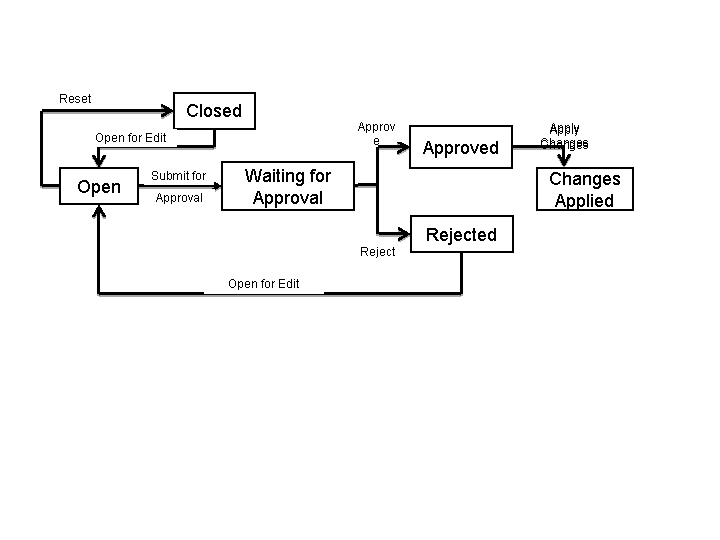
Features
You can do the following:
Create a change list
You can create a change list manually in the Change List screen or automatically from a dialog box in the Plant Information Maintenance screen. You can create a change list in the Plant Information Maintenance screen only if no change list with status Open exists. If there are no change lists available, the new changed list is set to Open and marked as Current.
View details
You can see the details for a particular change list.
Reset change list
When you reset an object, the changes are reverted based on the status of the object. You can reset an entire change list (at the header level) or individual changes within a change list (at the line level). The status and the operations are as follows:
Status
Operation
New
Deletes the entries in the Plant Information Maintenance screen
Edit
Replaces the current values of the objects with previous values from the live version. Sets the object status to Open.
Delete
Reverts the delete operation on the Plant Information Maintenance screen and sets the object status to Open.
When you reset an entire change list, all the objects in the changed list are reverted based on their status and operation. The status of the change list is set to Closed.
Submit the changed list for approval
When a change list is submitted for approval, the status is changed to Waiting for Approval. You cannot modify any object that is associated with a change list with status Waiting for Approval. You can only modify the objects only when the change list status is Open.
When you submit a change list for approval, and if there are multiple change lists with status Open, the system displays a list of existing change lists which can be set to Current. If you do not select any change list, the change list that is recently created or modified is set as Current.
Whenever a change list is submitted for approval, an e-mail notification along with the link to the change list screen is sent to the following:
Approver: Indicating that you have sent a change list for approval
Submitter: Indicating that a change list has been submitted.
 Note
NoteThe approver must have a valid e-mail account associated with the user account. For information about setting an e-mail account, see the section Setting an Admin Account for E-mail Notification in the Activities section.
The users with UME actions, SAP_XMII_Approver, SAP_XMII_Administrator, and SAP_XMII_Super_Administrator can approve change lists.
The link to the change list screen is not available to the Approver/Submitter when the change list status is changed using a web service.
End of the note.Edit a change list
If the approver rejects the changes for a particular change list, you can open the change list for editing by choosing Open for Edit.
Activities
Creating New Changed List
On the SAP MII administration menu, choose
 Catalog Services
  Change Lists
  .
.Choose New.
The Create Change List screen appears.
Enter the name and description in the fields.
Choose OK.
A new change list with status Open is created.
Note
By default, the first change list is marked as Current.
You can also create a new change list in the plant tag catalog working version if the change list does not exist.
Setting Change List to Default
On the SAP MII administration menu, choose
Catalog Services Change Lists .Select any change list and choose Set as Current.
The changes done on the Plant Information Maintenance screen will be reflected in the change list that is set as Current. You can always set any change list as current from the multiple changes lists available.
Viewing Details
On the SAP MII administration menu, choose
Catalog Services Change Lists .Select any change list and choose View Details..
The View Details screen displays the changes for that particular change list.
Resetting Change List
You can reset changes for a particular object at line level or on a whole change list at header level.
To reset a particular object in a change list, do the following:
On the SAP MII administration menu, choose
Catalog Services Change Lists .Select the object in the change list sand choose Reset..
To reset a change list, select the change list and choose Reset.
Submiting for Approval
On the SAP MII administration menu, choose
Catalog Services Change Lists .Select any change list and choose Submit for Approval..
The system displays a message ” and the status Waiting for approval appears in the Status column.
Setting an Admin Account for E-mail Notification
On the SAP MII administration menu, choose
Security Services Credential Editor. The Credential Editor screen appears.
Enter the following details:
Name: MII_MAIL_ADMIN
User Name: Any valid user name
Password: SAP MII login password
Confirm Password:
On the SAP MII administration menu, choose
Data Services System Connection Editor. The System Connection Editor screens appears.
Choose Mail as the connection type from the drop down list.
Choose New.
Enter the following details:
Name: MII_MAIL_CONFIG
Description: Any valid description
Server: Valid mail server
Port
Connection Timeout
Read Timeout
Protocol
Choose Save.