 NC Code Selection, Logging, and Display
You log NC codes against SFC number with the help of the following Log Nonconformance POD plug-ins:
NC Selection
(see NC Selection)The
NC Selection
plug-in displays available NC codes.NC Data Entry
(see Log NC (NC Data Entry))The
NC Data Entry
plug-in displays the information that you need to enter or have already entered. TheData Entry
area is dependent on the NC code you select in theNC Selection
plug-in.NC Data Tree
(see NC Data Tree)After you logged the NC code in the
NC Data Entry
plug-in, you can view information on this logged NC code in theNC Data Tree
.NC Data Tree
displays the logged primary and secondary NC codes in a tree-style format, where the tree shows the level of NC codes logged against a particular SFC number in a hierarchical tree format. The nodes may be expanded or collapsed for viewing.
Integration
The content of the NC Selection
and NC Data Entry
plug-ins are dependent on the NC client that is assigned to the POD.
Features
Selecting NC codes
Selecting an NC code, in the NC Selection
plug-in, refreshes the NC Data Entry
plug-in to display the data fields defined for that NC code. It also populates the NC Code
field in the NC
Data Entry
plug-in.
Logging NC Code
To log an NC code, fill in all the required fields and choose the Add
or the Add – Done
button in the NC Data Entry
plug-in. Logging of NC code is a Nonconformance process that does not contain any Log
NC
specific processing. For more information see Nonconformance (NC). You can also use Standalone NC Logging to
log NC codes.
Note that you can log primary NC codes in the Log NC Reject.
Logging a Test / Inspection Failure
To log a failure in the Log NC
plug-ins, select a failure NC code, enter required NC data, and choose the Add
or the Add – Done
button in the NC Data Entry
plug-in.
Viewing Logged NC Code
To view the logged NC code, select it in the NC Data Tree
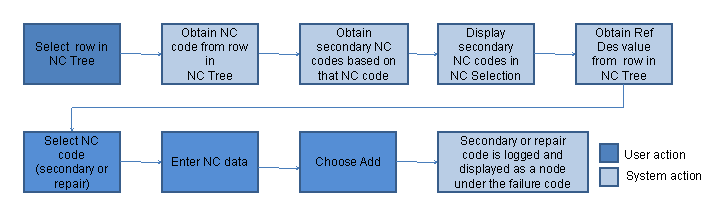
plug-in. It will refresh information on this NC code in NC Selection to filter the list of displayed secondary codes. You also use this function as a starting point for logging a secondary defect NC code
or a repair NC code.
The figure below illustrates the primary flow of user and system actions when an existing row in the NC Data Tree is selected and the user is logging a secondary or repair NC code:
Performing Analysis and Repair
For information about performing analysis and repair with Log NC
and VTR (Visual Test and Repair), see Analysis and Repair of Logged Defects.