 Hierarchy-related Options in Drilldown Reporting
Use
You use this function to portray hierarchies in drilldown reports to meet your individual reporting requirements.
Features
The purpose of hierarchy-related drilldown is to evaluate hierarchies using consolidation units or financial statement items, and to use different hierarchies as the basis for evaluating a specific snapshot of your data.
Hierarchy-related Drilldowns: Hierarchy of Consolidation Units
A hierarchy already exists in a dimension. This is differentiated as follows:
Case 1 |
Case 2 |
|
A consolidation unit belongs to "n" consolidation group(s) in the hierarchy |
n = 1 |
n > 1 |
Accounting Technique |
all |
The consolidation unit is included fully or proportionately in only one consolidation group at the most; the unit can be included in other consolidation groups using the equity method or the mutual stock method. |
Display of Consolidation Unit |
The consolidation unit is shown only in the one consolidation group. |
The consolidation unit is shown only in the group that includes it fully or proportionately; the unit is hidden in all other groups. |
 Note
Note
In all other cases an error message is displayed which reveals that the hierarchy assigned to the drilldown report is ambiguous. This is done because a consolidation unit has been included fully or proportionately in more than one consolidation group.
Example
 ( )
( )
Consolidation Unit |
Item |
Partner Unit |
Entry at posting level 00 (in group currency) |
Entry at posting level 20 |
A |
Receivables |
B |
100+ |
100– |
B |
Receivables |
A |
200+ |
200– |
A |
Payables |
B |
200– |
200+ |
B |
Payables |
A |
100– |
100+ |
When the consolidation group is constructed as shown in the illustration, you could execute a Report 1 for the relationships shown above with the following parameters:
Item |
Receivables |
Totals Consolidation Group |
G1 |
Navigation Characteristic |
Consolidation unit with a hierarchy for G1 |
This report would have the following output:
 ( )
( )
Advantage
The hierarchy contains the individual consolidation units.
Disadvantages
Particularly the group-dependent eliminations are shown from the perspective of totals consolidation group G1, hence the desired results are not displayed at the lower levels of the hierarchy.
The report can only be built so that each consolidation unit is fully or proportionately consolidated in one consolidation group at the most.
Alternatively, you could execute a Report 2 with the following parameters:
Item |
Receivables |
Totals Consolidation Group |
G1 |
Navigation Characteristics |
|
This report would have the following output:
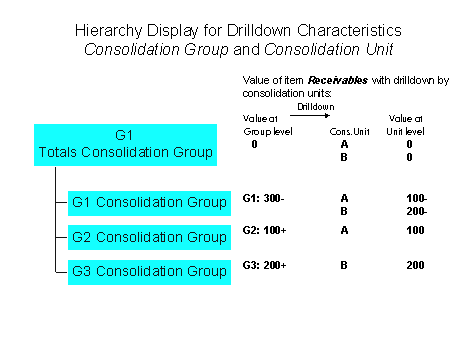 ( )
( )
Advantages
All amounts are displayed accurately, even at all hierarchy levels.
A consolidation unit can be fully or proportionately consolidated in multiple consolidation groups. (This is the case, for example, when consolidation units are transferred from one consolidation group to another.)
Disadvantage
Details on individual consolidation units can only be obtained by drilling down.
Note
However, it is possible to combine the drilldowns by consolidation group and consolidation unit in the printout of the report.
You can do this in
Settings for Mass Printing
under :
 Report
 Print layout
Drilldown and Detail List
Mass Print
Settings.
Print layout
Drilldown and Detail List
Mass Print
Settings.
 Change the sort sequence so that the consolidation group appears as the first characteristic, and the consolidation unit appears as the second characteristic. Make the consolidation unit the most detailed breakdown, and select
No page break
.
Change the sort sequence so that the consolidation group appears as the first characteristic, and the consolidation unit appears as the second characteristic. Make the consolidation unit the most detailed breakdown, and select
No page break
.
Hierarchy-related Drilldowns: Hierarchy of FS Items
You display the income statement with a hierarchy of financial statement items.
Option: Report Definitions
Case 1: The selection is defined using the FS item. Here you generally specify several single values and ranges. You use the FS item as a navigation characteristic, too.
Case 2: In general, you defined a totals item in hierarchy maintenance, which reflects the total of all income statement items. This makes the report definition easier as in Case 1 in addition to the fact that you use the characteristic totals item for the selection criteria: Specify "Income statement total" as a single value. As in Case 1, you use the characteristic FS item to display a drilldown or hierarchy of FS items.
 Caution
In a form, never use the characteristics FS item and totals item as selection criteria at the same time.
Hierarchy Variables
Hierarchy variables exist for totals consolidation groups and totals items. You can use hierarchy variables both in ad-hoc reports and form reports.
Note
For more information, see Specify Global Variables in the Implementation Guide for SAP Consolidation.
If you choose the hierarchy icon
 ( )
for a characteristic, you must specify the desired hierarchy in another window.
( )
for a characteristic, you must specify the desired hierarchy in another window.
Activities
As an example, we will define a drilldown report that compares the amounts in local and group currency. A hierarchy of consolidation units is to be displayed on the first screen. Note that the consolidation unit must be unambiguous in a report using local currency. This can only be achieved by defining two reports, and linking them via the Report-Report Interface :
Create a one-dimensional form with a key figure and the following general selections:
Ledger
Fiscal Year
Dimension
Consolidation Unit
Create a local variable for each of these general selections.
One column of the form displays the values in local currency, a second column displays the values in group currency.
Create a report for this form.
In the report choose the following characteristics:
Version
Consolidation Chart of Accounts
Item
Totals Consolidation Group
Posting Level
Define a local variable for each characteristic.
Create an ad-hoc report. Choose the following characteristics:
Consolidation Chart of Accounts
Item
Consolidation Unit
Posting Level 00
Choose the consolidation chart of accounts as the local variable, and the group currency as the key figure.
For the ledger, choose the global variable &0FROMTCG
Sort the characteristics as follows:
Consolidation Unit
Item
Assign the ad-hoc report you just created to the form report you created beforehand.
Start the ad-hoc report.
Result
Using a hierarchy you can compare the amounts in local currency and group currency of consolidation units. Mark a cell with a consolidation unit and select the function Execute report .